Data bits: 8
Parity: None
Stop bits:1
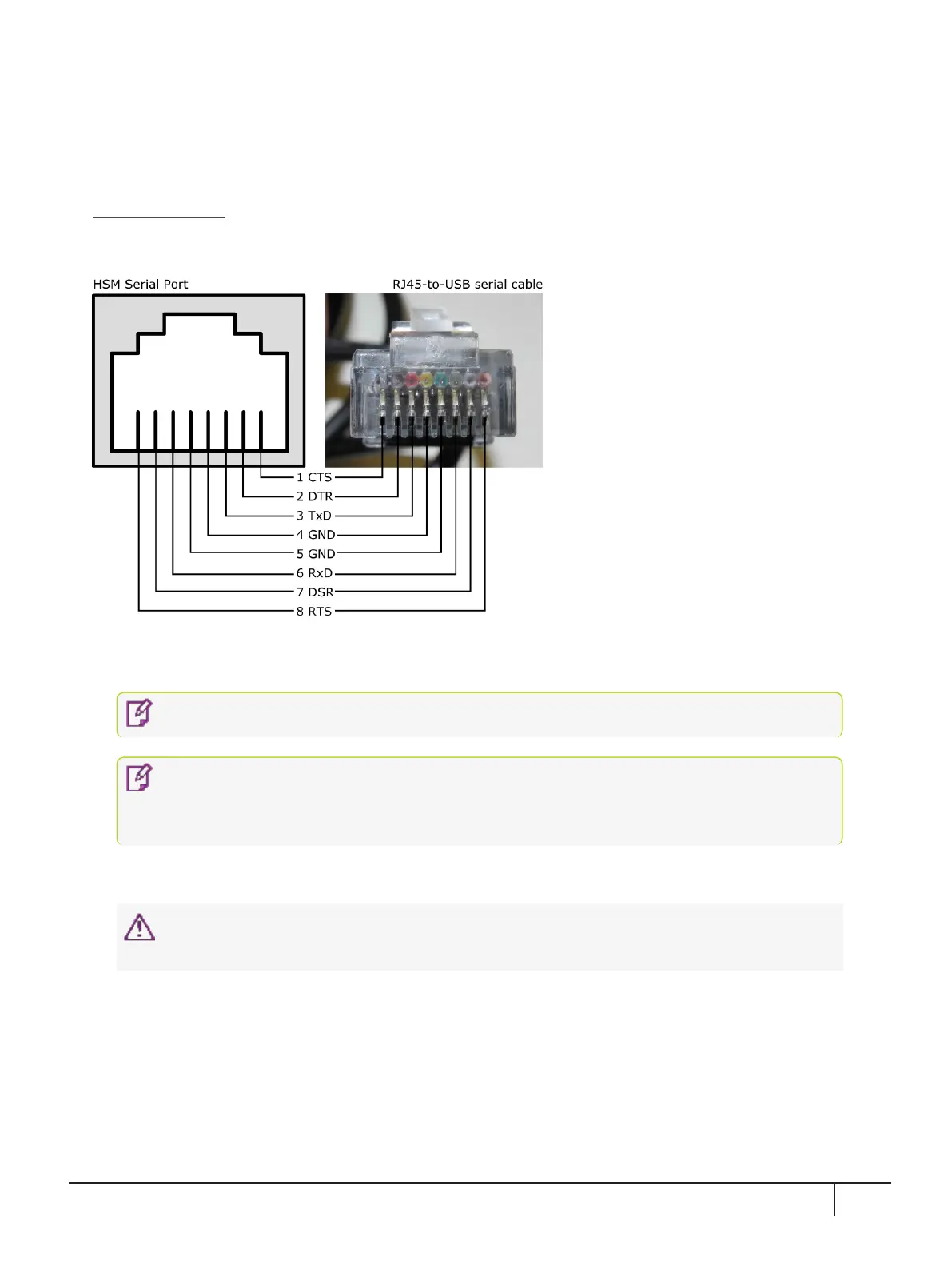
Serial Port Pinout
The serial port uses a configuration equivalent to the Cisco Terminal Console. The Prolific Technologies
Inc. RJ45-to-USB serial adapter cable uses a standard RJ45 pinout configuration:
5. When the connection is made, IP address information appears together with the appliance log in prompt:
keysecure login:.
NOTE You may need to press ENTER several times to initiate the session.
NOTE Windows 10 occasionally crashes when trying to detect a serial port. This is a
known issue with the Windows 10 PL2303 drivers. If you experience trouble opening a
serial connection using Windows 10, use another supported operating system.
6. As the System Administrator, enter "ksadmin" to log in and follow the prompts to create a secure password.
CAUTION! Be sure to retain this password - it will be required to access the system in
case of network connectivity problems.
The system starts up, which can take several minutes.
Connecting to the GUI
1.
After the system starts up, in the Console Window, choose the KeySecure IP address for your network.
Use this address to browse to the NextGen KeySecure GUI.
KeySecure k570 Appliance : Installation Guide
16 June 2020,Copyright© 2020 Thales Group.All rights reserved.
22


 To Next Page