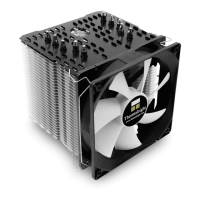
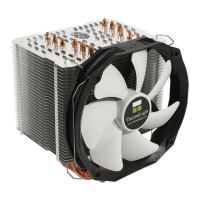
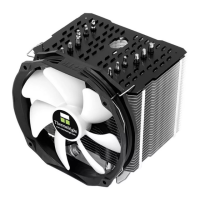
The Ultimate Cooling Solutions!
www.thermalright.com
4
Step 4: Step 5:
Step 6: Step 7:
Step 8: Step 9:
Chill Factor
2g
Chill Factor
2g
Chill Factor
2g
Chill Factor
2g
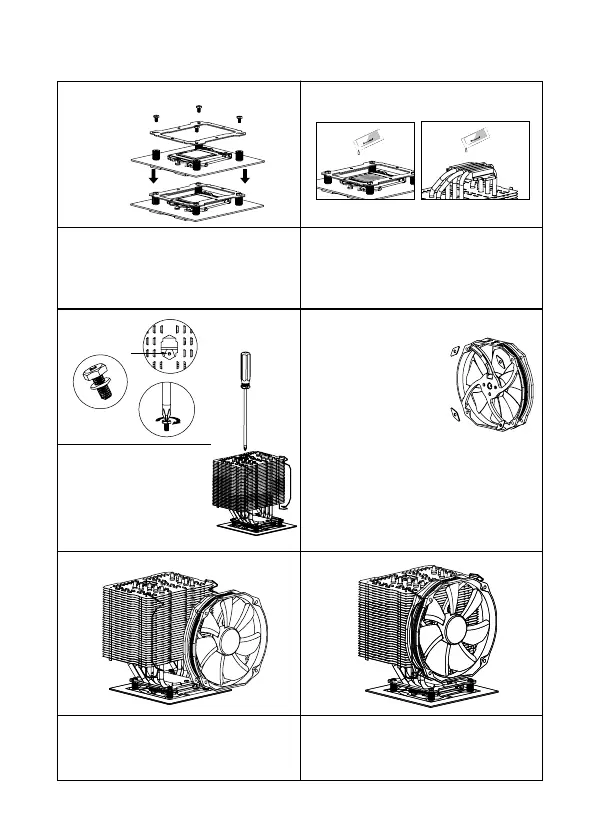
Step 8: Fan Installation
Place the included TY-140 Black onto the Heatsink
Body. And then secure it with the Fan Clips, by
pulling the Fan Clips to place the four ends at the
four holes on the TY-140 Black.
Step 5 : Applying Thermal Paste
Apply the Thermal Paste to the base of the heat-
sink and the surface of the CPU evenly. (A at
edge, like a business card or an old credit card
would be beneficial in spreading the thermal
paste.)
Step 9: Installation completed
Plug in the fan connector to the CPU PWM Fan
socket on the motherboard. Installation complete.
Step 6: Easy Access
Pass the supplied Screw
Driver through the central hole
of the Heatsink Body, for easier
access to the M3L7 Screw with
washer underneath the cooler.
Step 7: Apply fan cushion pads
Among the parts you will
find four pads that look like
elongated diamonds with a
whole in the center. Apply one
of the pads over each of the
four holes in the fan, please
take care to put them over
the holes on the fan according to your choice of
airflow. For push configuration (air flowing thru
the heat sink, apply as shown in the drawing. For
pull conguration (air being sucked out of the heat
sink), place them on the opposite side of the fan.
Then install the fan in your choice of conguration,
with the pads on the fan facing the heat sink.
1
2
4
3
Step 4 : Anchoring Mount Installation
Place the Anchoring Mount on the Screw
Nuts. Use the four M3L6 Screws to fix the
Anchoring Mount on to the Screw Nuts.


 To Next Page