藍色線條為尺寸標示,請勿印刷上去!
190 mm
266 mm
刀模線
產品料號
CA-1J9-00F9WN-00 Level 20
說明書
18/04/11
A
產品名稱
印刷項目
發稿日期
版本
CHECK DESIGN
Dora
(18/04/11)
Averson
(18/04/11)
80G騎馬釘X X X 32
書寫紙 雙銅
4色 4色無無
無無
其他特 殊 處理效果表面處 理
2
厚度(g/m )
折數 裝訂方 式 材質雙面印 刷 頁數 印刷色 彩單面印 刷
規格樣 式
單張 整本
157G
其他特 殊 處理效果表面處 理
2
厚度(g/m )
材質印 刷 色彩
封面樣 式 (當封面與 內 頁樣式不同 時 尚須填寫)
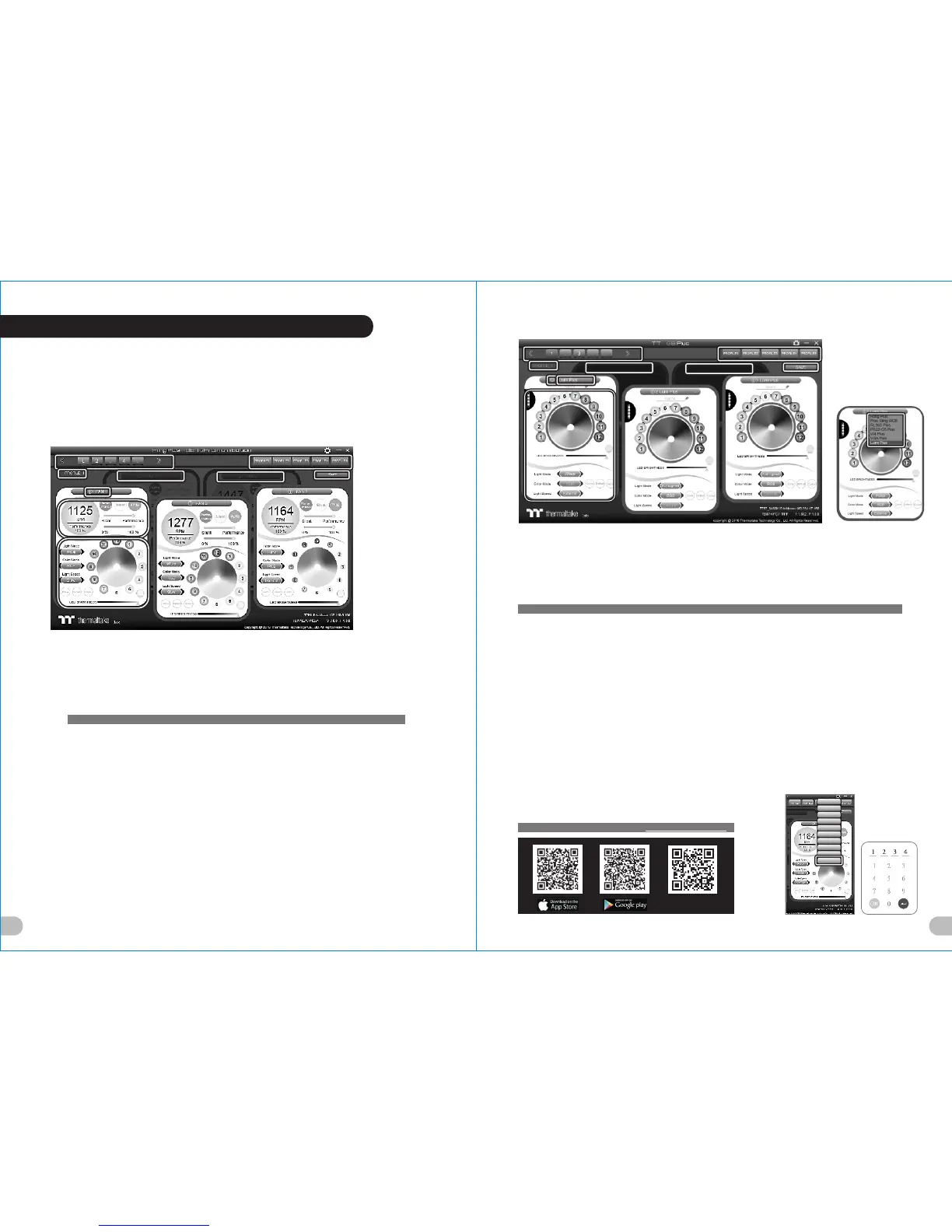
2. Lumi Plus LED Strips
A. TT RGB Plus software Profile Setting
A-1 Set up a profile: Choose a Profile and set up the LED Lighting Mode,
then click the SAVE icon(A-3) to store your settings to the software.
A-2 Save a profile to controller: Select a profile and a controller,
then click the Save icon to assign the profile to the controller.
B. Follow the Installation Guide step 3, you can set up the number of the controller
C. LED Lighting Mode
C-1 LED Selection: set up the LEDs lighting, color, and speed.
Light Mode: Choose a lighting mode
Color Mode: Choose the LEDs color
Light Speed: Set up the speed of the LEDs light
LED Spot & Color Palette: Choose the color of each of the individual LEDs by clicking the color palette
Done: Save your setting
Default: Reset the LED setting back to the default
Brightness: Drag the mouse to adjust LED light brightness.
LED On/Off: Click the LED Light icon to turn on or off the LED light
RGB Color Code: Enter the Decimal Code of Red, Green, and Blue to set the LEDs color
C-2 LED On/Off: User can switch off the LED control function in the software if the fan is not plug into the controller.
C-3 Drop-down list: click the product name to choice another you want.
D-1 & D-2. Product Selection: click the control panel to rotate it to the front
Full Lighted / Wave / Pulse / Ripple / Blink / Sound Control / RGB Spectrum / Flow / Thermal / Cross
3. Mobile APP Connection Password
To connect the TT RGB Plus APP, please connect the PC to your
wireless first, and click the Password setting under the software
setting menu, set up your connection password. The TT RGB Plus
APP will ask for your password every time when starting the APP.
For more information please visit www.thermaltake.com
正體中文
Englis h
Englis h
正體中文
簡體中文
簡體中文
Deutsc h
Deutsc h
França is
França is
日本語
日本語
ไทย
ไทย
Auto Upd ate On
Auto Upd ate On
Passwo rd On
Passwo rd On
Passwo rd:8888
Passwo rd:8888
A-1A-1
A-2A-2
A-3A-3
BB
D-1D-1
D-2D-2
C-1C-1
C-2C-2
C-3C-3
C-3C-3
Please download software from Thermaltake Official website.
search " Riing Plus RGB " on the official website.
OS compatibility: Windows 7 / 8 / 8.1 / 10
1. Software User Interface -
Riing Plus Fans
A. TT RGB PLUS software Profile Setting
A-1 Set up a profile: Choose a Profile and set up the Fan Speed Mode and LED Lighting Mode,
then click the SAVE icon(A-3) to store your settings to the software.
A-2 Save a profile to controller: Select a profile and a controller,
then click the Save icon to assign the profile to the controller.
B. Follow the Installation Guide step 3, you can set up the number of the controller
C. Fan Speed Mode and LED Lighting Mode
C-1 Performance Mode: 500~1500RPM (Duty cycle 0%~100%)
Silent Mode: 500~900RPM (Duty cycle 0%~50%)
PWM Mode: The PWM function can be turned off and set the fan speed manually
C-2 LED Selection: set up the LEDs lighting, color, and speed.
Light Mode: Choose a lighting mode
Color Mode: Choose the LEDs color
Light Speed: Set up the speed of the LEDs light
LED Spot & Color Palette: Choose the color of each of the individual LEDs by clicking the color palette
Done: Save your setting
Default: Reset the LED setting back to the default
Brightness: Drag the mouse to adjust LED light brightness.
LED On/Off: Click the LED Light icon to turn on or off the LED light
RGB Color Code: Enter the Decimal Code of Red, Green, and Blue to set the LEDs color
C-3 Fan On/Off: User can switch off the fan speed and led control function in the software if the fan
is not plug into the controller.
D-1 & D-2. Fan Selection: click the control panel to rotate it to the front
Full Lighted / Wave / Pulse / Ripple / Microphone / Sound effect / RGB Spectrum / Flow
A-1A-1
A-2A-2
A-3A-3
BB
D-1D-1
C-1C-1
C-2C-2
D-2D-2
C-3C-3
Tt RGB Plus Software control interface
Learn mor e about
TT RGB Plus
21 22



 To Next Page