Chapter 6
Troubleshooting
E-DOC-CTC-20050429-0100 v1.0
91
6.3 Reset to Factory Defaults
Resetting your
SpeedTouch™
You might consider a reset to factory defaults as described below.
You can choose between:
Hardware reset
Software reset
A reset to factory default settings deletes the configuration profile settings.
Therefore, after the reset, a reconfiguration of your SpeedTouch™ will be needed.
Hardware reset Proceed as follows:
1 Make sure the SpeedTouch™ is powered on.
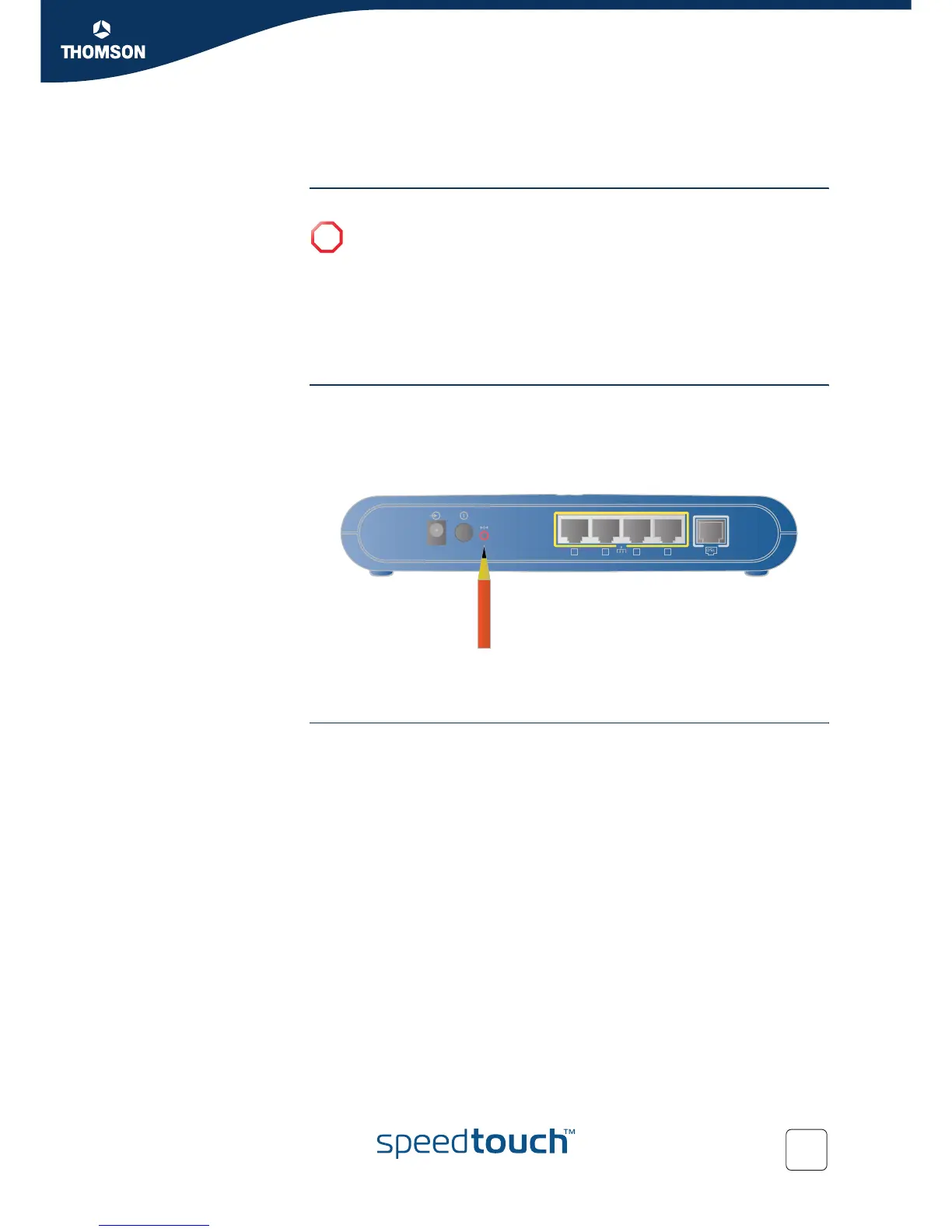
2 Use a pen or an unfolded paperclip to push the recessed reset button on the
back panel. The reset button is marked with a red circle. Keep it pushed until
the power LED lights red - this will take about 7 seconds.
3 Release the reset button.
4 The SpeedTouch™ restarts.
Software reset Proceed as follows:
1 Go to the SpeedTouch™ web pages.
2 In the menu select SpeedTouch > Configuration.
3 In the Pick a task... list, click Reset my SpeedTouch to default settings.
4 The SpeedTouch™ restarts.
5 The SpeedTouch™ returns to the SpeedTouch™ Home page (unless the IP
address of your computer is not in the same subnet as the default IP address of
the SpeedTouch™, being 192.168.1.254).
!
Be aware that a reset to factory defaults will revoke all configurational
changes you made to the SpeedTouch™.
15VAC ON/OFF
1 2 3 4





 To Next Page