16 ST PLUS ENGLISH
ENGLISH ST PLUS 16
Keyboard Settings - Express Key
To configure a single key to send multiple
key combina- tions, or to create more useful
shortcut keys, use Express Key.
1. Enable and select the keyboard under your
chosen profile, click on a key to select
it, and then click to select Express Key in
Action Type.
2. In the following example we want to change
an existing game key configuration which
uses the left shift key for sprinting,
and the W key for moving forwards, to
use the left Ctrl key to combine this
movement to sprint forward.
3. Click on the chosen key for the shortcut
action.
4. Click in the Tool Tips field and type to give the
key combination a name e.g. “Sprint Fwds”,
then click back in the Name field (to
avoid adding the recorded keys to the Tool
Tips name).
5. Click Start Record and then press the key
or keys (in this case we will press Left Shift
and W) required (make sure you press
the key(s) required and do not click on them).
6. Click Stop Record to complete the process.
7. Click Save to save the settings within your
chosen profile.
8. If you want to remove any individual key click
to select it, and then click Delete.
9. If you want to clear all the settings click
Restore to return to the default key setting.
10. Any assigned Express Keys will appear in
orange.
Keyboard Settings - Launch App
You can configure keys to launch any
application or pro- gram as follows:
1. Enable and select the keyboard under your
chosen profile, click to select a key to launch
the appllication, and then click
to select Launch App in Action Type.
2. Click Browse... at the bottom right of the
application window.
3. Navigate to the executable file of the
application and click Open.
4. The key will now be configured to open the
selected application under your chosen
Profile, and the key will appear in green.
5. If you want to remove any Launch App key,
select it and click on Restore.
6. Click Save to save the settings within your
chosen profile.
Keyboard Settings - Express Text
A single key can be set to send a string of text
within any application using Express Text.
1. Enable and select the keyboard under your
chosen profile, click to select a key, and then
click to select Express Text in Action Type.
2. Click in Start key if required (the Start key is
the key used in your target program to open
a text message), or you can leave it blank if
you prefer.
3. Click in the Click to type field and type in your
message.
4. Click in Send key if required (the Send key
is the key used in your target program to send
a text message e.g the Enter key would be the
most commonly used), or you
can leave it blank if you prefer.
5. The key will now be configured to send the
text message in the target program
under your chosen Profile, and the key
will appear in blue.
6. If you want to remove any Express Text key,
select it and click on Restore.
7. Click Save to save the settings within your
chosen profile.
Keyboard Settings - Disable
You can use the program to disable any keys not
required.
1. Enable and select the keyboard under your
chosen profile, click to select a key to disable,
and then click to select Disable in Action
Type.
2. The key will now be disabled.
3. If you want to enable the key again, select it
and click on Restore.
4. Click Save to save the settings within your
chosen profile.
5. The key will be disabled under your chosen
Profile, and the key will appear in gray.
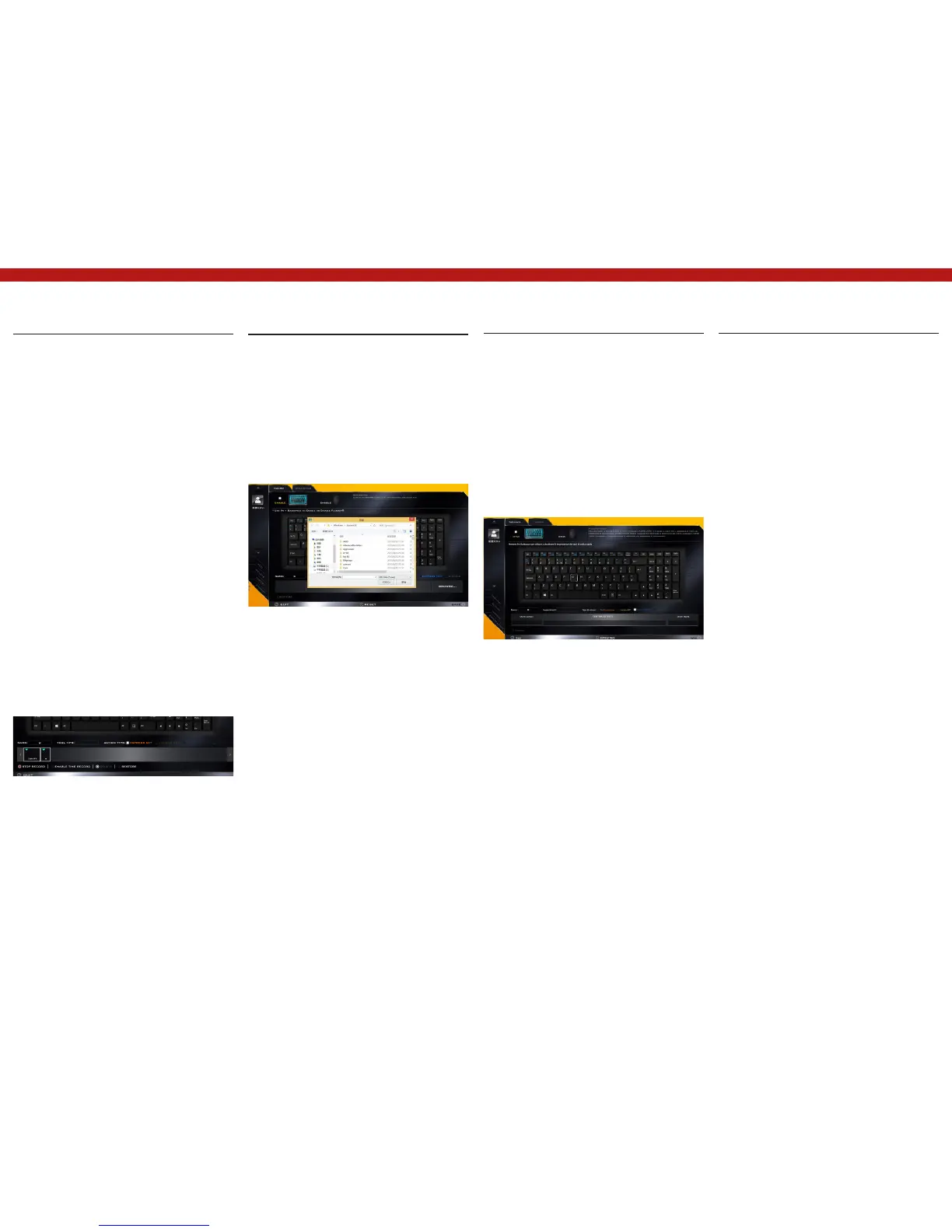
Figure 19 - Keyboard - Express Key
Figure 20 - Keyboard - Launch App
Figure 21 - Keyboard - Express Text



 To Next Page