18 ST PLUS ENGLISH
ENGLISH ST PLUS 18
Display Devices
Note that you can use external displays
connected to the HDMI-Out port and/or Mini
DisplayPort. See your display device manual to
see which formats are supported.
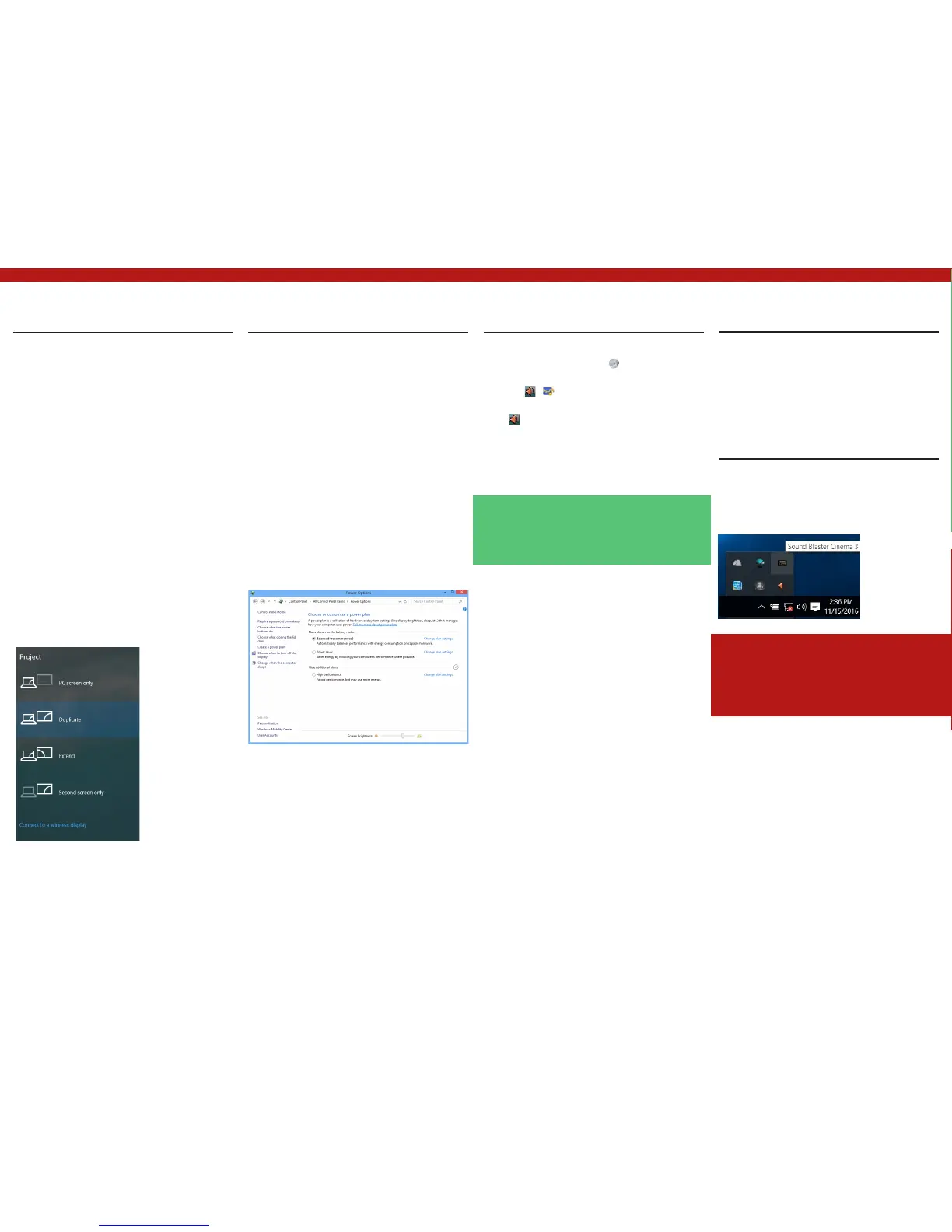
In Windows it is possible to quickly configure
external displays from the Project menu (press
the Windows Logo Key and the P key or
press the Fn + F7 key combination).
To configure the displays using the Project
menu:
1. Attach your external
display device to the
appropriate port,
and then turn it on.
2. Press the + P
Or Fn + F7) key
combination.
3. Click on any one of the options from the
menu to select PC screen only, Duplicate,
Extend or Second screen only.
Power Options
The Power Options (Hardware and Sound menu)
con- trol panel icon in Windows allows you to
configure power management features for your
computer. You can conserve power by means
of power plans and configure the options for
the power button, sleep button (Fn + F12),
computer lid (when closed), display and sleep
mode (the default power saving state) from the
left menu. Note that the Power saver plan may
have an affect on computer performance.
Click to select one of the existing plans, or click
Create a power plan in the left menu and select
the options to cre- ate a new plan. Click Change
Plan Settings and click Change advanced
power settings to access further con- figuration
options.
Audio Features
You can configure the audio options on your
computer from the Sound control panel
in Windows, or from the Realtek HD Audio
Manager / icon in the notifica- tion area/
control panel (right-click the notification area
icon to bring up an audio menu).
The volume may be adjusted by means of the Fn
+ F5/F6 key combination.
Sound Blaster Cinema 3
Install the Sound Blaster Cinema 3 application
to allow you to configure the audio settings to
your requirements for the best performance in
games, music and movies.
Sound Blaster Cinema 3
Application
Run the Sound Blaster Cinema control panel
from the notification area of the taskbar. Click
on the tabs to access any of the control panel
menus.
Figure 25 - Sound Blaster Cinema 3 (Taskbar
Notification Area Icon)
Figure 23 - Project
Figure 24 - Power Options
Volume Adjustment
The sound volume level can also be set using the
volume control within Windows. Click the Speaker
icon in the taskbar to check the setting.
Sound Blaster Cinema 3 & HDMI/Mini
DisplayPort
Note that the Sound Blaster Cinema 3 audio effects
do not apply to audio generated through an HDMI/
Mini DisplayPort connection.


 To Next Page