17 ST PLUS ENGLISH
ENGLISH ST PLUS 17
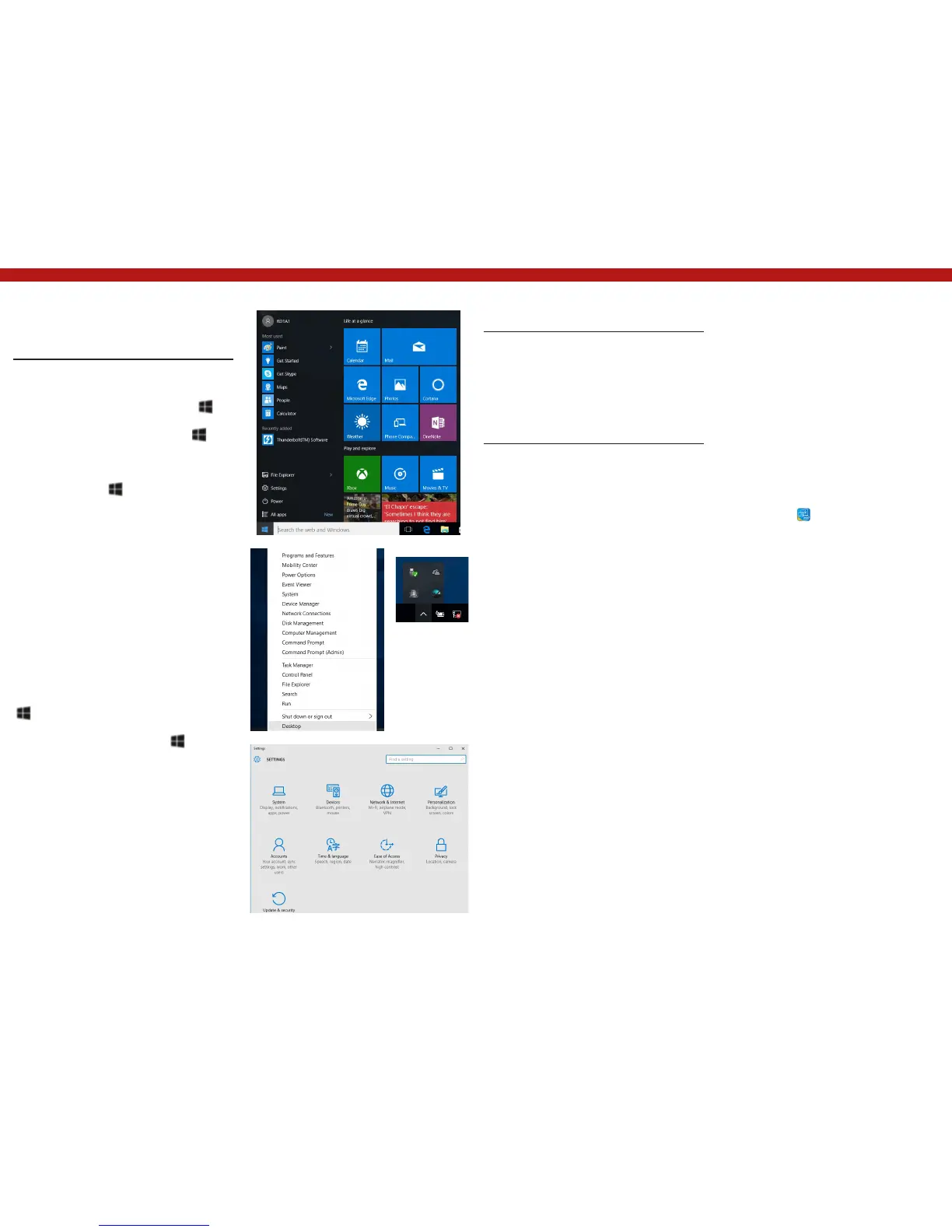
Windows 10 Start Menu, Context
Menu, Taskbar, Control Panel and
Settings
Most of the apps, control panels, utilities and
programs within Windows 10 can be accessed
from the Start Menu by clicking the icon in
the taskbar in the lower left corner of the screen
(or by pressing the Windows Logo Key
on the key- board).
Right-click the Start Menu icon (or use the
Windows Logo Key + X key combination)
to bring up an advanced Context Menu of useful
features such as Control Panel, Programs and
Features, Power Options, Task Manager, Search,
File Explorer, Command Prompt, Device Manager
and Network Connections etc.
The notification area of the taskbar is in the
bottom right of the screen. Some of the control
panels and applications referred to throughout
the course of this manual can be accessed from
here.
Throughout this manual you will see an
instruction to open the Control Panel. To access
the Control Panel, right-click the Start Menu icon
in the taskbar in the lower left corner of the
screen and select Control Panel from the menu.
Or, press the Windows Logo Key on your
keyboard and X to bring up the context menu,
and then press P to bring up the Control Panel.
The Settings item in the Start Menu (and also
as an App) gives you quick access to a number
of system settings control panels allowing you
to adjust settings for System, Devices, Network
& Internet, Personalization, Accounts, Time &
lan- guage, Ease of Access, Privacy and Update
& security.
Figure 22 - Start Menu, Context Menu, Taskbar,
Control Panel and Settings
Video Features
The system features both an Intel’s Integrated
GPU (for power-saving) and an NVIDIA’s
discrete GPU (for performance). You can switch
display devices, and configure display options as
long as the video drivers are installed.
Microsoft Hybrid Graphics
Microsoft Hybrid Graphics is a seamless
technology designed to get best performance
from the graphics sys- tem while allowing longer
battery life, without having to manually change
settings. The computer’s operating sys- tem
(and some applications) will automatically
switch between the integrated GPU and the
discrete GPU when required by the applications
in use.
To access the Display control panel in
Windows:
1. Go to the Control Panel.
2. Click Display (icon) - in the Appearances and
Personalization category.
3. Make the required changes from the Display,
Resolution, Orientation or Multiple display
menus.
4. Click Apply to save the settings.
To access the Intel® HD Graphics Control Panel:
1. Right-click the desktop and select Graphics
Properties from the menu.
OR
2. Click the icon in the notification area
of the Desktop taskbar and select Graphics
Properties from the menu.
To access the NVIDIA Control Panel:
1. Go to the Control Panel.
2. Click NVIDIA Control Panel (icon) - in the
Appearances and Personalization category.
OR
3. Right-click the desktop and select NVIDIA
Control Panel from the menu.


 To Next Page