376
P R O G R AMMI N G A ND S E T T I N G S
— Enable / block changes via keyboard - Password
All parameters (measurements and settings) are available for reading from the operator panel
(MMI), while the setting changes are enabled or disabled depending on possible operation modes:
• Enable without password (factory setting)
• Enable with password
• Disabled
The choice of operation modes is possible only through ThyVisor operating at the session level 1:
• Connect the PC serial port to the relay socket on the RJ45 front panel
• Run the ThyVisor sw (the latest version latest version available on the site is recommended)
• Select the Preference-Sessionmenu; when you start the session level is set to 0 as shown in
the bottom of the window
• Select the level 1. Prompted for a password (the default level1) to move to level 1. Confirm twice
with “OK”. (Level 1, as shown in the bottom of the window)
• Open communication session using Local IP address obtained from MMI indication and wait for
“OnLine” green field message on left-down side of the screen
• Open tree menu by click on device located in Project View field
• Open Set
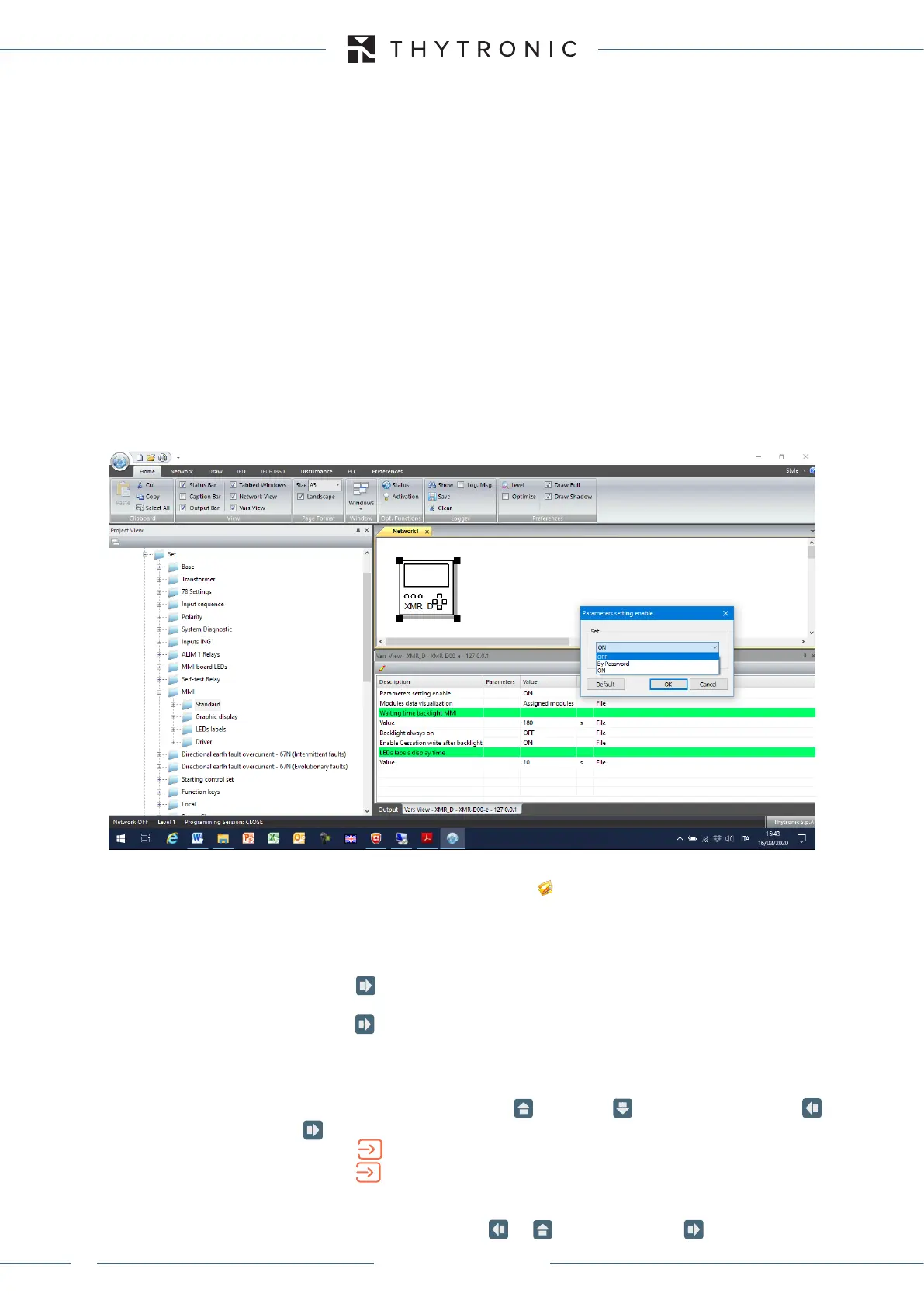
• Select the Set \ MMI folder (MMI stands for Man-Machine-Interface = keyboard). On the right side
of the window (first row) select
Parametersettingenable; with a “click” on the column value 3
options are available:
- OFF = keyboard enabled only for reading
-
Bypassword = keyboard enabled for reading and setting by means of password
- ON = keyboard enabled for reading and setting without password
To modify any parameter the calibration session must be open by means of
Startsetting command
from the menu or directly by clicking on the
icon placed on the top bar, the opening of the session
setting is highlighted by its Programmingstate:Open on yellow field on the bottom bar.
Operation with Password
If the Bypassword mode is selected a new menu password is inserted at the top of the display
menu.
• Press the key the: password not ok >> message is displayed and any changes of para-
meters is disabled
• Press the key; you can enter the password page enter password where you are promp-
ted to enter the 4 characters password (the default password is 0000)
• Press the
(Enter) button for a few seconds; the modification in progress status is highlighted
by flashing of the START and TRIP LEDs and by appearance of the pointer on the bottom
• Change the parameters by means the
(increment) or
(decrement) buttons,
using the and
keys to move to the previous or next character
• Press the
(Enter) button; the cursor and the LED TRIP turn off (the LED START keeps flashing),
• Press the
(Enter) button for a few seconds; new message appears: Confirm settings?
• Answer to the message ENTER: YES to confirm changes or RESET: NO to abort.
• The message: password ok >> is displayed
• To exit from password menu use or
keys: if you press the button you go back in the
XMR-D EQUIPMENT MANUAL
Ed. 2.9 - 02/2021


 To Next Page