08
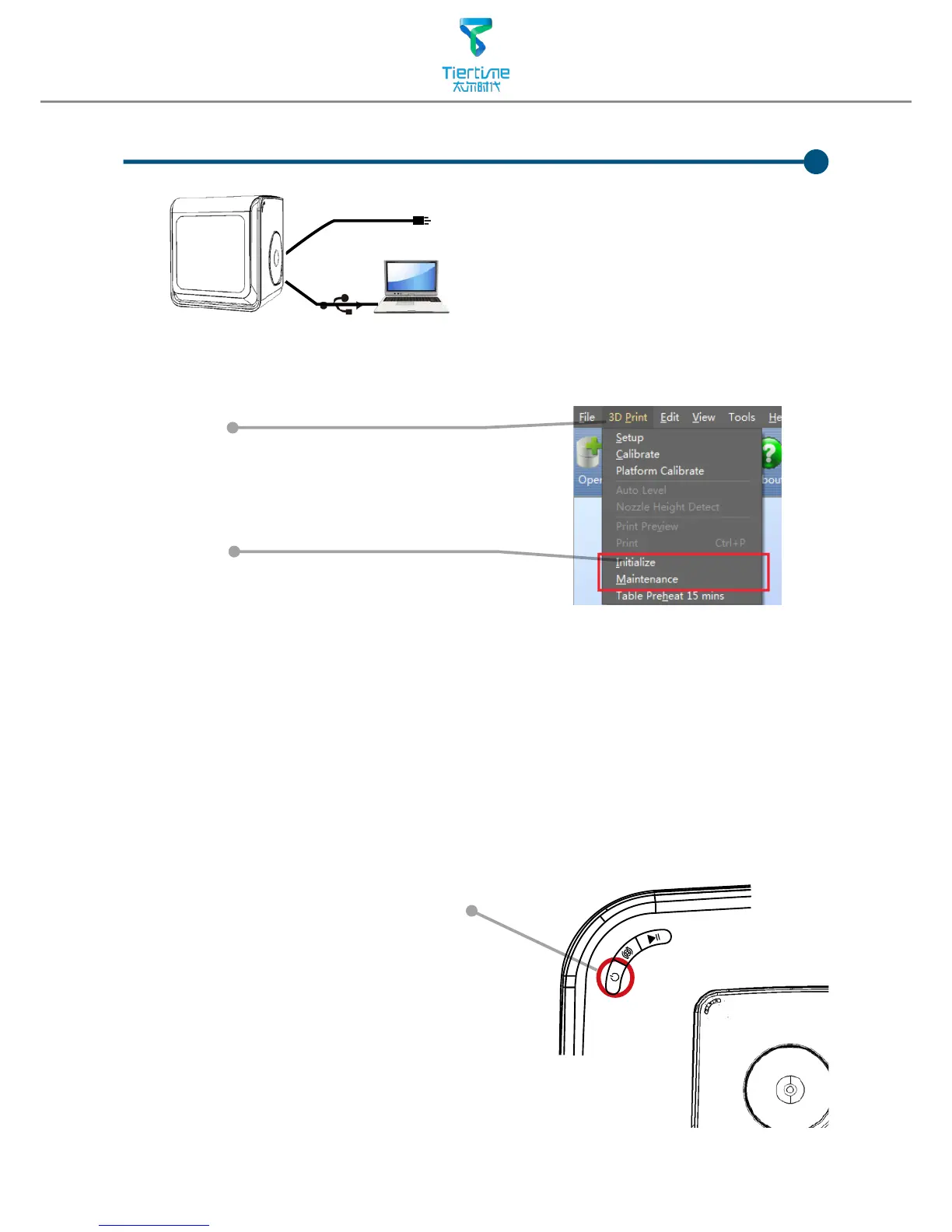
First make sure computer and printer is
connected to computer via USB cable and
the printer is switched on. The UP BOX
LED bar will light up in yellow.
UP
Testing of Printer Driver Installation
Initialization of printer
Initialization is required for everytime the machine is switched on. During initialization the
print head and print platform move slowly and hit the endstops of XYZ axes. This is essential
as the printer need to find the endpoints of each axis. Only after initialization, the other
software options will light up and become available for use.
Two ways of initialization:
1. UP BOX can be initialized by clicking initialization option in the menu which is shown
above.
2. When the printer is idle, long press the initialization button on the printer will also trigger
initialization
The other functions of
Initialization Button:
1. Stop current print job: During printing
press and hold the button.
2. Reprint last job: Double click of the
button.
Initialization Button
In Software main menu,
Click "3D Print".
If "Initialize" and "Maintenance"
options light up and avaliable for
selection this indicates the successful
installation of printer driver.



 To Next Page