8 TimePilot me and a endance systems TimePilot me and a endance systems 9
Clocking in and out
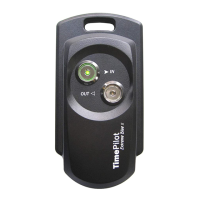
To clock in or out, just touch
your iBu on to the appropriate
iBu on probe. You’ll hear a
“beep” and the light in the probe
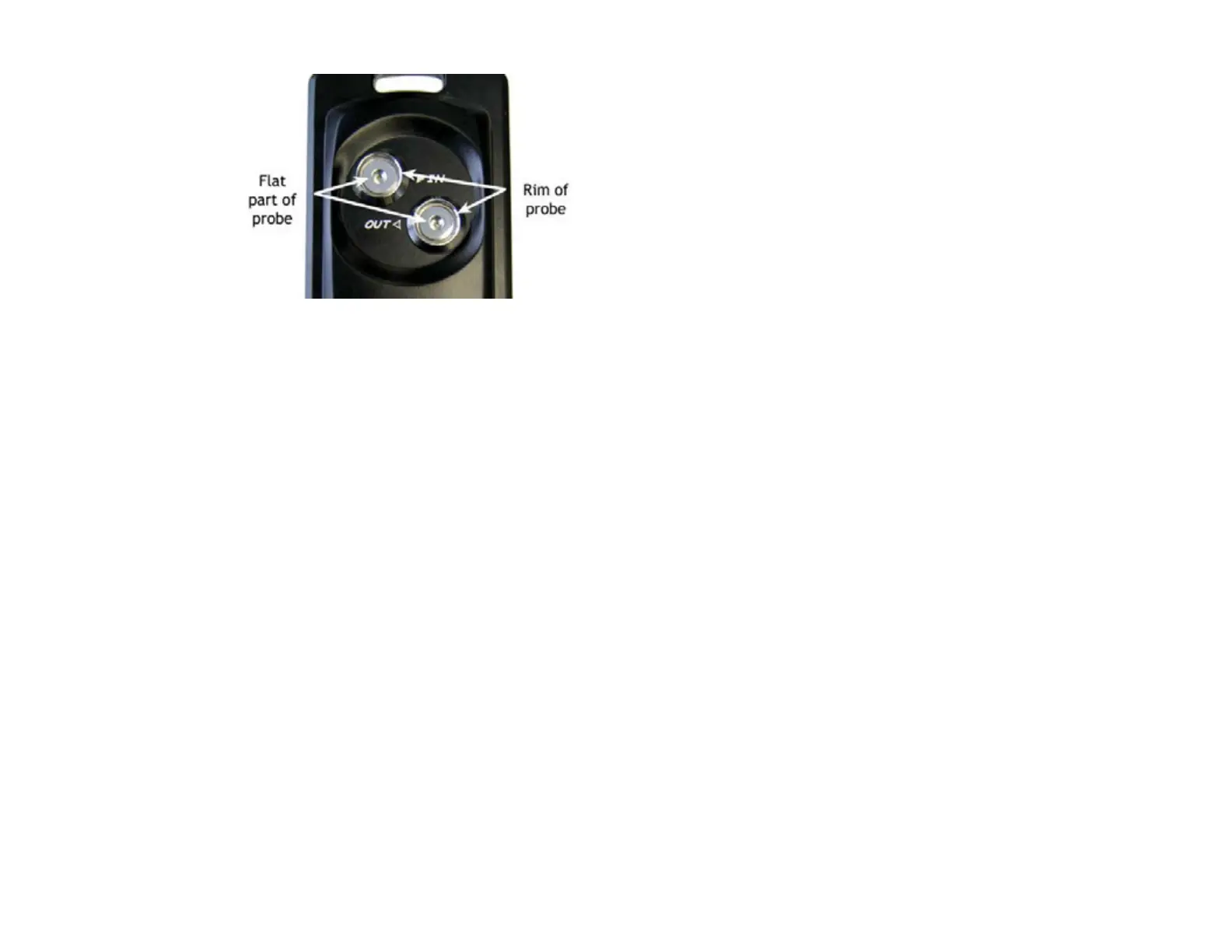
will fl ash. The metal part of the
iBu on must touch both the
inner fl at surface of the probe as
well as the inner rim of the collar.
If you touch your iBu on to the
probe and nothing happens,
hold the iBu on gently against
the probe and slide the iBu on
slightly to the side, so the iBu on
makes contact with the rim of
the probe.
Collec ng and retrieving data
Here’s an overview of the process you’ll use to collect the me and a endance data from the
Extreme me clock(s) and import the data into the TimePilot so ware:
First, you’ll have the me clock(s) download the me and a endance data onto the included
USB drive. Then you’ll upload data from the USB drive to the PC running the TimePilot
so ware. Data can be collected from mul ple clocks before returning to the PC and uploading
the data. The data can be also be collected as frequently as desired. Even though your pay
period may be weekly or biweekly, you may collect the data every day, if desired.
Unlock the padlock securing the me clock to the moun ng plate, then insert the USB 1.
drive into the USB port on the bo om of the clock. The clock can be removed from the
moun ng plate to make it easier.
Tap the included gray Management iBu on to the “In” probe of the clock. The lights 2.
on the two probes will begin fl ashing yellow in an alterna ng pa ern while the clock
readies the drive to write data to the USB drive. When complete, the probes’ lights
will fl ash green as the clock writes the most recent data to the drive. When the lights
stop fl ashing, a series of beeps will sound, indica ng that the data has been wri en
successfully.
Remove the USB drive, rea ach the clock to the moun ng plate (if necessary) and 3.
secure the clock with the padlock.
Repeat the above steps for each clock you own, if desired.4.
Return to the PC and insert the USB drive into an available USB port on your PC.5.
Run the TimePilot so ware’s “Extreme Data Manager”: Click “Start” on the Windows 6.
desktop, then “All Programs.” Select “TimePilot IV” and then click “TimePilot Extreme.”
Extreme Data Manager will automa cally detect the presence of the USB drive with the 7.
TimePilot data fi les. Follow the screen prompts to import your data into the TimePilot
database.
View and edit the transac ons in TimePilot Central. For more about TimePilot Central, 8.
see Page 25.
Se ng the me on your Extreme me clock
It’s important that the me on your Extreme me clock be accurate. You can check the me on
the clock when you import me and a endance data into TimePilot Central. If the me on the
clock is off , here’s how to correct it:
Insert the USB drive into the USB port on the PC running the TimePilot so ware.1.
Run the “Extreme Data Manager”: Click “Start” on the Windows desktop, then “All 2.
Programs.” Select “TimePilot IV” and then click “TimePilot Extreme.”
Click the icon of the clock you want to change.3.
Click the “Edit” menu and choose “Set Sta on Date and Time…” from the pop-up menu.4.
The Set Date and Time box will appear.5.
The fi rst op on will set the date and me on your me clock to match your PC’s clock. 6.
Please note that if your me clock is far from the PC, it may take a few minutes to reach
the clock and the me will be off by that number of minutes. If that’s the case, don’t
use this op on; use the second op on.
The second op on allows you to manually set the date and me. This is a be er op on 7.
if there will be a delay between the me you load the me on the USB drive and the
me you get to the me clock.
Choose one of the op ons and click OK.8.
Remove your USB drive and bring it to the me clock.9.
Remove the padlock, plug the USB drive into the me clock and tap your gray 10.
Management iBu on to the “In” probe.
The lights will fl ash on the clock to indicate that it is being updated. When the lights 11.
stop fl ashing, the process is complete. Remove the USB drive and re-lock the clock with
the padlock.


 To Next Page
 Loading...