16 TimePilot me and a endance systems TimePilot me and a endance systems 17
TimePilot PC
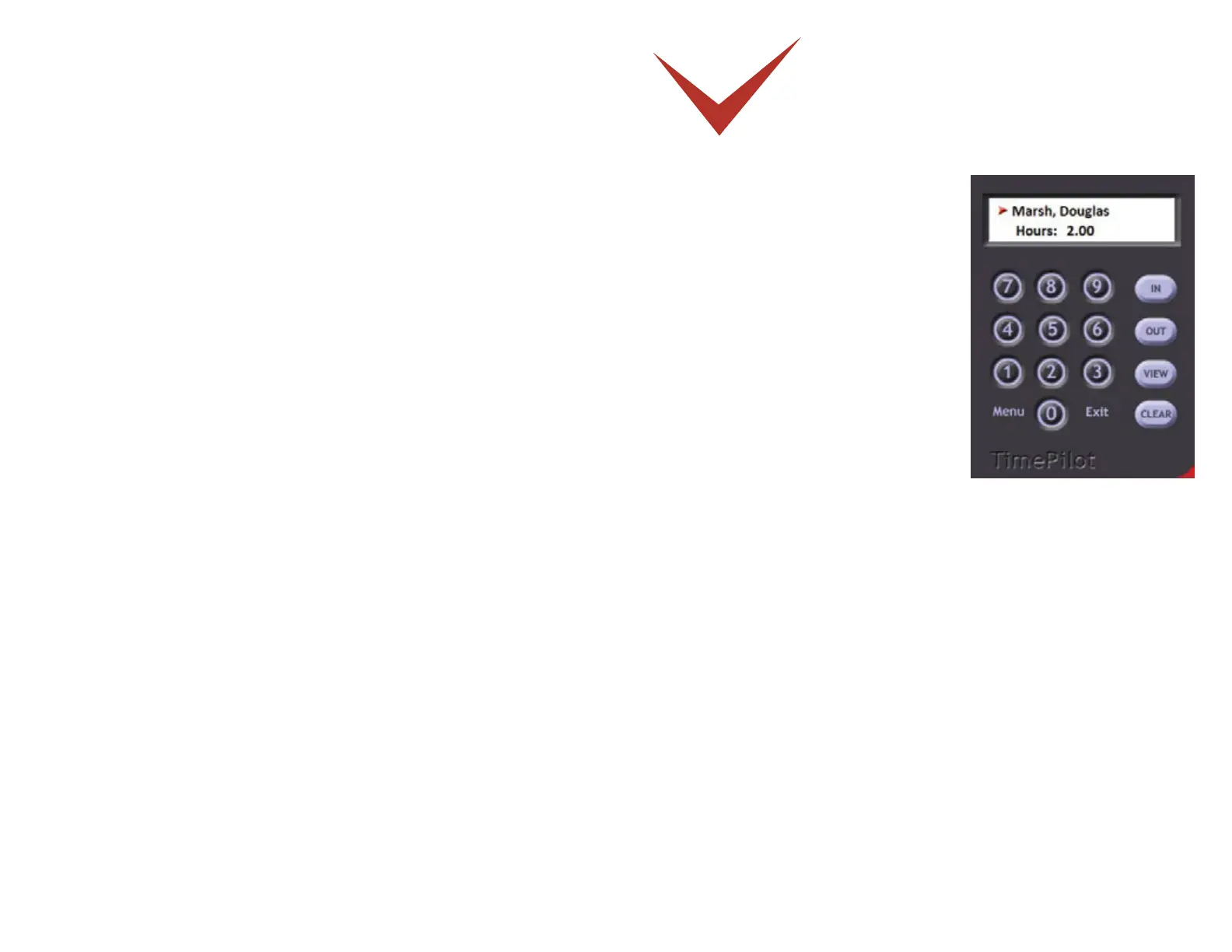
The core of TimePilot PC is the “virtual meclock”
(shown at right). This clock appears on your
employees’ computer desktop, allowing them to clock
in and out right at their PC. The clock-in and clock-
out data is collected on the PC or at your server and
can be manipulated by supervisors using TimePilot
Central.
TimePilot PC ships with fi ve licenses, which means the
“virtual clock” can be installed on up to fi ve employee
PCs. Any number of employees can clock in and out
at those PCs. Addi onal licenses are inexpensive, so
you could have dozens of employees clocking in and
out right at their desks. (Need more licenses? You can
order them at the TimePilot web site, www.TimePilot.
com.)
Se ng Up TimePilot PC
Users of TimePilot PC have a few extra steps to perform to get their system up and running.
First, like any TimePilot user, you’ll install TimePilot Central on the PC that a supervisor will
use to work with the me and a endance data collected by the system. Then you’ll install the
“virtual meclock” on the PC(s) that employees use to clock in and clock out. If the supervisor’s
computer will also be used to clock in and out, you’ll perform both installa ons on that PC.
Here’s how to install the “virtual meclocks”:
Install and set up TimePilot Central on the supervisor’s PC, as described on Page 25.1.
Place the CD in the CD drive of the fi rst PC that will run the “virtual meclock.” When 2.
the opening screen appears, click “Install TimePilot so ware.”
On the next screen, click “TimePilot Installa on Wizard.”3.
Click “No” when the so ware asks if you’ll manage TimePilot Data from this computer.4.
Click “No” when asked if you want to install Hardware Manager, and “No” again when 5.
asked if you want to install the Extreme Data Manager.
When the “TimePilot PC Clock” screen appears (screenshot on next page), click “Yes.”6.
The Installa on Wizard will start up. Follow its instruc ons to install the clock on the PC.7.
Will you have employees clock in and out by clicking the bu ons on the screen with 8.
their mouse or with iBu ons? If they’ll use their mouse, con nue to Step 9. If they will
use iBu ons to clock in and out, you must install the drivers for the Blue Dot Receptor,
a device that plugs into a USB port and can read iBu ons. Here’s how:


 To Next Page