Copyright © 2010 Topscan Ltd. All Rights Reserved.
• Appendices
Trouble-shooting
1. Q: How do I know if Scanmarker software was installed successfully?
A: To check whether Scanmarker software was installed correctly, ensure that both
Scanmarker’s driver and application were properly installed by following these directions:
To ensure that your device driver installed properly:
Make sure that your Scanmarker device is connected to an available USB slot in
your computer. Then click “Start” “Control Panel” “System”. Under the
“System Properties” menu click “Hardware” and then click "Device Manager".
Select "Universal Serial Bus Controllers". If Scanmarker installed correctly,
“Scanmarker 1.30” will appear under “Universal Serial Bus Controllers”.
To ensure that your Scanmarker software was installed properly:
Check to see whether Scanmarker’s application icon was placed on your desktop
on the bottom right corner of the screen. If you are unable to find the icon on your
desktop, click "Start" "Programs" (or "All Programs", depending on your
operating system). If Scanmarker was properly installed, you should see a
program group named "Topscan". If you do not see this program group, make
sure that no groups are hidden by clicking the down- or up-arrows to expand the
program list.
2. Q: Scanmarker indicates it is not licensed. What should I do?
A: Run the activation wizard found under “All Programs” “Topscan” group of files.
3. Q: Scanmarker will not scan to an application. What should I do?
A: Under Scanmarker’s settings menu check that the "Scan as Text" mode is selected.
Then, make sure that the cursor is placed in a visible portion of the application and that
the application is in focus, meaning, that it is running in the foreground.
Also, check to ensure that you are following Scanmarker’s scanning guidelines.
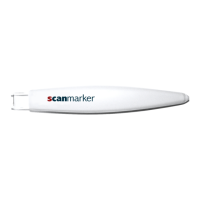
Scanmarker will only recognize a line that was correctly scanned between the two sharp
tips of your Scanmarker device.
4. Q: What are the jagged red underlines under some of the scanned
words?
A: In most applications, jagged red underlines indicate that your editing program did not
recognize the spelling of the word and has marked it as a misspelled word.. To correct
any misspellings, right-click the underlined word to see spelling alternatives. Then you
can choose one of the alternative suggestions for that word and replace it.
For further help with spelling, please consult the help resources in the application into
which you are scanning.


 To Next Page