Copyright © 2010 Topscan Ltd. All Rights Reserved.
Activation
During the installation process you will be asked to activate your Scanmarker using the
activation code that appears on your Scanmarker package.
The Scanmarker activation process can be performed either by email or over the
Internet. If you choose to activate Scanmarker by email, follow the instructions that
appear when choosing this option. If you choose to activate Scanmarker via the Internet,
you will require an internet connection to communicate your Scanmarker’s serial number
and your computer’s network card number to the Scanmarker servers. No personal,
identifying or otherwise sensitive information from your computer is sent.
Please note:
The license key is printed on the cover of your Scanmarker installation CD.
The license key is case sensitive and requires that you enter any hyphens that
appear in the code.
You may provide your contact details during the installation. Doing so will improve
further assistance if required and allow us to update you when updates are available.
If you have difficulty registering your product, please contact Topscan support via email
at support@scanmarker.com.
In case you had not, for some reason, completed the activation process during the
software installation, please do it afterward by using the “Activate Scanmarker” option
under Topscan’s menu in the program files. “Start menu” -> “All Programs” -> “Topscan
program group” -> Scanmarker program.
Connecting Your Scanmarker
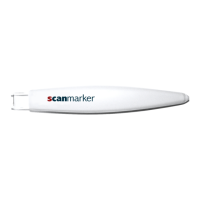
Once you’ve completed the software installation, connect Scanmarker to an available
USB port on your computer.


 To Next Page