Copyright © 2010 Topscan Ltd. All Rights Reserved.
• Getting Started
This manual describes how to use your Scanmarker and its accompanying software
application.
In this section you will learn how to install your Scanmarker Software onto your
computer, how to access technical support and how to register your product.
Installing Your Scanner and Software
Congratulations on purchasing your Scanmarker! Your package includes the following:
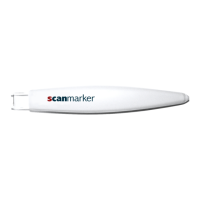
Scanmarker Pen Scanner — A handheld device for capturing text, numerical data
and handwriting.
Scanmarker Software — A CD that includes the installation software, Scanmarker
software, tutorial video, and PDF version of this User Guide.
Warranty Card
Quick Reference Guide (printed copy)
User Manual
Installing the Software
Note: Please make sure you install Scanmarker software prior to connecting your
Scanmarker device to your computer!
Insert the Scanmarker installation disc into your computer's CD-drive.
If the setup window does not load automatically, run “Setup.exe” from your CD-
drive.
Click "Next" at each step to proceed with the installation and approve the end-
user license agreement. Then select the installation path on your computer and
finally click “Install” to begin the installation.
To activate your Scanmarker software, enter the activation code that appears on
your Scanmarker installation CD. You may choose to activate your scanner by
email or via the Internet. If you prefer to activate via email, select “Activate
Scanmarker via Email” and follow the instructions shown. For activation via the
Internet make sure you are connected to the Internet and click "Activate
Scanmarker via the Internet". We recommend activating your Scanmarker via the
Internet as it is quicker and easier.
Finally, select "Launch Scanmarker" and click "Finish" to complete the
installation.


 To Next Page