service@toptro.com service@toptro.com
EN EN
16 17
Wireless Connection
3.WiFi Setting
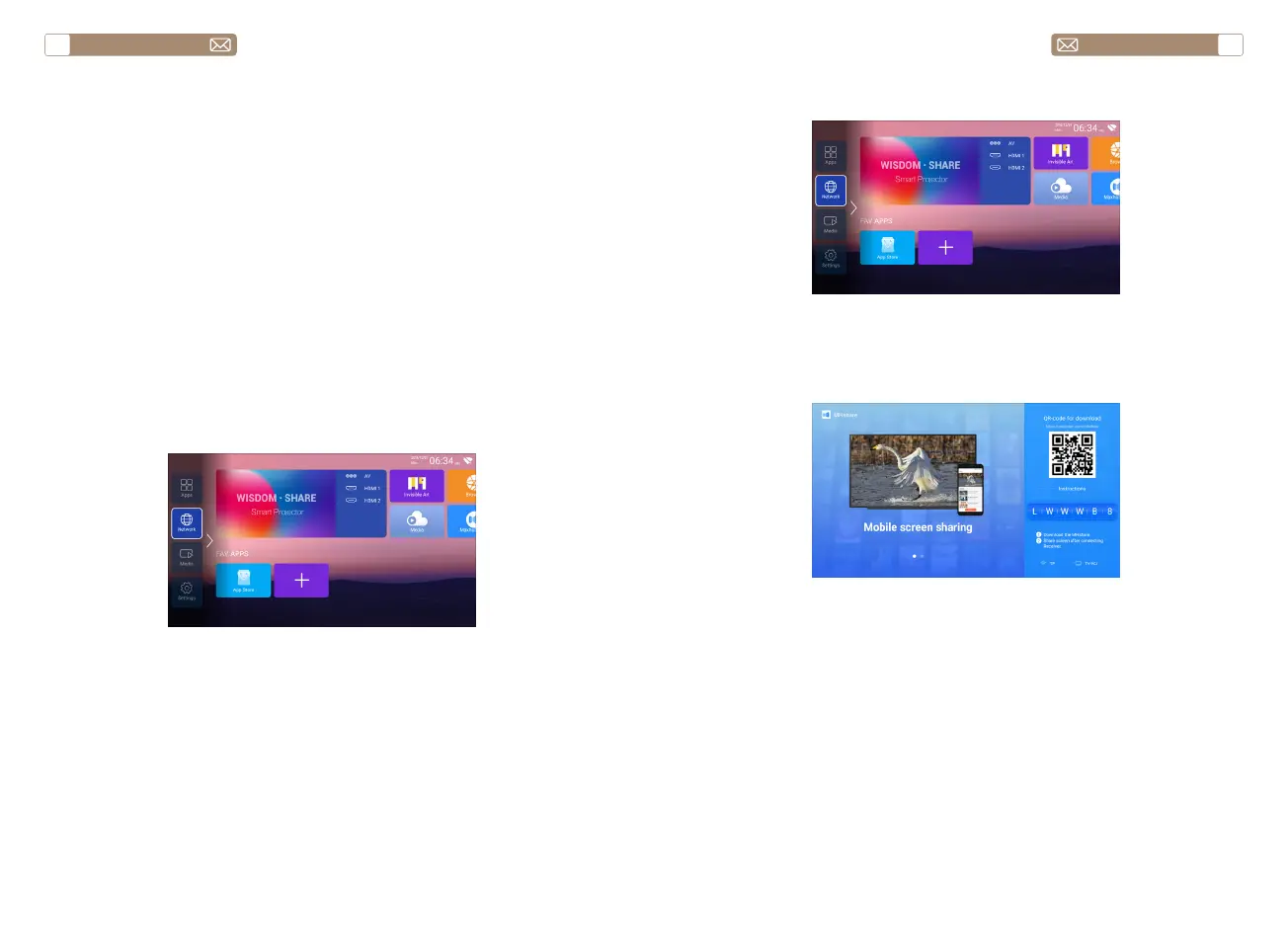
1. Go to home page -- Press the left button - Select the [ Network ] menu
- Select [ Wireless Net Mode ] - Select your home Wi-Fi from the list -
Connect the Toptro X7 projector to your home Wi-Fi.
2. Select the [ Settings ] menu on your iOS device - Turn on the [ Wi-Fi
] function - Connect your iOS device to the same home network as the
projector.
3. Open the [ Control Center ] on your iOS device - Select the [ Screen
Mirroring ] function Select and connect the iOS Cast receiver named
[Toptro X7-XXXX ] - your iOS device screen will be displayed on the
projection screen after 3 seconds.
2. Go to home - Select the [Maxhub Share] app - Press the OK button to
enter the [Maxhub Share] app.
3. Scan the QR code and download the app on your Android device
4. Open [Maxhub Share] app on your Android device - Select TV named
[Toptro X7-XXXX] -Your Android device screen will be displaced on the
projection screen after 3 seconds.
Note:
1. Different brands of Android phones have different operations for
select Screen Mirroring Display, please refer to your phones manual. [
Multiscreen/Wireless display/WLAN display/Screen mirroring/Wireless
projection/Smart view etc. ]
2. Not all Android phones support this function. Please make sure it is
supported before use.
1. Make sure Toptro X7 projector and your Android device are connected
in the same Wi-Fi, operations refer to the [1] and [2] from iOS Cast (for iOS
Device).
Warming Tips:
1. The fluency of screen mirroring with wireless connection will be
affected by the network environment. A bandwidth of 100Mbit or more is
recommended when using screen mirroring.
2. Make sure your mobile device is close to the projector when using
wireless connection. A distance within 1 meter is recommended.
3. Some mobile devices may not support screen mirroring due to the
compatibility.
4. Any questions, please feel free to contact us via service@toptro.com
3.1 iOS Cast ( for iOS Devices )
3.2 Miracast ( for Android Devices )


 To Next Page