service@toptro.com service@toptro.com
EN EN
10 11
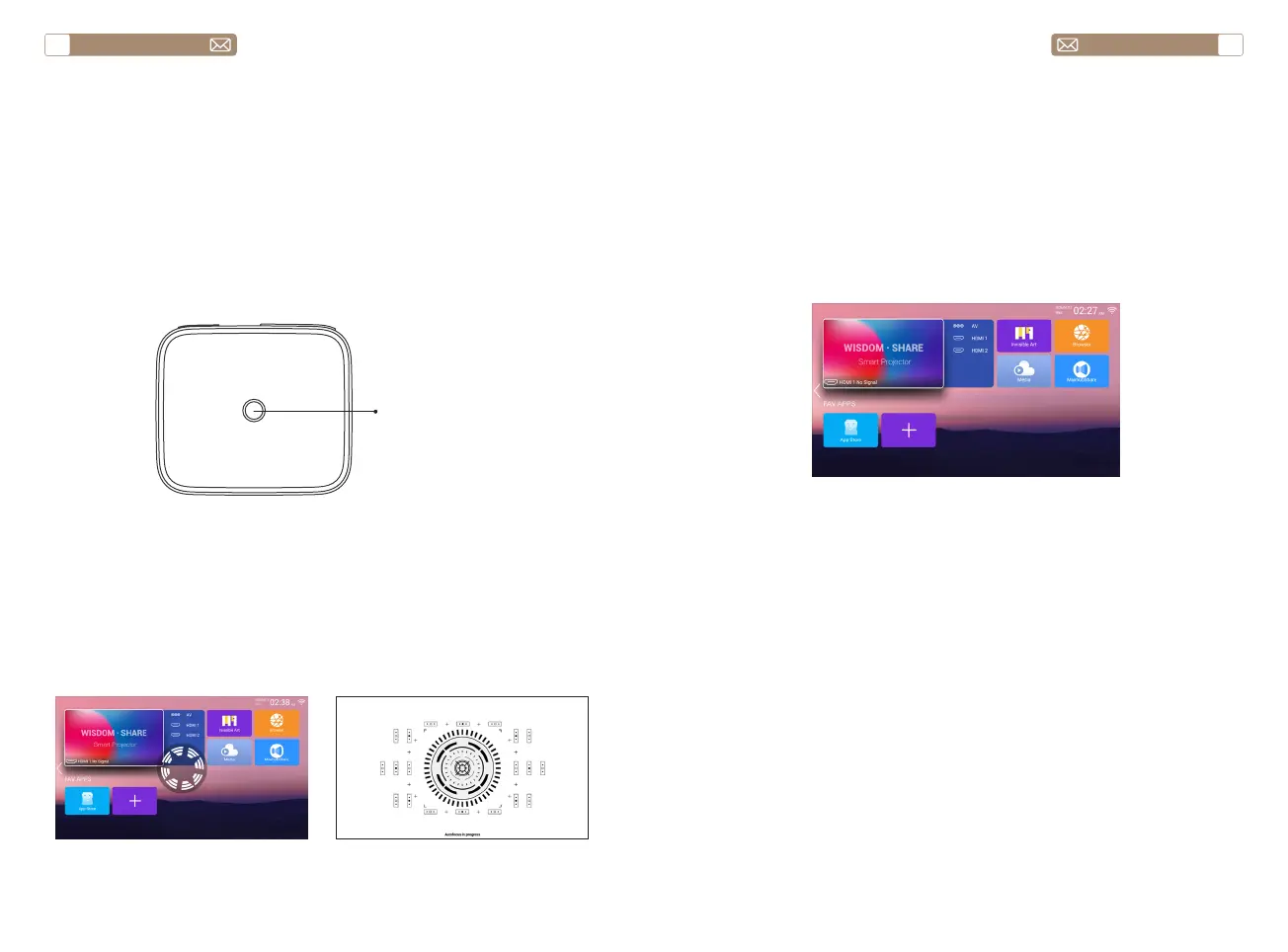
Connect the projector to the power supply, the projector will enter the
standby state, and the signal indicator light on the cover will be red.
Power on: Press the power button on the body, or the power button on
the remote control, and the indicator light turns blue to enter the working
state.
Shutdown: In the working state, press the power button on the body, or
the power button on the remote control, the indicator light will change
from blue to red, and the projector will be turned off.
* When starting the X7 projector for the first time, please wait patiently for
2-3 seconds, the projector will automatically adjust the focus. If the image
is not clear, you can press the focus button "F+", "F-" to adjust the focal
length of the lens, click or long press the focus button until the image is
clear.
Note: If it's still blurry, try adjusting the throw distance.
1. Insert the USB Disk, Select the icon [Media]
2. Select the option [All/Video/Audio/Image]
3. Select the desired file (or folder to enter the subfolder) in the USB disk,
then press the [OK] button to play it.
Notice: TOPTRO X7 projector supports USB disk to directly play PPT, Word,
Excel files.
* When the X7 projector is started for the first time, the projector will
automatically perform keystone correction. Or you can also use the
digital 4P keystone correction of the projector to change the image to be
rectangle (vertical and horizontal). Detail please refer the page 20 of this
manual.
USE THE PROJECTOR
1.Turn on/off the projector
2.Focus Adjustment
2.USB Disk Input Mode
2.1 Play Video/Audio/Image/Office in the USB Disk Input Mode
3.Keystone Correction Adjustment
Power button
The projector's home page is as follow.
Select the desired insert signal source (AV/HDMI1/HDMI2) on the home
-page.
Note: If you connect the external device (Such as TV box, Fire TV Stick,
DVD Player, USB flash disk, Computer etc.), please must select the
corresponding signal source. If you choose wrong, the projector will show
no signal.
SETTING UP THE PROJECTOR
1.Select the Insert Signal Source


 To Next Page