EasyManua.ls Logo

Toshiba B-EP2DL - User Manual

Toshiba B-EP2DL
28 pages
Print Icon
To Next Page IconTo Next Page
Loading...
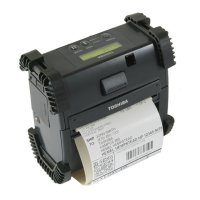
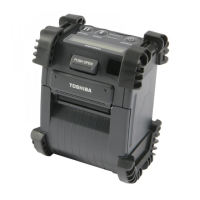
TOSHIBA Portable Printer
B-EP2D/EP4D SERIES
Owner's Manual
[B-EP2DL]
[B-EP4DL]

Questions and Answers

  • V
    vnealAug 18, 2025
    What to do if my Toshiba Printer says 'PAPER JAM'?
    • E
      eschmidtAug 18, 2025
      If your Toshiba printer displays a 'PAPER JAM' error, it could be due to several reasons: * The media might not be loaded correctly. * The media is jammed in the printer. * The media is not fed properly. * The reflective sensor isn't detecting black marks. * The transmissive sensor isn't detecting gaps between labels. To resolve this, first, load the media properly. If the media is jammed, remove it carefully and then reload the media correctly. Press the [PAUSE] button after resolving the jam. If the reflective sensor is the issue, ensure the media is loaded correctly. For the transmissive sensor, reload the media and if the problem continues, try setting a threshold again.
  • J
    Jessica WilliamsAug 20, 2025
    Why does my Toshiba B-EP2DL say 'NO PAPER'?
    • A
      andrew39Aug 21, 2025
      If your Toshiba printer displays 'NO PAPER', it means the printer has run out of media. To solve this, load a new media roll and press the [PAUSE] button.
  • K
    Kathy TylerAug 23, 2025
    What to do if my Toshiba B-EP2DL shows 'LOW BATTERY'?
    • M
      Monica HarperAug 23, 2025
      If your Toshiba printer shows a 'LOW BATTERY' message, it means the remaining battery capacity is low. To fix this, turn off the printer and replace the battery pack with a fully charged one.
  • D
    Darren SmithAug 26, 2025
    How to fix 'COVER OPEN' error on Toshiba B-EP2DL?
    • C
      Christina SantanaAug 26, 2025
      If your Toshiba printer displays 'COVER OPEN', it indicates that the top cover is open. Simply close the top cover to resolve the issue.
  • M
    mcohenAug 28, 2025
    How to fix 'COMMS ERROR' on Toshiba B-EP2DL?
    • B
      Brian StephensAug 28, 2025
      If your Toshiba printer displays 'COMMS ERROR', it indicates a parity or framing error during communication via RS-232C. Try turning the printer off and then back on using the [POWER] button. Then, resend the data from the host to the printer.
  • B
    blairchristopherAug 30, 2025
    What does 'FLASH WRITE ERR.' mean on Toshiba B-EP2DL?
    • J
      Jennifer ThomasAug 31, 2025
      If your Toshiba printer displays 'FLASH WRITE ERR.', it means a flash memory write error occurred. To resolve this, turn the printer off and then back on using the [POWER] button. Resend the data from the host to the printer.
  • J
    Jonathan CarneySep 2, 2025
    How to resolve 'FORMAT ERROR' on Toshiba Printer?
    • J
      John MaldonadoSep 2, 2025
      If your Toshiba printer displays 'FORMAT ERROR', it indicates that a flash memory format error occurred. To resolve this, turn the printer off and then back on using the [POWER] button. Resend the data from the host to the printer.
  • S
    stevenhollandSep 4, 2025
    What to do if my Toshiba B-EP2DL says 'FLASH MEM FULL'?
    • T
      Timothy BautistaSep 5, 2025
      If your Toshiba printer displays 'FLASH MEM FULL', it means the flash memory has insufficient area for storing data. To resolve this, turn the printer off and then back on using the [POWER] button. Resend the data from the host to the printer.
  • S
    Sandra AllenSep 7, 2025
    What does 'EXCESS HEAD TEMP' mean on Toshiba B-EP2DL Printer?
    • M
      Mr. Steven JohnsonSep 7, 2025
      If your Toshiba printer displays 'EXCESS HEAD TEMP', it means the print head temperature has reached the upper limit. Stop printing and wait for the printer to automatically restore.
  • S
    Susan DeanSep 9, 2025
    How to fix command error on Toshiba B-EP2DL?
    • B
      Bethany ColeSep 9, 2025
      If your Toshiba printer displays a command error such as 'PC001;0A00,0300,', it indicates a command error. The alphanumeric or symbol is displayed on the LCD. To resolve this, turn the printer off and then back on using the [POWER] button. Resend the data from the host to the printer.

Summary

Precautions for Handling of Wireless Communication Devices

General Usage and Regional Restrictions

General advice and country restrictions for using wireless communication devices.

Regional Compliance Statements

Specific compliance statements and restrictions for Europe, USA, and Canada.

Safety in Specific Environments

Safety warnings for using wireless devices in environments like aircraft or hospitals.

Performance and Interference Management

Advice on optimal placement and avoiding interference for wireless communication.

CAUTION!

Safety Summary

Overview of personal safety and warnings for equipment handling and maintenance.

Safety Precautions

Important safety indications and symbols to be observed for safe operation.

Operational Precautions

Recommended practices and conditions to ensure proper printer function and longevity.

TEC-BTM-R Specification

SD-Link 11 g Specification

Part Names

B-EP2 DL Series Components

Labeled diagram showing the external parts of the B-EP2DL printer.

Included Accessories

Illustrations and names of included accessories like belt clips and cleaners.

Operation Panel Functions

LCD Display and Messages

Explanation of icons, status indicators, and messages on the printer's LCD.

Status and Charge Lamps

Meaning of the STATUS and CHARGE lamps, including their colors and blinking patterns.

Button Functions

Description of the POWER, FEED, and PAUSE buttons and their operations.

Loading a battery pack

Battery Insertion Procedure

Step-by-step guide on how to insert the battery pack into the printer.

Battery Pack and Charger Compatibility

Lists compatible battery pack models and optional chargers for the printer.

Removing a battery pack

Charging the Battery Pack with an Optional Adapter

Loading the Media

Media Loading Steps

Detailed instructions for opening the cover and loading a media roll correctly.

Media Guide Adjustment

How to adjust paper guides for the correct media roll width.

Before using a peel-off unit

Peel-off Roller Setup

Instructions on how to pull out the peel-off roller before loading a label roll.

Replacing the Peel-off Roller

Steps to correctly put back the peel-off roller after use.

How to attach the accessories

Belt Clip Attachment

Instructions for securing the belt clip to the printer and your belt.

Shoulder Strap Attachment

Procedure for attaching the optional shoulder strap to the printer.

Carry case (Option)

Using the Printer Carry Case

Steps for placing the printer into the carry case and attaching its strap.

CARE;HANDLING OF THE MEDIA

Media Storage Guidelines

Recommendations for storing media to maintain quality and printer performance.

Media Composition and Ink Guidelines

Information on acceptable media composition and ink types for thermal printing.

Data Transmission

IrDA Communication Setup

Steps for setting up and performing data transmission using IrDA.

USB Communication Setup

Steps for setting up and performing data transmission using a USB connection.

Serial (RS-232 C) (GH20 model only)

Wireless (GH30;GH40 model only)

Bluetooth Communication

Setup and precautions for data transmission via Bluetooth.

Wireless LAN Communication

Setup and precautions for data transmission via Wireless LAN.

Daily maintenance

Print Head Cleaning

Instructions on how to clean the print head element using a cleaner pen.

Peel-off Roller Cleaning

Guidelines for cleaning the peel-off roller with a soft cloth and alcohol.

Platen Cleaning

Instructions for cleaning the platen and linerless label kit platen.

Media Guide Roller and Strip Shaft Cleaning

Media Sensor Window and Media Path Cleaning

Top Cover, Operation panel, and IrDA Window Cleaning

Troubleshooting

Error Message Guidance

Explains causes and solutions for common error messages displayed by the printer.

Error Clearing Procedure

Steps to clear error messages and resolve issues by following instructions.

Troubleshooting Other Errors and Symptoms

Flash Memory and Battery Errors

Solutions for errors related to flash memory full or low battery capacity.

Printer Not Operating Properly

Identifies causes and solutions when the printer fails to turn on or communicate.

Troubleshooting Communication and Print Quality Issues

Communication Interface Issues

Addresses problems with USB, serial, Bluetooth, and wireless LAN communication.

Print Quality Problems

Solutions for issues like light printout or no print data received.

Printer Specification (B-EP2 DL Series)

Printer Specification (B-EP4 DL Series)

Toshiba B-EP2DL Specifications

General IconGeneral
Resolution203 dpi
Print MethodThermal
Print Width4 ips
Print Speed4 ips
ConnectivityUSB, Serial, Bluetooth
Media TypeLabel
Media Thickness0.06 - 0.15 mm
Memory32 MB
InterfaceUSB, Serial, Bluetooth
Power SupplyAC Adapter

Related product manuals