

 Need help?
Do you have a question about the Toshiba B-EP2DL-GH40-QM-R and is the answer not in the manual?
Lists all TOSHIBA printer models supported by this driver.
Provides crucial warnings and notes before proceeding with driver installation.
Provides steps to set up or reinstall the printer driver on Windows Vista/Server 2008 and later.
General preparation steps before installing the printer driver.
Table showing connectability of printer models via different interfaces.
Details specific parameter settings (CENTRO. MODE, PLUG & PLAY) required for certain printer models.
Instructs to download the driver installer from the Toshiba TEC website.
Steps for running the downloaded driver installation wizard.
Requires acceptance of the license agreement to proceed with installation.
Guides through starting the Add Printer Wizard.
Instructs to select "Local printer attached to this computer" and not to auto-detect.
Explains how to use the "Have Disk" option to select the driver.
Final step of the wizard, including handling hardware installation prompts.
Steps to add a port to connect to a shared printer.
Steps to add a local printer using the Windows Vista/Server wizard.
Guide to selecting the appropriate printer port.
Instructions to add a port for connecting to a shared printer.
Steps for installing the printer on client PCs that access the shared printer.
How to locate a shared printer by entering its network path.
Steps for using the Found New Hardware Wizard to search for drivers.
Steps to select advanced driver search options in the wizard.
Final step of the wizard to complete the hardware installation.
Instructions for connecting the printer via USB on modern Windows versions.
Describes the automatic start of driver installation upon device connection.
Instructions for connecting the printer via parallel interface on modern Windows.
Details on setting printer system mode parameters for Parallel/Plug & Play.
Steps to uninstall the printer driver using the Driver Wizard.
Option to automatically remove all installed TEC printer drivers.
Overview of the tabs available in Printing Preferences for driver settings.
Allows specifying default media size, orientation, and other media properties.
Managing bar code fonts, including adding, deleting, and editing.
Provides access to printer operations like Print, Action, Configure, and Driver Options.
Enables printer status monitoring with options like Disabled, During print jobs only, On demand, Continuous.
Allows managing label stock names, adding, editing, or deleting them.
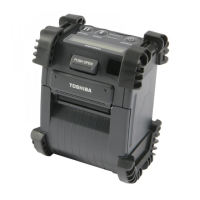

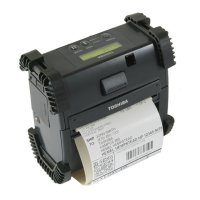




 To Next Page

 General