EasyManua.ls Logo

Toshiba BMS-CT1280TU - User Manual

Toshiba BMS-CT1280TU
113 pages
Print Icon
To Next Page IconTo Next Page
Loading...
Model Name
BMS-CT2560U-E
(BMS-CT1280TU)
(BMS-CT2560U-TR)
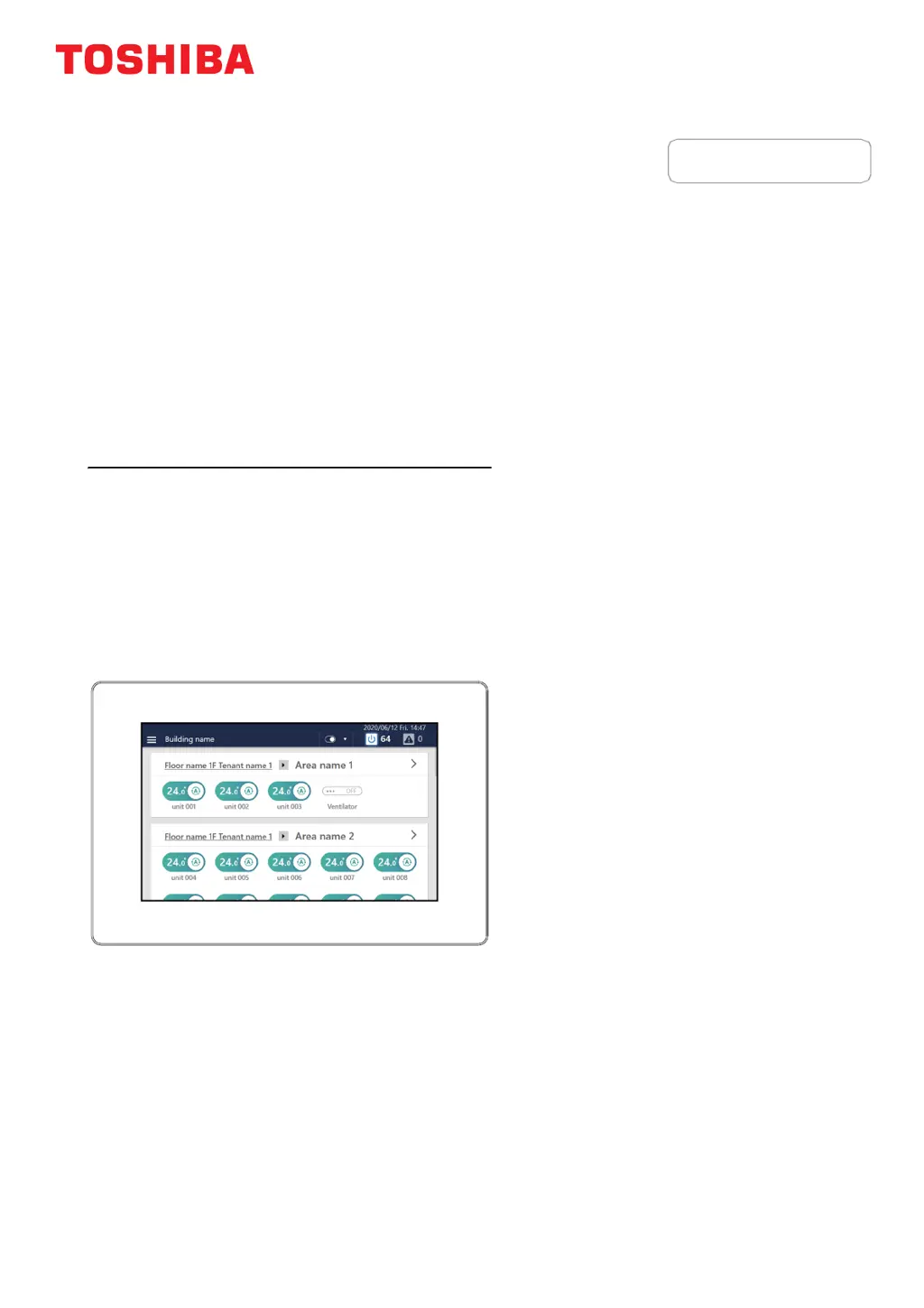
Owner's Manual
Central Control Device
Thank you for purchasing this System Controller.
In order to use this product safely and correctly, please read this owner's manual carefully before use and
make sure that you fully understand the contents.
In particular, please be sure to read the "Safety Precautions".
After reading this manual, be sure to keep it in a place where the operator of the Unit can always view it.
Touch Screen Controller
For commercial use

Table of Contents

Other manuals for Toshiba BMS-CT1280TU

Questions and Answers

  • C
    Chad WarrenSep 23, 2025
    Why Toshiba Unit does turn ON/OFF even though the operation interlock signal/stop interlock signal is input?
    • T
      Tina MorrisSep 23, 2025
      If the Toshiba Unit does not turn ON/OFF even though the operation interlock signal/stop interlock signal is input, it may be because the interlock signal has been input from the time of activation. Set the interlock signal to turn OFF at the time of activation, as the system confirms the state by detecting the rising and falling edges of the signal.
  • C
    Charles DickersonAug 25, 2025
    How to fix Toshiba Remote Control Software if I cannot start it?
    • M
      millershellyAug 25, 2025
      If you cannot start the Remote Control Software, it could be due to several reasons. If "Error 1001" is displayed, download and install .Net Framework 4.6.2 from the software's download website. Ensure the LAN cable is connected and network settings are correct. Verify that the IP address of the access destination is set to the IP address of the controller main unit, not the PC. Also, confirm that the PC on which the software was installed is running Windows 10, as other operating systems may not be supported.
  • L
    laurenchenAug 25, 2025
    What to do if the Toshiba BMS-CT1280TU Controller LCD does not display?
    • K
      Kathleen PetersenAug 26, 2025
      If the LCD on your Toshiba Controller does not display, check whether the power is turned off by the breaker. Also, check that the wiring of the power outlet and AC adapter is not disconnected. Confirm that the green LED at the lower rear of the main unit and the green LED on the AC adapter are lit, indicating power is being supplied.
  • B
    billyfosterAug 27, 2025
    Why Toshiba BMS-CT1280TU Controller schedule does not work?
    • P
      Parker OnealAug 27, 2025
      If the schedule on your Toshiba Controller is not working, check if the schedule is disabled in the Scheduler Operation settings.
  • K
    Kristen MillerAug 27, 2025
    Why Toshiba BMS-CT1280TU LCD does not turn off?
    • D
      derekrichardsonAug 27, 2025
      The LCD will still be on when a check code has been detected. Erase the check code.
  • K
    Kayla PotterSep 13, 2025
    What to do when Toshiba external device repeatedly ON/OFF?
    • C
      Cheryl HillSep 14, 2025
      To control the ON/OFF with an external device, wait at least 15 seconds for the next operation after one operation. Alternatively, change the setting to control and monitor using the DI / DO of the controller instead of the digital I / O interface connection. If the alarm monitoring of External Unit is not set, the alarm cannot be detected.
  • N
    Nicole YoungSep 12, 2025
    What to do if Toshiba Unit does not turn ON/OFF with interlock signal?
    • J
      justin61Sep 12, 2025
      If the Unit does not turn ON/OFF even when the operation interlock signal/stop interlock signal is input, the interlock signal confirms the state by detecting the rising and falling edges. If the interlock signal is present from the time of activation, interlock control will not be performed. Ensure the interlock signal turns OFF upon activation.
  • E
    Erin YoungSep 12, 2025
    Why multi outdoor unit's option board control does not work on Toshiba?
    • U
      ubushSep 12, 2025
      When using a centralized controller with your Toshiba multi outdoor unit, the functions of the outdoor unit's option board become inactive. Only one of the centralized controller or the outdoor unit's option board can be used at a time.
  • G
    Grant HansonSep 4, 2025
    How to turn off Toshiba BMS-CT1280TU?
    • O
      onealdavidSep 4, 2025
      To turn off the power on your Toshiba Controller, select [Menu]-[Functions]-[shut down].
  • C
    Carol JonesSep 2, 2025
    How to fix Toshiba Remote Control Software not starting?
    • M
      Michael ReynoldsSep 2, 2025
      If the Toshiba Remote Control Software won't start, download and install .Net Framework 4.8 from the software's download website. Ensure that your PC and the LAN of the Unit are connected properly by checking the LAN cable and network settings. The IP address to enter during installation should be the IP address of the controller main unit, not the PC's IP address. Also, confirm that your operating system is Windows 10 or Windows 11, as other OS versions may not be supported.

Summary

6 Basic Usage

Start;Stop Operation

Explains how to start and stop air conditioners and other equipment.

Set the Operation Schedule

Configure weekly and special day schedules for unit operation times.

7 Various Functions

8 Administrator Menu

Operation Restriction and Management

Lock the controller, manage functions, and set schedules for operations.

Initial Setup and Configuration

Configure screen display, user accounts, network settings, and other unit parameters.

9 Remote Monitoring Using a PC

10 Power Distribution

11 Troubleshooting

Toshiba BMS-CT1280TU Specifications

General IconGeneral
CategoryController
ModelBMS-CT1280TU
ManufacturerToshiba
Analog SticksNo
Vibration FeedbackNo
WirelessNo
CompatibilityToshiba Air Conditioners

Related product manuals