EasyManua.ls Logo

Toshiba BMS-CT2560U-E - User Manual

Toshiba BMS-CT2560U-E
113 pages
Print Icon
To Next Page IconTo Next Page
Loading...
Model Name
BMS-CT2560U-E
(BMS-CT1280TU)
(BMS-CT2560U-TR)
Owner's Manual
Central Control Device
Thank you for purchasing this System Controller.
In order to use this product safely and correctly, please read this owner's manual carefully before use and
make sure that you fully understand the contents.
In particular, please be sure to read the "Safety Precautions".
After reading this manual, be sure to keep it in a place where the operator of the Unit can always view it.
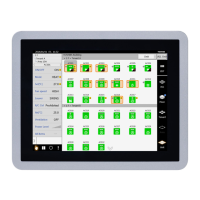
Touch Screen Controller
For commercial use

Table of Contents

Other manuals for Toshiba BMS-CT2560U-E

Questions and Answers

  • U
    ulongSep 23, 2025
    Why Toshiba Unit does turn ON/OFF even though the operation interlock signal/stop interlock signal is input?
    • S
      Steven AriasSep 23, 2025
      If the Toshiba Unit does not turn ON/OFF even though the operation interlock signal/stop interlock signal is input, it may be because the interlock signal has been input from the time of activation. Set the interlock signal to turn OFF at the time of activation, as the system confirms the state by detecting the rising and falling edges of the signal.
  • A
    adam12Aug 25, 2025
    How to fix Toshiba Remote Control Software if I cannot start it?
    • J
      James BakerAug 25, 2025
      If you cannot start the Remote Control Software, it could be due to several reasons. If "Error 1001" is displayed, download and install .Net Framework 4.6.2 from the software's download website. Ensure the LAN cable is connected and network settings are correct. Verify that the IP address of the access destination is set to the IP address of the controller main unit, not the PC. Also, confirm that the PC on which the software was installed is running Windows 10, as other operating systems may not be supported.
  • K
    kimberly49Aug 25, 2025
    What to do if the Toshiba BMS-CT2560U-E Controller LCD does not display?
    • R
      Roger WagnerAug 26, 2025
      If the LCD on your Toshiba Controller does not display, check whether the power is turned off by the breaker. Also, check that the wiring of the power outlet and AC adapter is not disconnected. Confirm that the green LED at the lower rear of the main unit and the green LED on the AC adapter are lit, indicating power is being supplied.
  • Y
    ydayAug 27, 2025
    Why Toshiba BMS-CT2560U-E Controller schedule does not work?
    • N
      Natalie MeyerAug 27, 2025
      If the schedule on your Toshiba Controller is not working, check if the schedule is disabled in the Scheduler Operation settings.
  • A
    Alicia ParsonsAug 27, 2025
    Why Toshiba BMS-CT2560U-E LCD does not turn off?
    • U
      ugordonAug 27, 2025
      The LCD will still be on when a check code has been detected. Erase the check code.
  • Z
    Zachary TaylorSep 13, 2025
    What to do when Toshiba external device repeatedly ON/OFF?
    • T
      Teresa HinesSep 13, 2025
      To control the ON/OFF with an external device, wait at least 15 seconds for the next operation after one operation. Alternatively, change the setting to control and monitor using the DI / DO of the controller instead of the digital I / O interface connection. If the alarm monitoring of External Unit is not set, the alarm cannot be detected.
  • J
    Joshua WashingtonSep 12, 2025
    What to do if Toshiba Unit does not turn ON/OFF with interlock signal?
    • N
      Nancy CarterSep 12, 2025
      If the Unit does not turn ON/OFF even when the operation interlock signal/stop interlock signal is input, the interlock signal confirms the state by detecting the rising and falling edges. If the interlock signal is present from the time of activation, interlock control will not be performed. Ensure the interlock signal turns OFF upon activation.
  • S
    Stephen WilsonSep 12, 2025
    Why multi outdoor unit's option board control does not work on Toshiba?
    • A
      Andrew LopezSep 12, 2025
      When using a centralized controller with your Toshiba multi outdoor unit, the functions of the outdoor unit's option board become inactive. Only one of the centralized controller or the outdoor unit's option board can be used at a time.
  • J
    jaredtuckerSep 4, 2025
    How to turn off Toshiba BMS-CT2560U-E?
    • J
      Jeffrey ParrishSep 4, 2025
      To turn off the power on your Toshiba Controller, select [Menu]-[Functions]-[shut down].
  • K
    Katherine KirbySep 2, 2025
    How to fix Toshiba Remote Control Software not starting?
    • C
      Corey ReidSep 2, 2025
      If the Toshiba Remote Control Software won't start, download and install .Net Framework 4.8 from the software's download website. Ensure that your PC and the LAN of the Unit are connected properly by checking the LAN cable and network settings. The IP address to enter during installation should be the IP address of the controller main unit, not the PC's IP address. Also, confirm that your operating system is Windows 10 or Windows 11, as other OS versions may not be supported.

Summary

Quick Start Guide

Safety Precautions

Installation Precautions

Safety guidelines for installing the system controller and related equipment.

Usage Precautions

Important safety instructions for operating the touch screen controller and connected devices.

Relocation and Repair Precautions

Safety measures for moving or repairing the system controller and its components.

Operating Method and Screen Structure

Touch Panel Operation Method

Explains basic touch panel interactions like tap, drag, swipe, and flick.

Screen Structure Overview

Details the main screen layouts including Home, List, Layout, and Control screens.

Before Usage

Air Conditioning System Configurations

Describes the system configurations controllable by the Unit, including All, Group, and Unit.

Glossary of Terms

Defines key terminology used throughout the manual for better understanding.

Control Target Devices

Lists the types of equipment that can be controlled and monitored by the Unit.

About the Main Screens

An overview of the Home, List, and Layout screens, and [CONTROL] tabs.

Perform Initial Settings

Unit Settings

Steps for service personnel to perform initial setup and verification of the main unit.

Settings for Remote Monitoring with a PC

Configures the Unit and PC for remote monitoring and control via a local network.

Basic Usage

Start;Stop Operation

Instructions for starting and stopping air conditioners, individually or as a group.

Change Air Conditioning Settings

Guides on how to adjust group settings like mode, temperature, and fan speed.

Set Operation Schedule

Procedures for configuring weekly and special day schedules for operations.

Monitor Overall Air Conditioning System

How to check the operational status and malfunction history of the entire system.

Various Functions

Local Remote Controller Lock

Restricts operation of local remote controllers for individual air conditioners.

Set Operation Details

Allows checking and setting specific operational parameters and functions.

Options for Air Conditioners

Details various configurable functions and settings specific to air conditioners.

Options for Air to Water Heat Pump (ATW)

Explains specific functions and settings available for ATW units.

Ventilation Functions

Covers turning ventilation on/off, setting mode, and fan speed.

Energy Saving Features

Includes functions like Eco Temperature Shift, Power Select, ECO, and PURE for energy efficiency.

Change Operating Schedule

How to modify existing weekly and special day operating schedules.

Confirm Operation Time

View operation time graphs for groups, air conditioners, or ON/OFF units.

Display Owners Manual on Screen

Instructions on how to access and navigate the owner's manual directly on the controller screen.

Administrator Menu

Check Code and Notice Code History

Displays lists of detected check and notice codes for troubleshooting and monitoring.

Confirm Power Consumption Graph

Visualize electric power consumption data in daily or monthly graphs.

Restrict Operation of Touch Screen Controller

Methods to lock or unlock the controller's functions to prevent unauthorized access.

[Functions] Menu Operations

Access to settings for demand control, data summation, and system management.

[Initial Setting] Menu Settings

Display and Time Settings

Customize screen language, date format, and system date/time.

User Account Management

Manage user accounts, including adding, changing, or deleting them for remote operation.

Security and Network Settings

Configure operation lock levels, passwords, and network IP addresses.

Unit Configuration and Naming

Modify area assignments and set display names for indoor units.

Power Management Settings

Adjust screen brightness and configure power consumption control and energy thresholds.

Remote Monitoring Using a PC

Log In to Remote Control Software

Steps to access and log into the remote control software from a PC.

Log Out from Remote Control Software

Procedure for safely logging out of the remote control software.

Exit Remote Control Software

Instructions on how to properly close the remote control software application.

Power Distribution

Power Distribution System Using Energy Report Software 2

Overview of using PC software for power distribution analysis and billing.

How to Use Power Distribution System

Guides on downloading data and generating reports for power distribution analysis.

Troubleshooting

LCD Display and Operation Issues

Addresses problems related to the LCD screen and basic unit operation.

Settings and Schedule Malfunctions

Troubleshoots issues with settings, schedules, and arbitrary changes.

Connectivity and Software Problems

Resolves issues related to network connection, IP addresses, and software errors.

Useful Information

Problem Cause and Solution

Provides common problems, their causes, and recommended solutions.

Appendix

Detailed Specifications

Provides technical details about the hardware, power, and dimensions.

Function List

A comprehensive list of all available functions categorized by Control, Monitoring, and Schedule.

List by Lock Level;Level

Warranty and After-Sales Service

About the Warranty

Information regarding the warranty period and terms for the product.

About After-Sales Service

Guidelines and information to follow when requesting repair or service.

Contact for After-Sales Service

Contact details and required information for obtaining after-sales support.

Toshiba BMS-CT2560U-E Specifications

General IconGeneral
BrandToshiba
ModelBMS-CT2560U-E
CategoryController
LanguageEnglish

Related product manuals