139
6
4
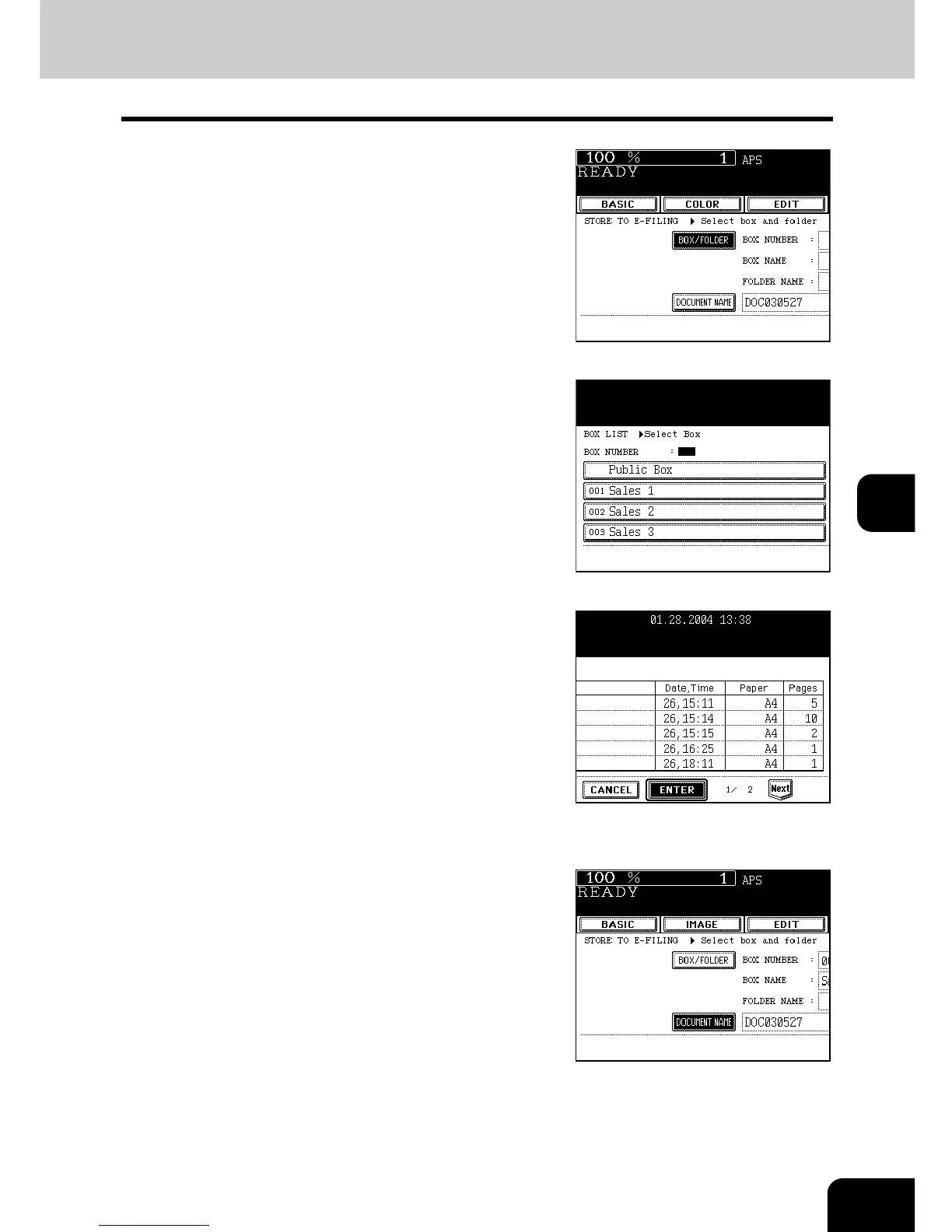
Press the [BOX/FOLDER] button.
- The box list is displayed.
5
Select the box in which you want to store
the data, and then press the [ENTER]
button.
- Select either the “Public box” or the “User box”.
- See the procedure of “e-FILING” for setting a new user box.
"2.SETTING UP BOX" Page 218
6
The document list in the selected box is
displayed. When you want to store the
original(s) in an existing folder, select the
folder and press the [OPEN FOLDER]
button. If you have no folder to be
selected, press the [ENTER] button.
- If you want to store the data in the user box, password entry may
be required to display the list.
- Creating the folder can be performed only via TopAccess. See the
[e-Filing Guide].
7
Press the [DOCUMENT NAME] button to
enter the name of the scanned data.
- The letter entry menu ("3.ENTERING LETTERS" Page 144) is
displayed. A document name can contain up to 64 letters.








 To Next Page