76
3.SETTING OF BASIC COPY MODES
3.REDUCTION AND ENLARGEMENT COPYING (Cont.)
3
4
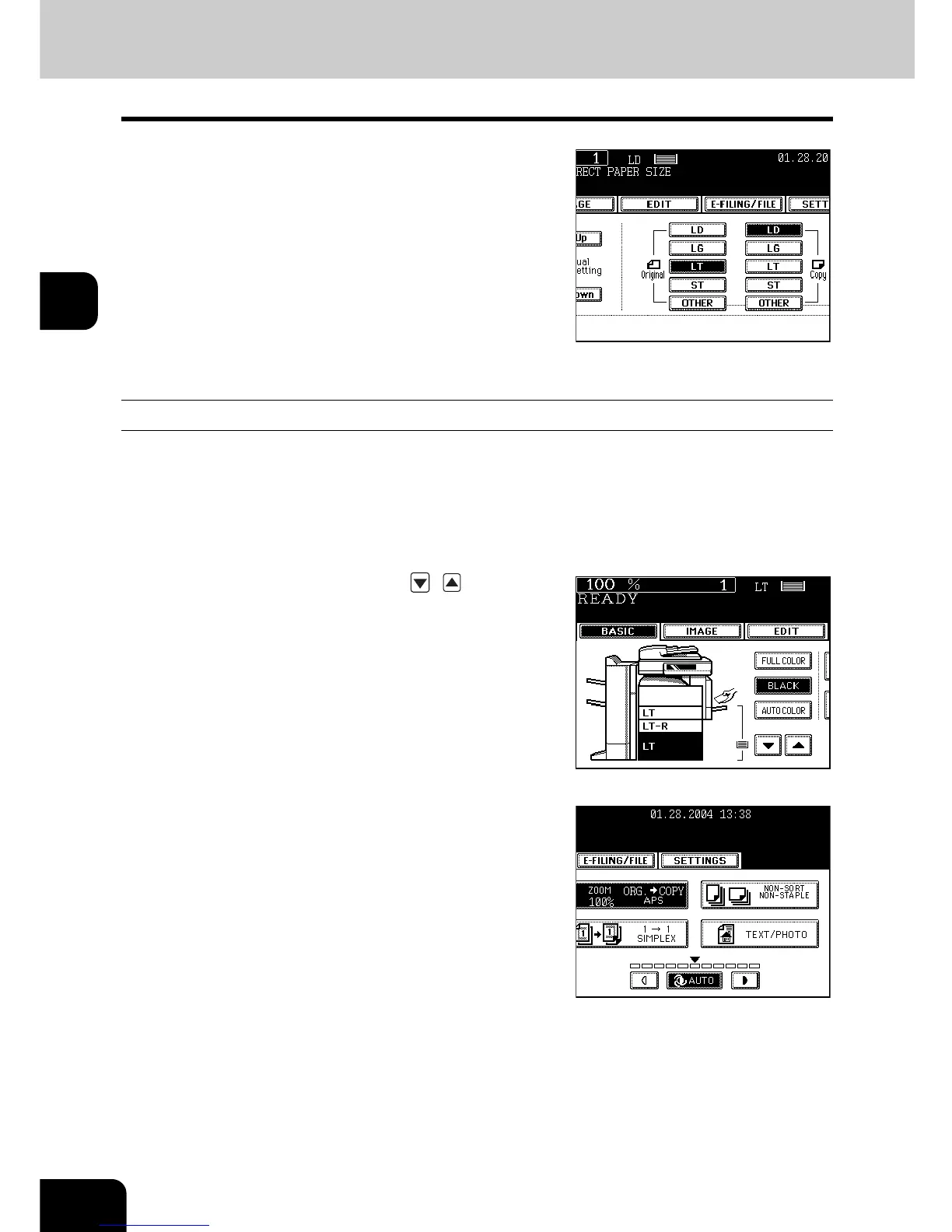
Press the [ORIGINAL SIZE] button that
represents the size of the original.
- Using the original size and copy size, the correct reproduction
ratio is computed and displayed on the screen.
- "Setting the [OTHER SIZE] button" Page 71
z Select other copy modes as required.
5
Press the [START] button.
Using the Reduction/Enlargement Zoom Buttons or One-touch Zoom Buttons
1
Place paper in the drawer(s).
- "1.SETTING COPY PAPER" Page 38
2
Place the original(s).
- "2.SETTING ORIGINALS" Page 47
3
Press the drawer icon (or , button)
representing the desired copy paper size,
and then press the [ZOOM] button.
- The copy paper size is selectable on the screen in step 4 as well.








 To Next Page