6.EDITING DOCUMENTS
Editing With Pages in Your Documents 93
6 EDITING DOCUMENTS
4
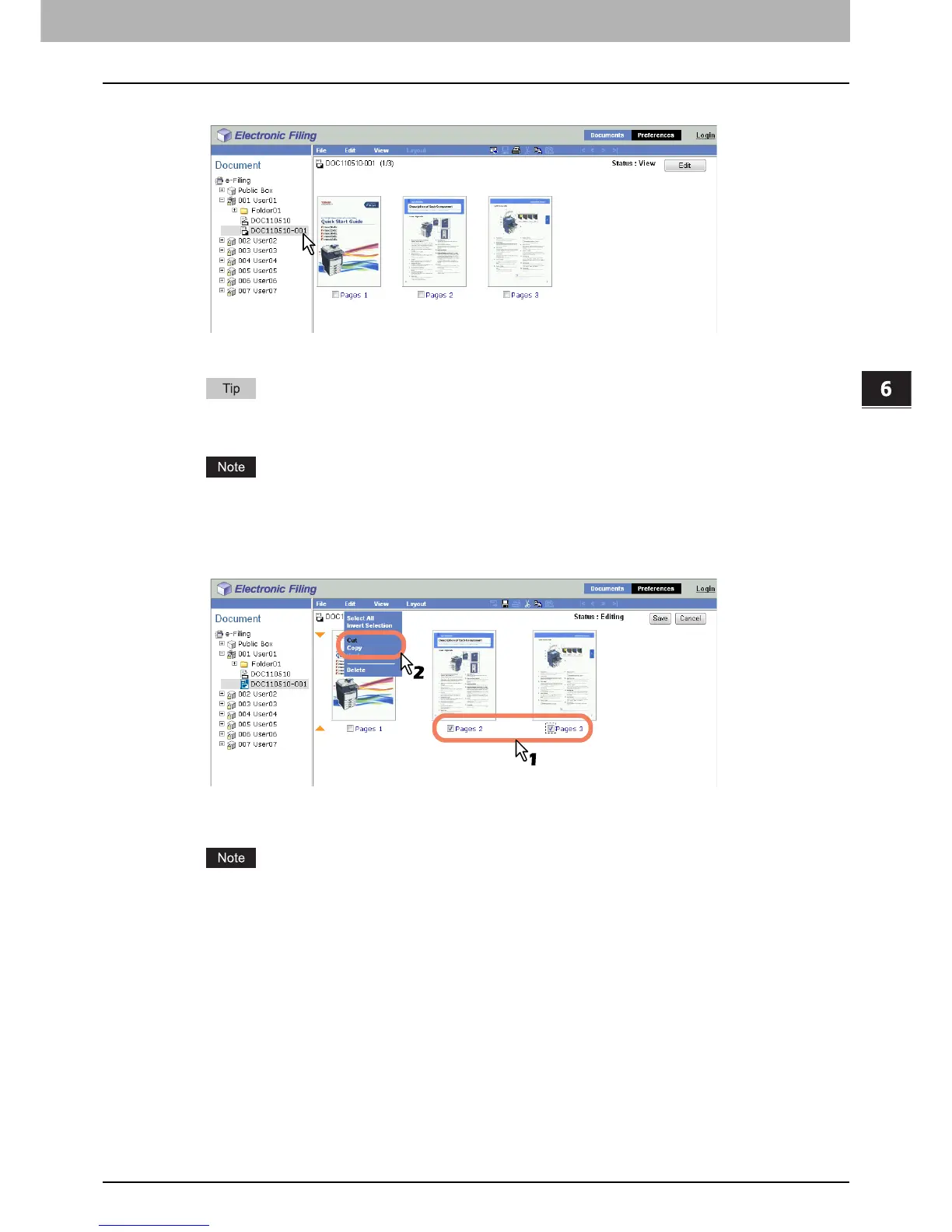
In the Document frame, select the document whose pages you want to copy or cut.
The pages of the document are displayed in the Contents frame.
If you want to cut pages from the document, click [Edit] to enter the Edit mode. Clicking [Edit] changes the
document status from the View mode to the Edit mode so that you can cut pages from the document.
If the document status indicates “In Use”, you cannot enter the Edit mode because another user is currently
editing the document.
5
Select the check boxes of the pages that you want to copy or cut, and select [Copy] or
[Cut] from the [Edit] menu.
y When you have cut pages from the document, proceed to the next step after the process is completed.
y When you have copied pages from the document, proceed to step 8 after the process is completed.
Do not perform any operation while the e-Filing web utility is busy.



 To Next Page
 Loading...











