55
Getting Started
Customizing your device’s settings
Adjusting the quality of the external display
To obtain the best picture quality from your television (or
other video display device), you may need to adjust the
video settings. See the video device documentation for
additional configuration steps.
Customizing your device’s settings
There are several ways in which you can customize your
device to suit your particular requirements. You can go into
your device settings to make adjustments to your device to
suit your needs.
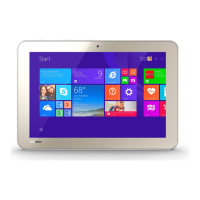
Swipe in from the right edge of the screen. When the
Windows charms appear, tap/touch the
Settings ()
charm, and then tap/touch
Change PC Settings at the
bottom of the window. Then choose a category you wish to
change. Refer to your operating system documentation or
Help and Support for details.
You may also wish to customize your power usage settings.
For more information, see “Power Plans” on page 70. There
are additional custom settings you can choose. See “Utilities
and Applications” on page 86.
Caring for your device
This section gives tips on cleaning and moving your device.
For information about taking care of your device’s battery,
see “Taking care of your battery” on page 72.
Please handle your device carefully to avoid scratching or
damaging the surface.
Cleaning the device
Keep liquids, including cleaning fluid, out of the device’s
keyboard, speakers, and other openings. Never spray
cleaner directly onto the device and/or display. Never use
harsh or caustic chemical products to clean the device.
To keep your device clean, gently wipe the display panel and
exterior case with a lightly dampened cloth.
NOTE


 To Next Page
 Loading...