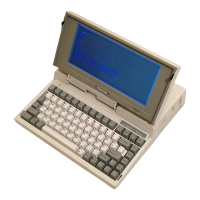
T4900CT
Procedure 1 Power Status Check on Status Indicator Panel
The Status Indicator Panel displays the status of the following power related items:
❑ AC adapter or Desk Station IV connection status
❑ System power on status
❑ Remaining battery power
The Status Indicator Panel displays the remaining battery power as shown in table 2-1.
Table 2-1 Battery power
Battery AC adapter Battery Power (Status Indicator Panel)
Not installed – Doesn’t display
Installed Not connected Time or percent (selected in Setup program)
Connected Only percent
NOTE: The power supply microprocessor monitors the status of the power supply.
When it detects an error, the error is displayed on the Status Indicator Panel.
The status indicator panel will display the error status or other message. Perform the follow-
ing procedures.
1. Install the battery pack.
2. Attach the AC adapter to DC IN 18 V.
Check the following items:
❑ If DC IN icon does not light, go to Procedure 2.
❑ If the battery capacity status does not appear, or battery capacity percent does not
change, go to Procedure 3.
❑ If the remaining battery time or percentage drops unexpectedly when you unplug the
AC adapter, while the status indicator displays 100% battery charge, go to Procedure
5.
❑ If the “P**” message appears on the battery capacity status area, perform Check 1.


 To Next Page
 Loading...