English - 16 -
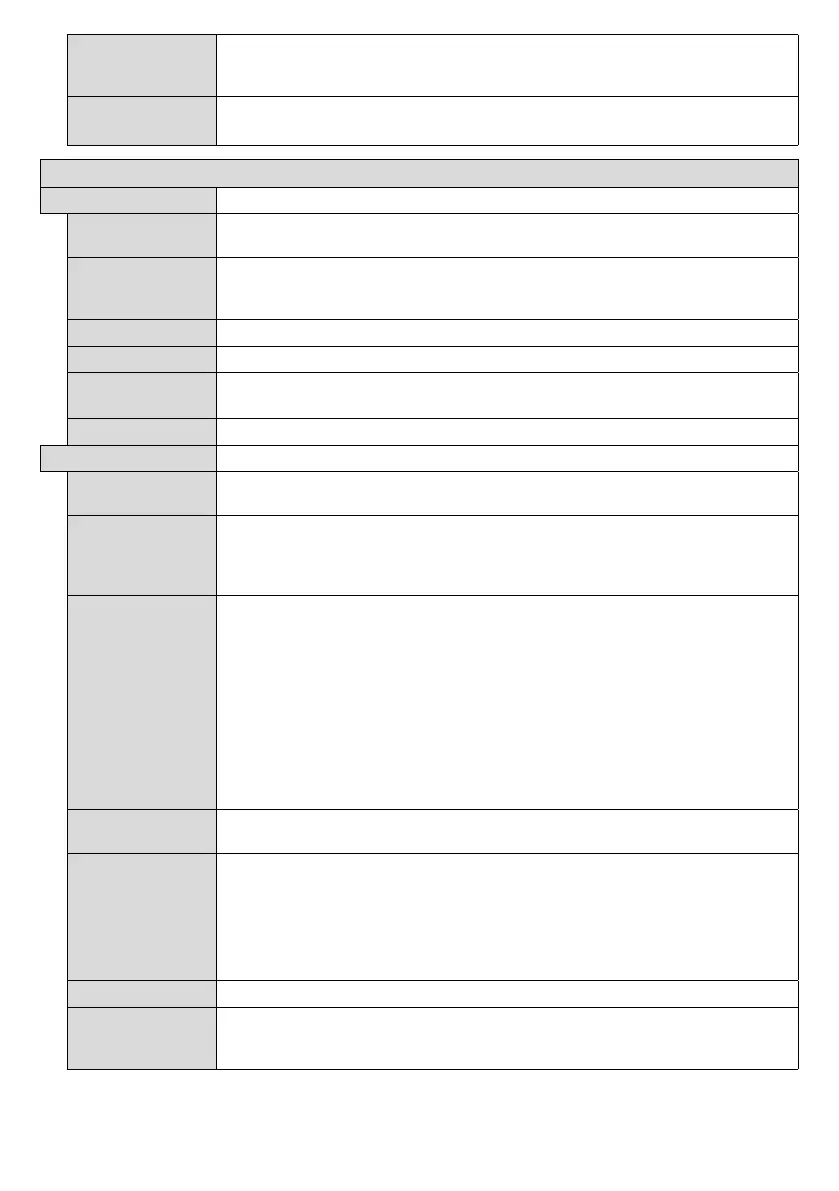
Speakers
To hear the Display audio from the connected compatible audio device set as
. You can use the remote control of the Display to control the volume of the
audio device.
DP Stream
Setting (*)
Sets the DisplayPort stream type. MST and SST options are available.
(*) This menu item appears only when the input source is set to DP.
Signage Settings Menu Contents
Device Info
Set ID
Sets the device ID. You can select a value between 0-100 using the numeric buttons
on the remote in order to identify your Display.
Software
upgrade
Displays current software version. Press OK to see the Upgrade options menu. You
can use these options to start a manual search for software updates and set your
automatic scan preference.
Serial number
Displays serial number of the unit. (Cannot be changed by user)
Displays serial number of the unit. (Cannot be changed by user)
Save model
Copies the model information data of the unit to a connected USB device. This
information will be required is you contact Toshiba about your monitor
Display Life Time
Displays the duration of life of the unit.
Controls
OSD Orientation
Sets the OSD (On Screen Display) rotation of your Display. Landscape and Portrait
options are available.
Pixel shift
Enables or disables pixel shifting. This option can be used to avoid image retention (after
No Signal
set input source. Failover and Input Search options are available.
If Failover
Signal OSD will be displayed on the screen. The setting of the Auto Play option in the
Media Browser>Settings
If Input Search is selected the Display will search all available input sources consecutively
be displayed and the Display will turn itself off after a period of 30 seconds.
Note: To set no signal image see USB operation command list.
No Signal Delay
No signal Power
off
received from the selected source.
This feature will only work if all of the following circumstances occur:
- No Signal option is set as Failover.
- USB device is not connected to the Display / USB device is connected but there are
Panel Lock Set as Off to prohibit the use of the buttons on the Display.
RCU Inhibit
Set as On to inhibit the use of the remote. Remote control will function in Stand-By mode


 To Next Page