7 of 12
Starting Ovation
1 Startup
Turn on the power switch on the rear of the jukebox.
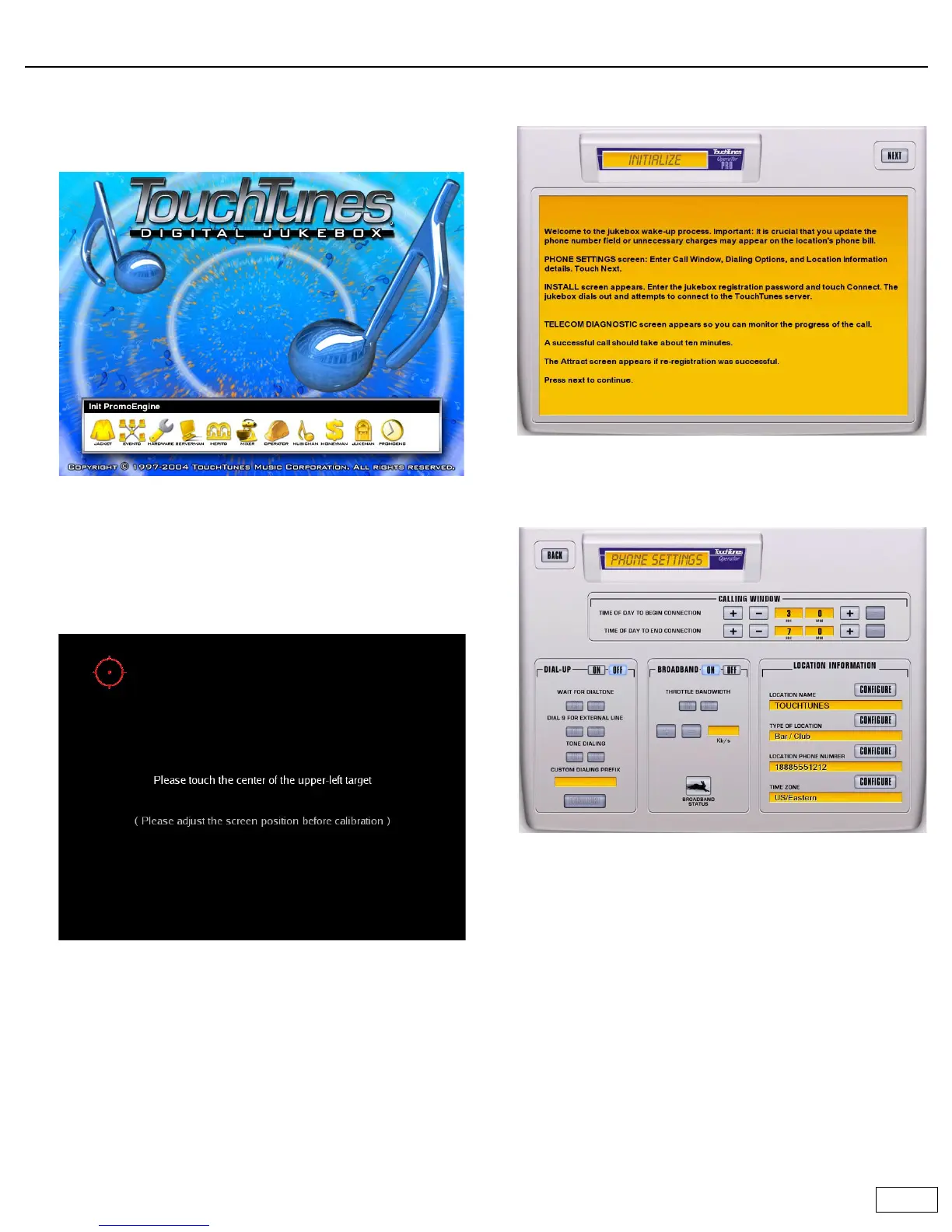
Once power is applied, Ovation will display a series of startup
messages, then the startup screen will open.
Icons at the bottom of the screen appear as each subsystem is
initialized. Total startup time can be up to 5 minutes. (The first time
the jukebox starts it may take longer, 5 to 15 minutes, depending on
the number of songs on the hard drive.) If the jukebox pauses on
any icon for more than five minutes, a problem may have occurred.
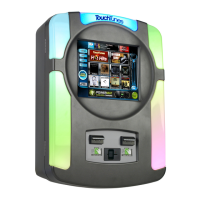
2 Calibrate the touchscreen
The Calibration screen opens.
To properly calibrate the touchscreen, stand directly in front of the
jukebox as a customer would and follow the onscreen directions.
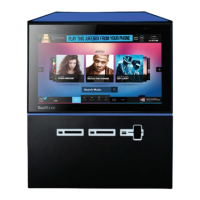
3 Initialize screen
Once all subsystems are initialized the Initialize screen opens.
Touch NEXT to start the installation procedure.
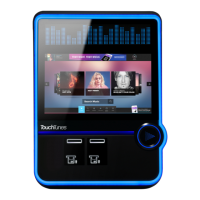
4 Provide phone and calling information
The Phone Settings screen opens.
a. In the
CALLING WINDOW box, set the time during which the
jukebox can use the phone line to call the TouchTunes server.
Time is specified using military time (i.e., 00:00 equals
midnight).
The more time you make available, the more songs the jukebox
will be able to download. It takes about 20 to 25 minutes to
download a single song. The busiest time for the TouchTunes
server is between 4 and 8 AM Eastern time. If you can set your
jukebox to call outside this time, you may get better
throughput.
•
TIME OF DAY TO BEGIN CONNECTION: Set this to one half hour
after the location is locked up for the night (i.e., the time the
last person leaves and locks the front door). The half hour
gives you a buffer in case things are running late one night.
•
TIME OF DAY TO END CONNECTION: Set this to one half hour
before the earliest person arrives and enters the location.
b. If using a dial-up connection, enable the
DIAL-UP option and set the following parameters:


 To Next Page