8 of 12
• WAIT FOR DAILTONE: Disable this option if the location has a
voice mail service installed on its line. When disabled, the
jukebox will not check for a dial tone before dialing out,
instead it will pause for two seconds then begin dialing.
•
DIAL 9 FOR EXTERNAL LINE: Enable this option if 9 needs to be
dialed to access an external line. For example, if a PBX is
installed at the location.
•
TONE DIALING: If the location uses pulse dialing, turn this
option off.
•
CUSTOM DIAL PREFIX: If an outgoing prefix needs to be dialed
before the phone number, touch the
CONFIGURE button, then
use the numeric keypad to enter the prefix.
• If the location has call waiting, you should enter the prefix to
disable it. In most cases this is *70. You may need to add a
pause to the end of this sequence, as sometimes there is a
delay before the dial tone returns. Use the # key to enter a
pause. For example, the sequence *70## disables call
waiting and then pauses twice before continuing to dial.
c. If using a broadband connection, enable the
BROADBAND option
and set the following parameters:
•
THROTTLE BANDWIDTH: Enable this option to limit the total
amount of bandwidth the jukebox will use. Touch the
+ and -
buttons to increase or decrease the limit.
d.
LOCATION INFORMATION identifies the jukebox to the TouchTunes
server. Touch the
CONFIGURE button next to each of the
following parameters to set them.
•
LOCATION NAME: Specify the name of the location.
•
TYPE OF LOCATION: Choose a type from the list.
•
LOCATION PHONE NUMBER: Enter the phone number of the
location. If you are in your shop, enter the phone number of
your shop. Later you will change this number to that of the
location.
Note: The jukebox uses the phone number you enter to
determine the most cost-effective way to call the TouchTunes
server. If you enter an incorrect number, it could result in
unnecessary charges on the location’s phone bill.
•
TIME ZONE: Choose the time zone that the location is in.
e. Touch NEXT.
5 Specify the registration password
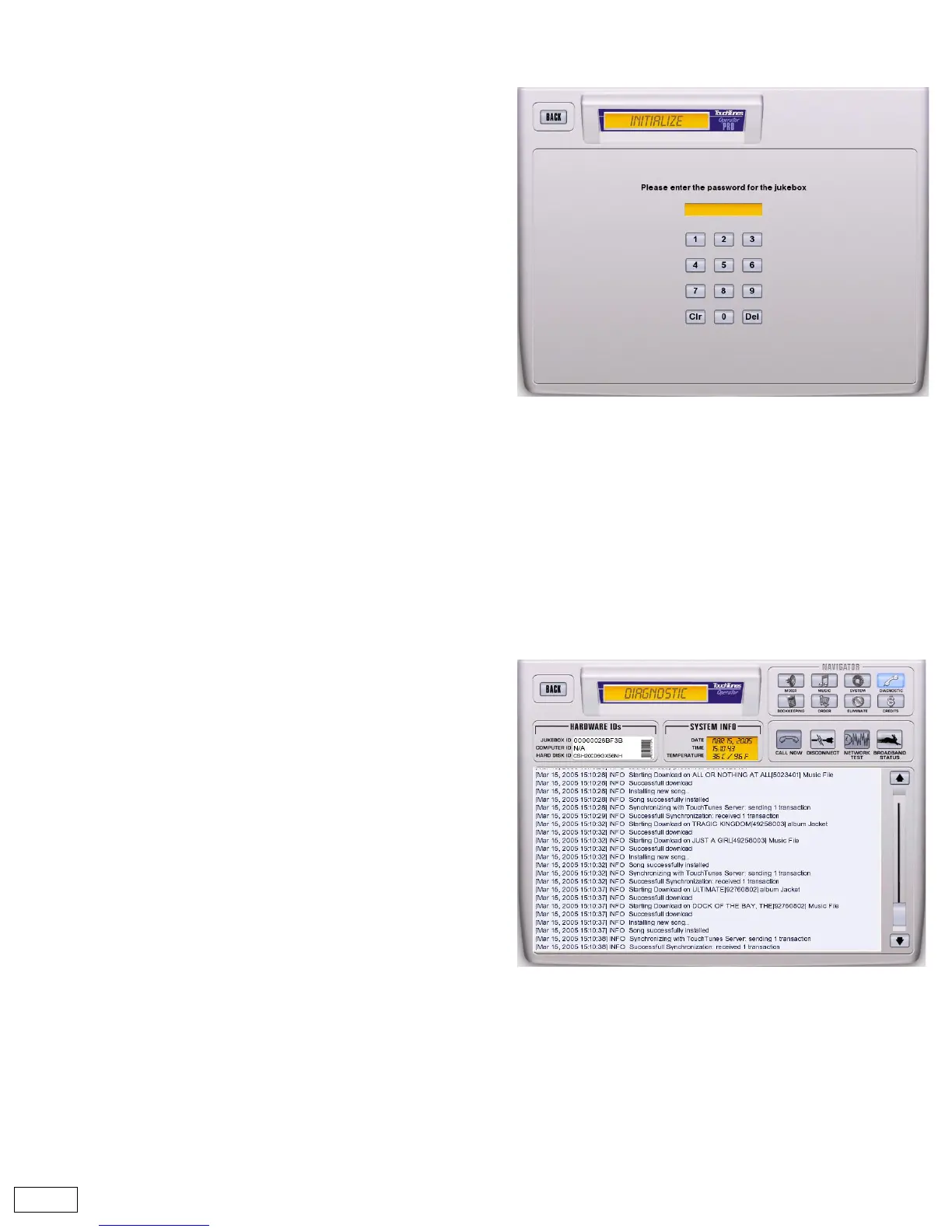
Enter the registration password and touch CALL.
The password should have been sent to you by fax prior to delivery
of the jukebox. If you did not receive your password, call TouchTunes
at 1-888-711-5853.
6 Monitor the call to the TouchTunes server
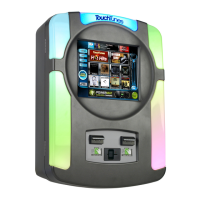
The jukebox will now dial out and attempt to connect to the
TouchTunes server. The Diagnostic screen opens, enabling you to
monitor the progress of the call. A successful call should take about
ten minutes to complete.
If the call fails, you will see an error message indicating the problem
that occurred. Refer to the Ovation Operator’s Manual for a
description of all error messages and advice on how to correct them.
The following screen shows a call in progress.


 To Next Page