32
Chapter 6
Guest Network
authentication an excellent choice. Customers will be directed to a web page for access
verification, on which your personalized promotion is displayed. Moreover, you can
specify a web link so that the newly connected guest will be redirected to, for example,
the official website of your shop.
1. Visit http://tplinkwifi.net, and log in with your TP-Link ID or the password you set for
the r
outer.
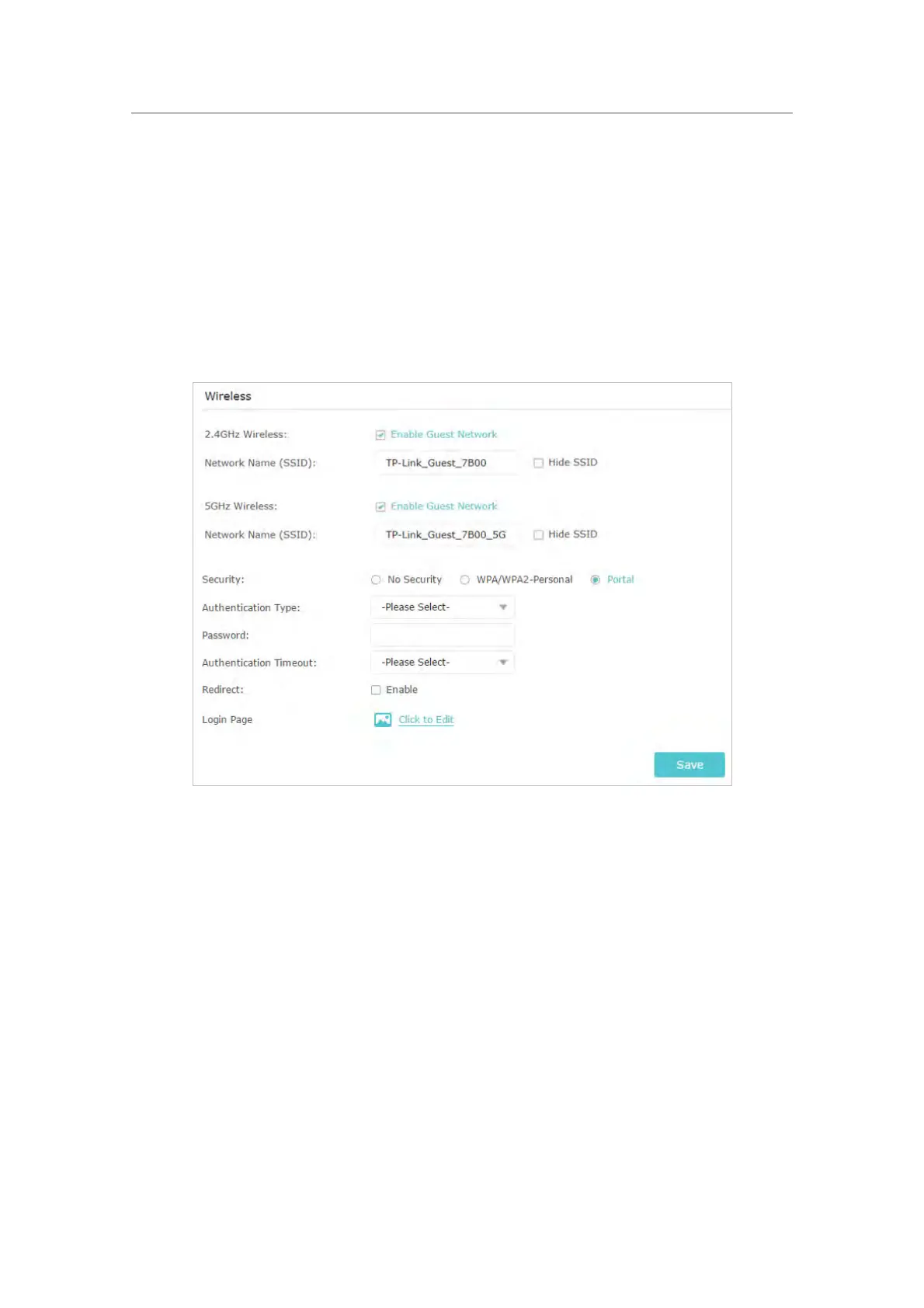
2. Go to Advanced > Guest Network. Focus on the Wireless section, and select Portal
f
or Security.
3. Select the Authentication Type.
• Simple Password – Specify a password for authentication (8-16 alphanumeric
or “_” char
acters are allowed).
• No Authentication – Guests can access the network without any authentication.
4. Specif
y the Authentication Timeout. When a guest’s authentication expires, they
ha
ve to reconnect to the network.
5. (Optional) Enable Redirect and enter the desired web link. The newly connected guest
will be r
edirected to the website you have specified.
6. (Optional) Click Click to Edit to personalize the authentication page, and click Save.






 To Next Page