31
Chapter 6
Guest Network
6. 1. Create a Network for Guests
1. Visit http://tplinkwifi.net, and log in with your TP-Link ID or the password you set for
the router.
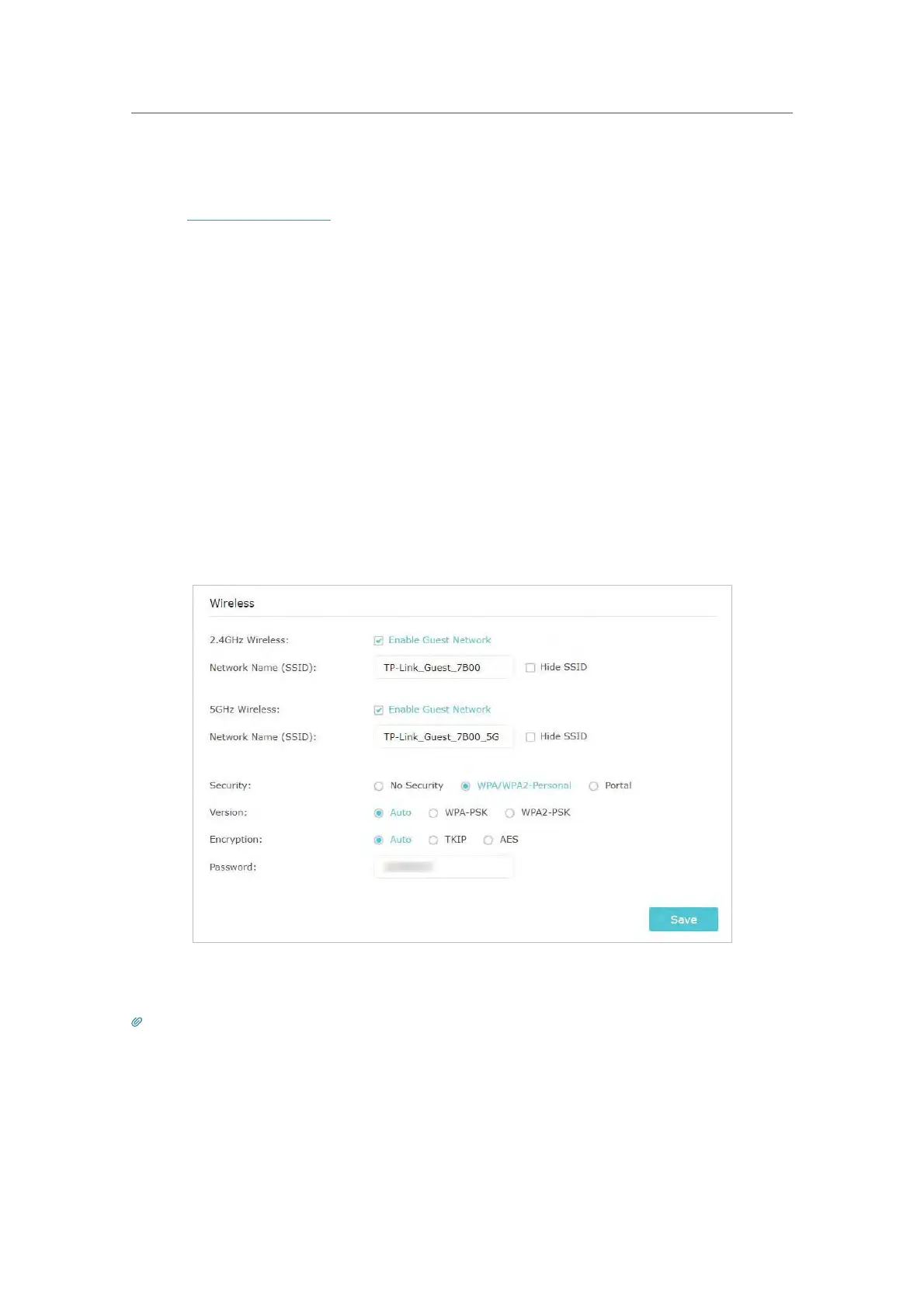
2. Go to Advanced > Guest Network. Locate the Wireless section.
3.
Create a guest network as needed.
1 ) Enable 2.4GHz wireless network and/or 5GHz wireless network.
2 ) Customize the SSID. Don‘t select Hide SSID unless you want your guests to
manually input the S
SID for guest network access.
3 ) Select the Security type.
• If No security is selected, no password is needed to access your guest network.
• If WAP/WPA2-Personal is selected, keep the default Version and Encryption
v
alues, and customize your own password.
• If Portal is selected, please refer to Set Portal Authentication to personalize the
anthentic
ation login page for your guests.
4. Click Save. Now your guests can access your guest network using the SSID and
password you set!
Tips:
To view guest network information, go to Advanced > Status and locate the Guest Network section.
6. 2. Set Portal Authentication
Imagine that you run a small shop and provide a guest network for your customers.
You want to seize every opportunity to promote your shop, which makes portal






 To Next Page