4
Chapter 1
Get to Know About Your Router
1. 1. Product Overview
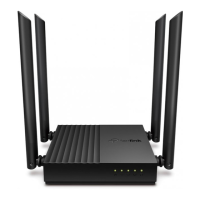
The TP-Link router is designed to fully meet the need of Small Office/Home Office
(SOHO) networks and users demanding higher networking performance. The powerful
antennas ensure continuous Wi-Fi signal to all your devices while boosting widespread
coverage throughout your home, and the built-in Ethernet ports supply high-speed
connection to your wired devices.
Moreover, it is simple and convenient to set up and use the TP-Link router due to its
intuitive web interface and the powerful Tether app.
1. 2. Panel Layout
1. 2. 1. Top Panel
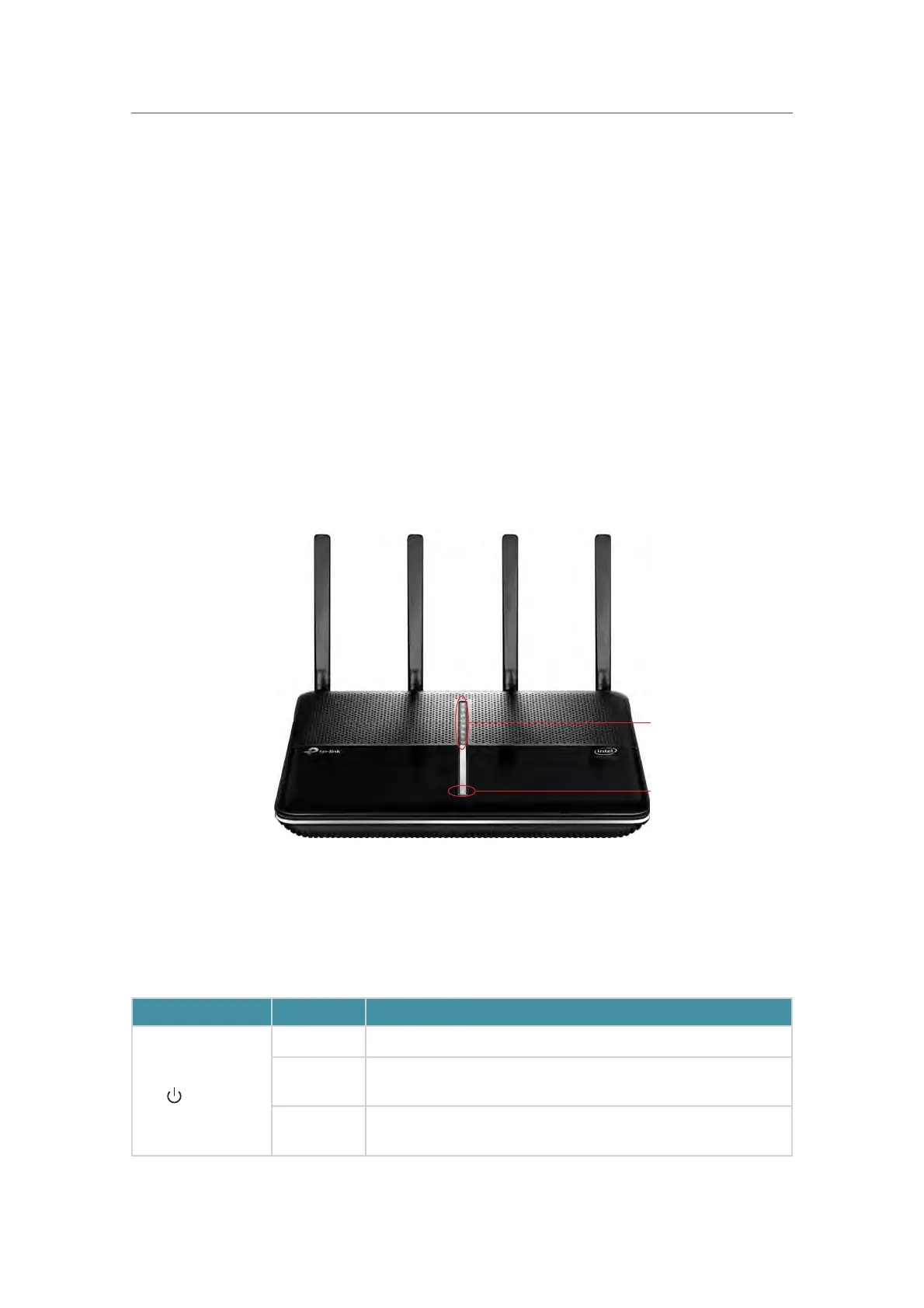
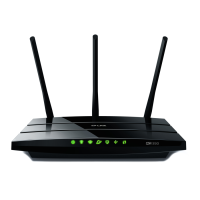
The router’s top panel provides LEDs (view from bottom to top). You can check the
router’s working status by following the LED Explanation table.
It also provides the LED On/Off button. You can press this button to turn on/off the LEDs
without affecting the router’s function.
LED Explanation
Name Status Indication
(Power)
On The system has started up successfully.
Flashing
The system is starting up or firmware is being upgraded.
Do not disconnect or power off the router.
Off
Power is off. Please ensure that the power adapter is
connected correctly.
LED On/Off button
LEDs






 To Next Page