76
Chapter 12
Customize Your Network Settings
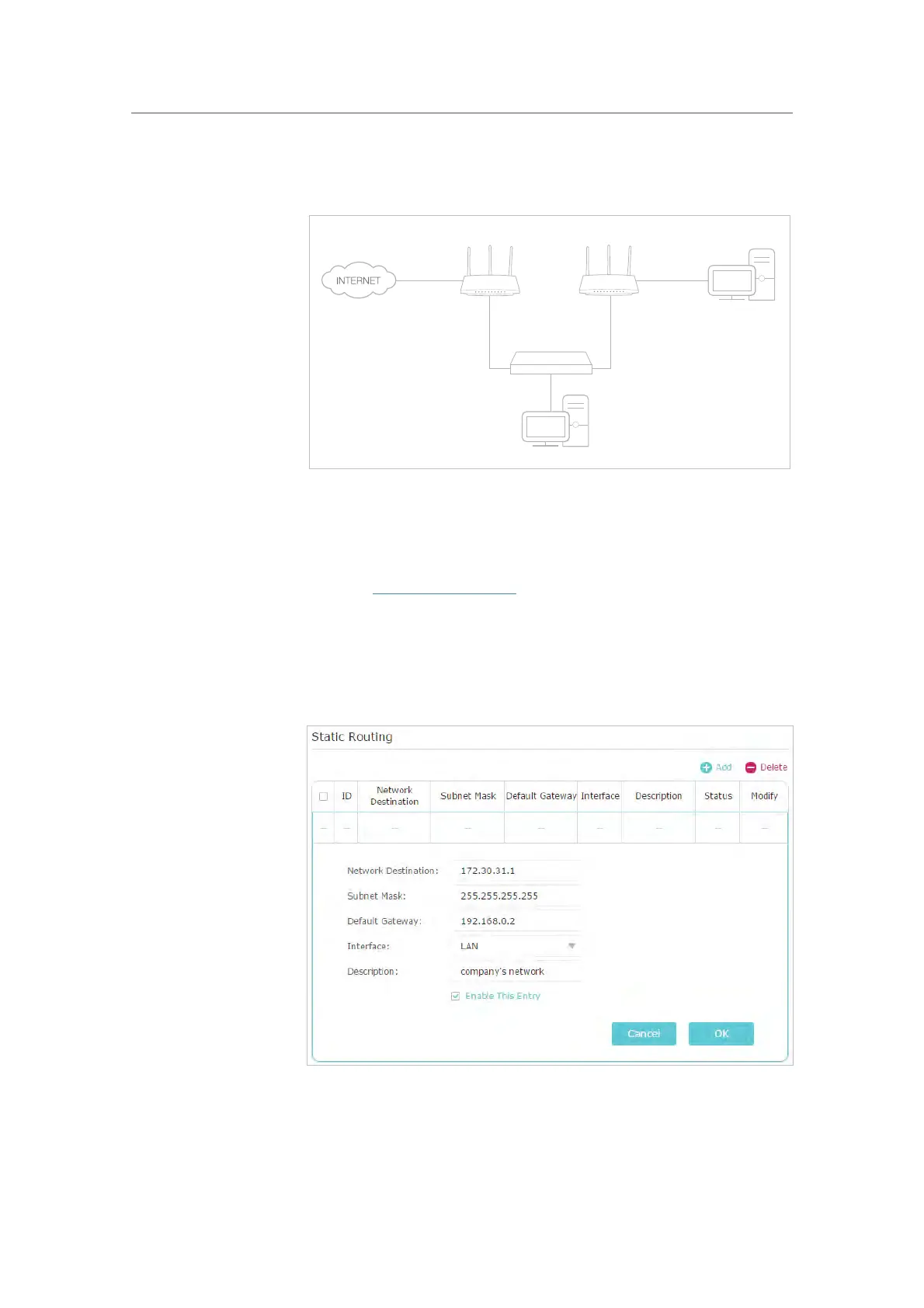
and visit my company’s network at the same time, I need to
configure the static routing.
Company’s server
PC
Router B
Router A
Switch
LAN: 192.168.0.1
192.168.0.100
LAN: 192.168.0.2
WAN: 172.30.30.100
172.30.30.1
1. Change the routers’ LAN IP addresses to two different IP
addresses on the same subnet. Disable Router B’s DHCP
function.
2. Visit http://tplinkwifi.net, and log in with your TP-Link ID or
the passw
ord you set for Router A.
3. Go to Network > Advanced Routing.
4. Click Add and finish the settings according to the following
e
xplanations:
Network Destination: The destination IP address that you want
to assign to a static route. This IP address cannot be on the same
subnet with the WAN IP or LAN IP of Router A. In the example,
the IP address of the company network is the destination IP
How can
I do that?






 To Next Page