41
Chapter 10
NAT Forwarding
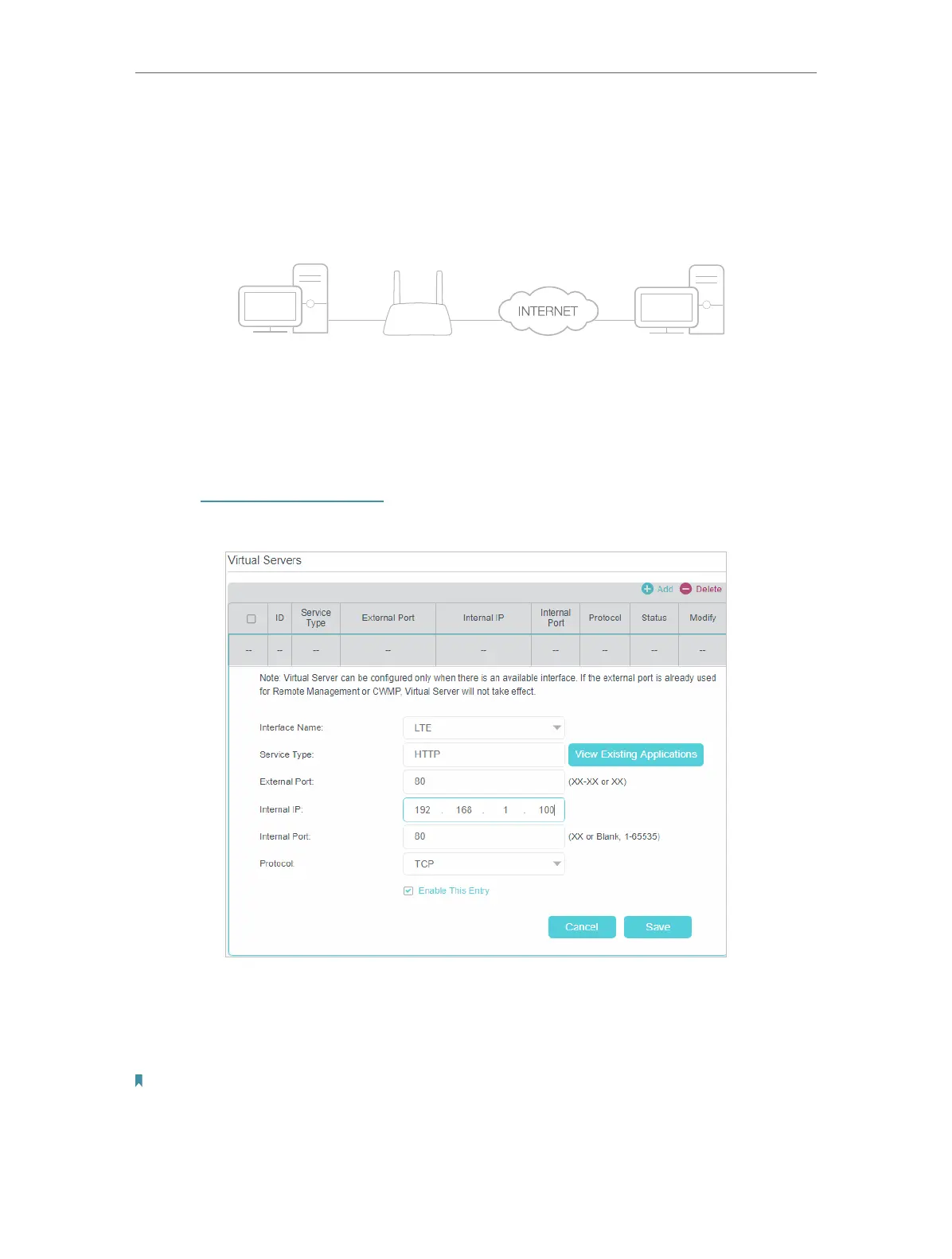
Share my personal website I’ve built in local network with my friends through the internet.
For example, the personal website has been built in my home PC (192.168.1.100). I hope
that my friends in the internet can visit my website in some way. The PC is connected to
the router with the WAN IP address 218.18.232.154.
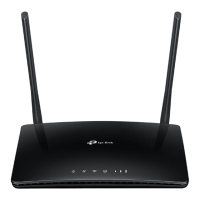
4G LTE Router
WAN: 218.18.232.154
LAN
How can I do that?
1. Assign a static IP address to your PC, for example 192.168.1.100.
2. Visit http://tplinkmodem.net, and log in with the password or your TP-Link ID.
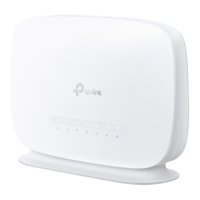
3. Go to Advanced > NAT Forwarding > Virtual Servers, click Add.
4. Click View Existing Services, and choose HTTP. The external port, internal port and
protocol will be auto-populated. Enter the PC’s IP address 192.168.1.100 in the
Internal IP field.
5. Click Save to save the settings.
Note:
1. It is recommended to keep the default settings of Internal Port and Protocol if you are not clear about
which port and protocol to use.
2. If the service you want to use is not in the Service Type, you can enter the corresponding parameters
manually. You should verify the port number that the service needs.










 To Next Page