62
Chapter 11
Specify Your Network Settings
With the wide application of the internet, more and more data need to be shared through
the internet. Connecting the local network to the internet directly, though can allow the
data exchange, will cause the private data to be exposed to all the users on the internet.
11. 8. 1. Use OpenVPN to Access Your Home Network
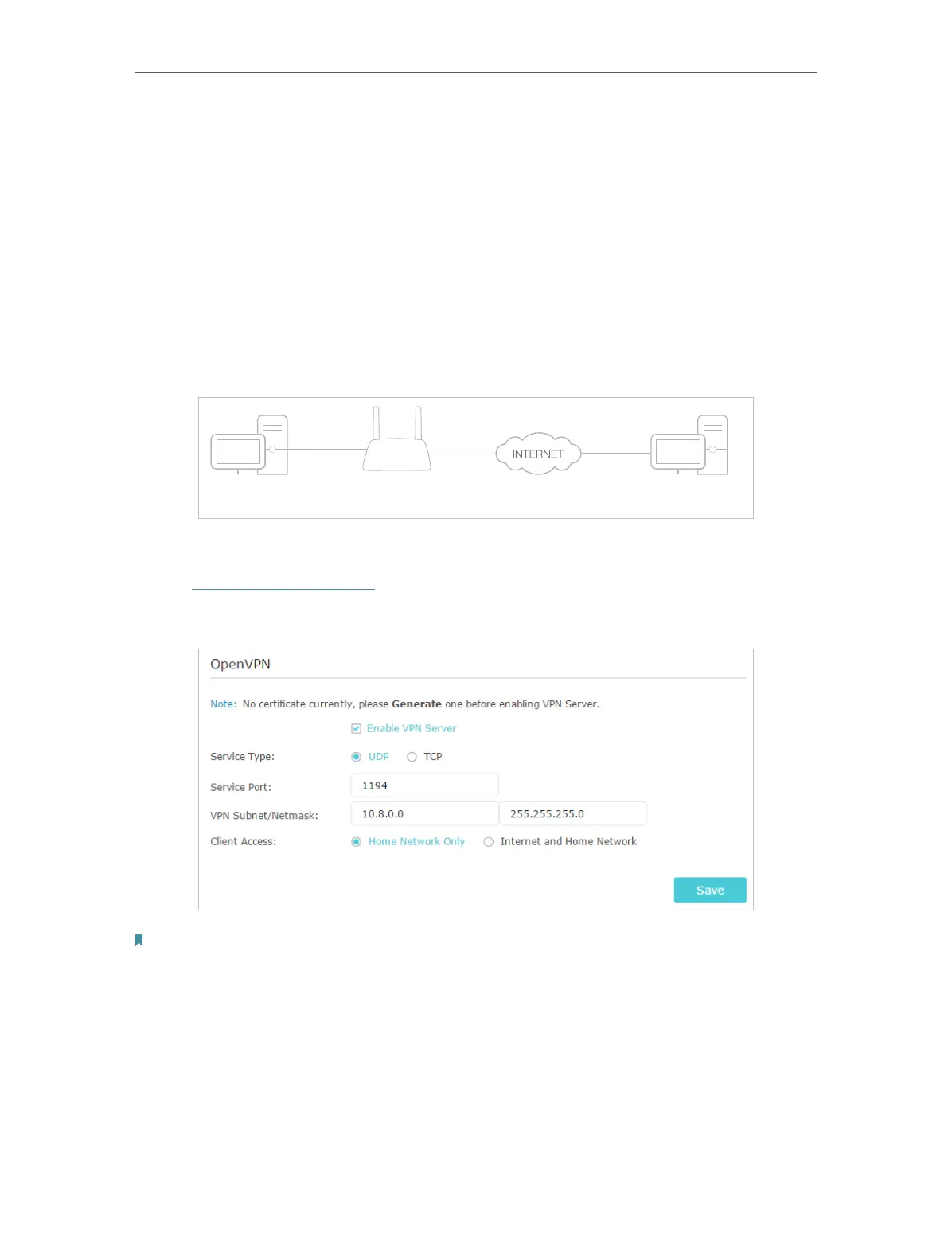
In the OpenVPN connection, the home network can act as a server, and the remote
device can access the server through the router which acts as an OpenVPN Server
gateway. To use the VPN feature, you should enable OpenVPN Server on your router,
and install and run VPN client software on the remote device. Please follow the steps
below to set up an OpenVPN connection.
Remote DeviceHome Network Router
Step1. Set up OpenVPN Server on Your Router
1. Visit http://tplinkmodem.net, and log in with the password or your TP-Link ID.
2. Go to Advanced > VPN Server > OpenVPN, and select Enable VPN Server.
Note:
• Before you enable VPN Server, we recommend you configure Dynamic DNS Service (recommended) or assign a
static IP address for router’s WAN port and synchronize your System Time with internet.
• The first time you configure the OpenVPN Server, you may need to Generate a certificate before you enable the VPN
Server.
3. Select the Service Type (communication protocol) for OpenVPN Server: UDP, TCP.
4. Enter a VPN Service Port to which a VPN device connects, and the port number
should be between 1024 and 65535.


 To Next Page