42
Chapter 10
NAT Forwarding
3. You can add multiple virtual server rules if you want to provide several services in a router. Please note
that the External Port cannot be overlapped.
Done!
Users in the internet can enter http:// WAN IP (in this example, enter
http:// 218.18.232.154) to visit your personal website.
Note:
1. WAN IP should be a public IP address. For the WAN IP is assigned dynamically by ISP, it is recommended
to apply and register a domain name for the WAN by DDNS, go to Set Up a Dynamic DNS Service Account
for more information. Then you can use http://domain name to visit the website.
2. If you have changed the default External Port, you should use http://WAN IP: External Port or
http://domain name: External Port to visit the website.
10. 3. Open Ports Dynamically by Port Triggering
Port triggering can specify a triggering port and its corresponding external ports.
When a host in the local network initiates a connection to the triggering port, all the
external ports will be opened for subsequent connections. The router can record the
IP address of the host. When the data from the internet return to the external ports, the
router can forward them to the corresponding host. Port triggering is mainly applied
to online games, VoIPs and video players. Common applications include MSN Gaming
Zone, Dialpad and Quick Time 4 players, etc.
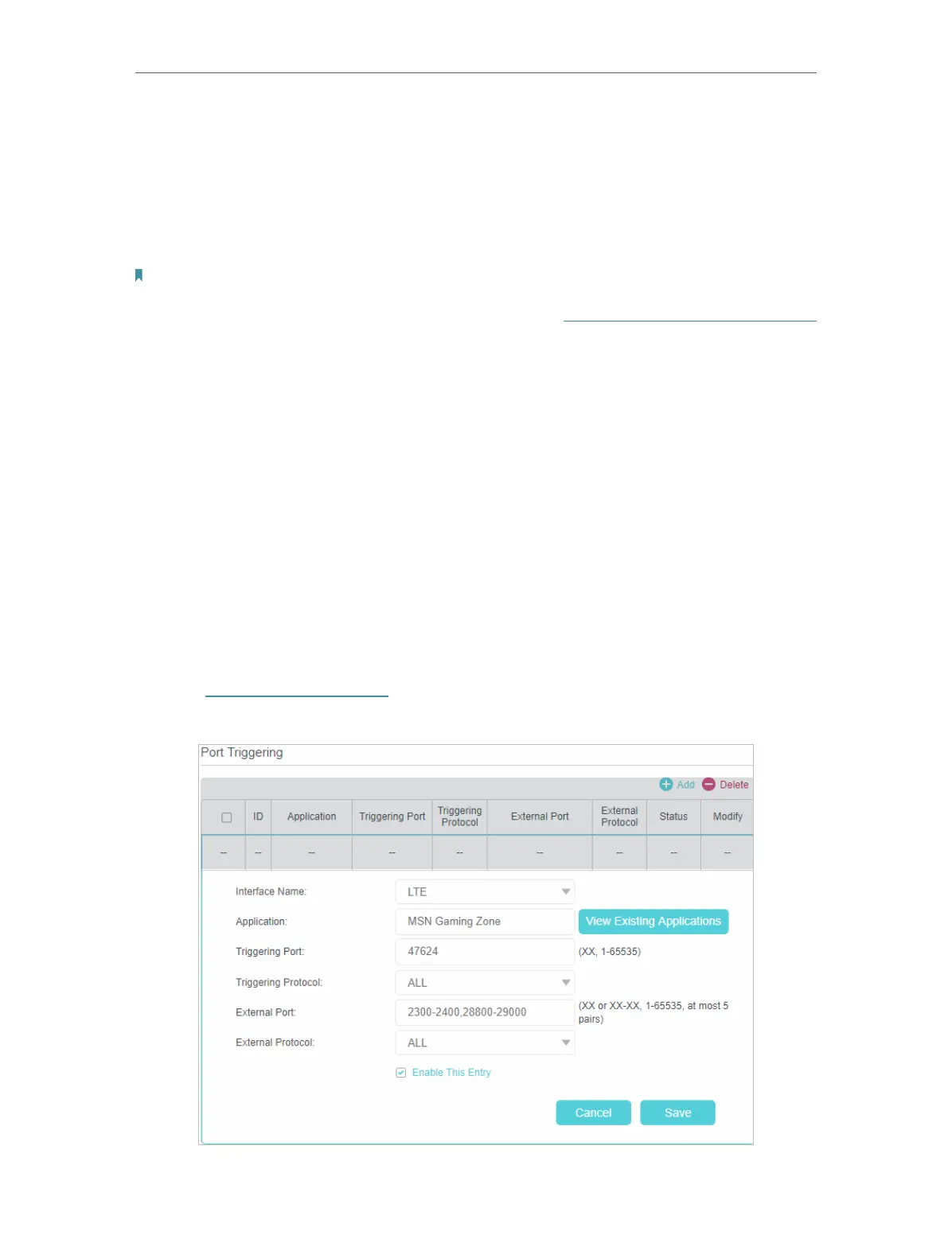
Follow the steps below to configure the port triggering rules:
1. Visit http://tplinkmodem.net, and log in with the password or your TP-Link ID.
2. Go to Advanced > NAT Forwarding > Port Triggering and click Add.










 To Next Page