Before installation, be sure that you have the following items:
A pre-installed wall junction box
An RJ45 plug
LED/Wi-Fi Button
When the EAP is working in Standalone Mode and enabled with Wi-Fi Control,
press the button to turn on/o both the Wi-Fi and LED. In the other cases, press
the button to turn on/o the LED only.
LAN Port
A wired device can be connected to the LAN port via an Ethernet cable and
access the network.
RESET
With the EAP powered on, press and hold the button for about 5 seconds until
the LED ashes, then release the button. The EAP will restore to factory default
settings.
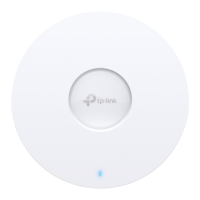
LED Indicator
White On: Working normally/Initializing.
For EAPs with dual-color LED: Normal power supply
Orange On: For EAPs with dual-color LED: Low power supply
O: Working abnormally/Power o/LED is turned o.
Flash:
• Flash twice: Initialization is completed.
• Flash once per second: The EAP is upgrading.
• Flash quickly: The EAP is resetting or the Omada Controller is locating the EAP*.
* When the Locate feature is activated in the Omada Controller, the EAP’s LED will ash
quickly for 10 minutes to help you locate and identify the device. You can disable this
feature manually to stop the device from ashing.
• Sustained ash: The EAP is in isolated state.*
* Only for EAPs supporting Omada Mesh.
Screwdrivers
A PoE switch
Hardware Overview
Quick Installation Guide
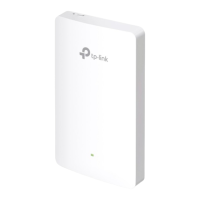
Wireless Wall Plate Access Point
Hardware Installation
3
Front Panel
Rear Panel
Pre-Installation Checklist
2
UPLINK+PoE Port / ETH0 (PoE IN) Port
Connect to a PSE (Power Sourcing Equipment), such as a PoE switch, for both
data transmission and power supply. The PSE shall comply with Power Source
Class 2 (PS2) or Limited Power Source (LPS) of IEC 62368-1.
The EAP can be mounted into a wall junction box. The junction box should be
pre-installed with a running-in-wall Ethernet cable connected to a PoE switch.
LAN Port
RESET
LED
LED/Wi-Fi Button
5. Press the faceplate of the EAP back into position.
Standard EU wall junction box86 mm wall junction box
4. Insert the enclosed screws and tighten them with a screwdriver to secure
the mounting bracket.
Note:
•
Do not over tighten the screws.
•
If the enclosed screws do not t the junction box, use the screws attached
to the junction box instead.
1
Note: The image may dier from the actual product.
1. Detach the faceplate of the junction box with a screwdriver (demonstrated
with an 86 mm wall junction box).
2. Detach the faceplate of the EAP with a screwdriver.
3. Connect the Ethernet cable inside the junction box to an RJ45 plug. Then
connect the cable to the PoE port at the rear panel. Position the Ethernet
cable to ensure it is not strained.
Note: For simplicity, we will take EAP230-Wall for example throughout the Guide.
Standard US wall junction box
LAN Port
RESET
LED/Wi-Fi Button
Some common wall junction boxes:
RESET
LED/Wi-Fi Button
LAN Ports
Some common front panels:
LED
LED
©2024 TP-Link 7106511351 REV2.7.0
Business CommunityDownload CenterSetup Videos

 Need help?
 General


 To Next Page