53
The Configuration for a WLAN connection
Setting the parameters for a
wireless network
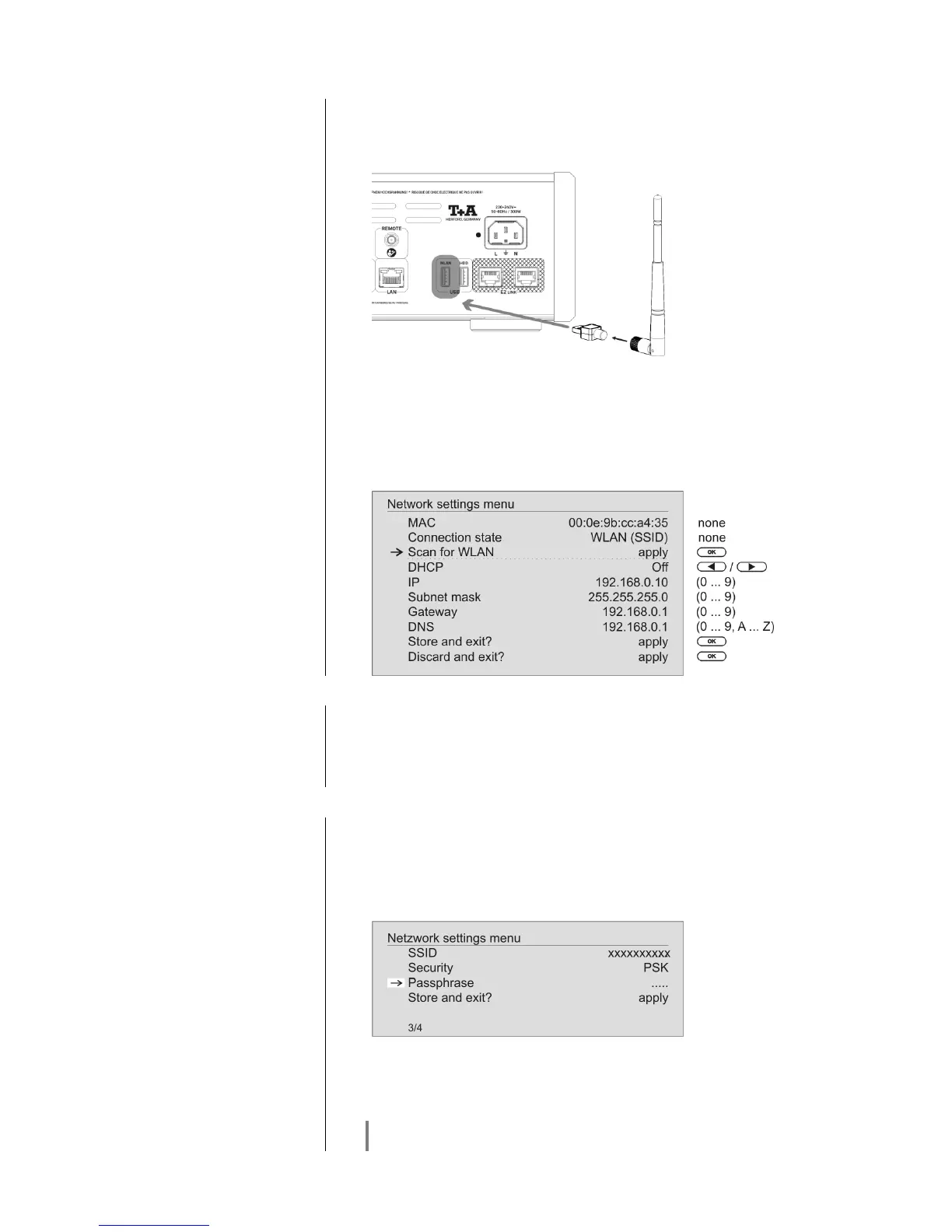
Locate the USB WLAN stick supplied in the set, and connect it to the USB –
WLAN socket on the back panel of the R 1000 E. Check that there is no cable
connected to the LAN socket of the R 1000 E.
Now switch the R 1000 E on, and open the System Configuration menu by
pressing the button on the remote control handset or the front panel of
the R 1000 E.
Use the / buttons to select the menu point “Network”, then
confirm your choice with the button.
The following menu now opens:
Searching for and Selecting
the Network
First select the menu point “Scan for WLANS”, and activate it by pressing the
button.
A list of the WLANs found is displayed on the screen.
Use the / buttons to select the WLAN to which you wish the
R 1000 E to be connected, and confirm your choice with the button.
Entering the Password (for
encoded networks)
If the network is encoded, the window shown below will appear once the WLAN
is selected.
At this point please enter the network password and confirm your input by
pressing .
Select the “Store and exit?” point, and confirm your choice with .
Storing Network Settings and
Restarting
Finally select the “Store and exit?” menu point and press the button to
accept the settings.
If a WEP code is used, the password must be entered as a hexadecimal code
(0 - 9, A - F).


 To Next Page