24 BAS-SVX51L-EN
Trane SerialSpy Protocol Analyzer Software
Note: SerialSpy might not work if your laptop is running on battery power, because BACnet
®
signals
require a ground reference. You can run on AC power or attach a ground wire to terminal 3
on the USB dongle.
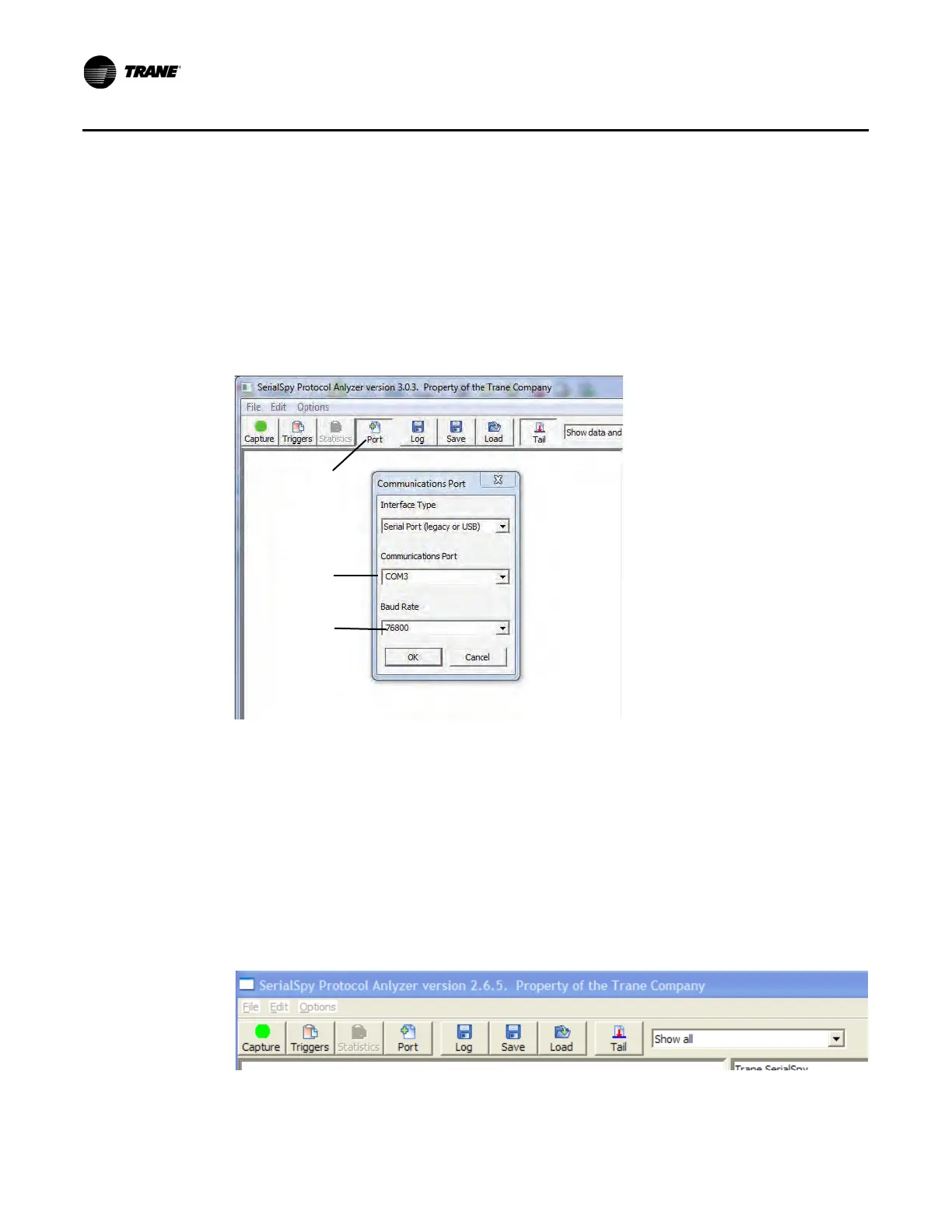
2. Click Port (see Figure 12, p. 24).
3. From the Communications Port list, click the comm port to match that for the COMM 4 USB Adapter.
4. From the Baud Rate list, choose the baud rate for the MS/TP link. Trane devices have a default baud
rate of 76800. Ensure that you choose the rate used by the controllers or you will not obtain a quality
screen capture.
Figure 12. Port settings inside SerialSpy
Use SerialSpy to Capture Link Messages
Figure 13, p. 24 shows the buttons available on SerialSpy. Follow the steps below to initiate a capture. The
descriptions following Figure 13, p. 24 explain what will appear as you monitor the MS/TP link, and the
function of the buttons on the user interface in relation to the capture.
1. In the drop-down list, select Show all.
2. Click Capture (when clicked, the Capture button becomes the Stop button).
3. Allow the capture to run 3-5 minutes.
4. Click Stop.
Figure 13. SerialSpy function buttons
• Blue lines — You will probably see a couple of lines in blue. These are diagnostics and are normal
every time you start SerialSpy. If the link has problems you will see lots of diagnostics shown in blue.
A typical 5-minute capture of a clean link has 85,000 messages with six blue diagnostics. The error
2
4
3


 To Next Page