20
14. Info Center
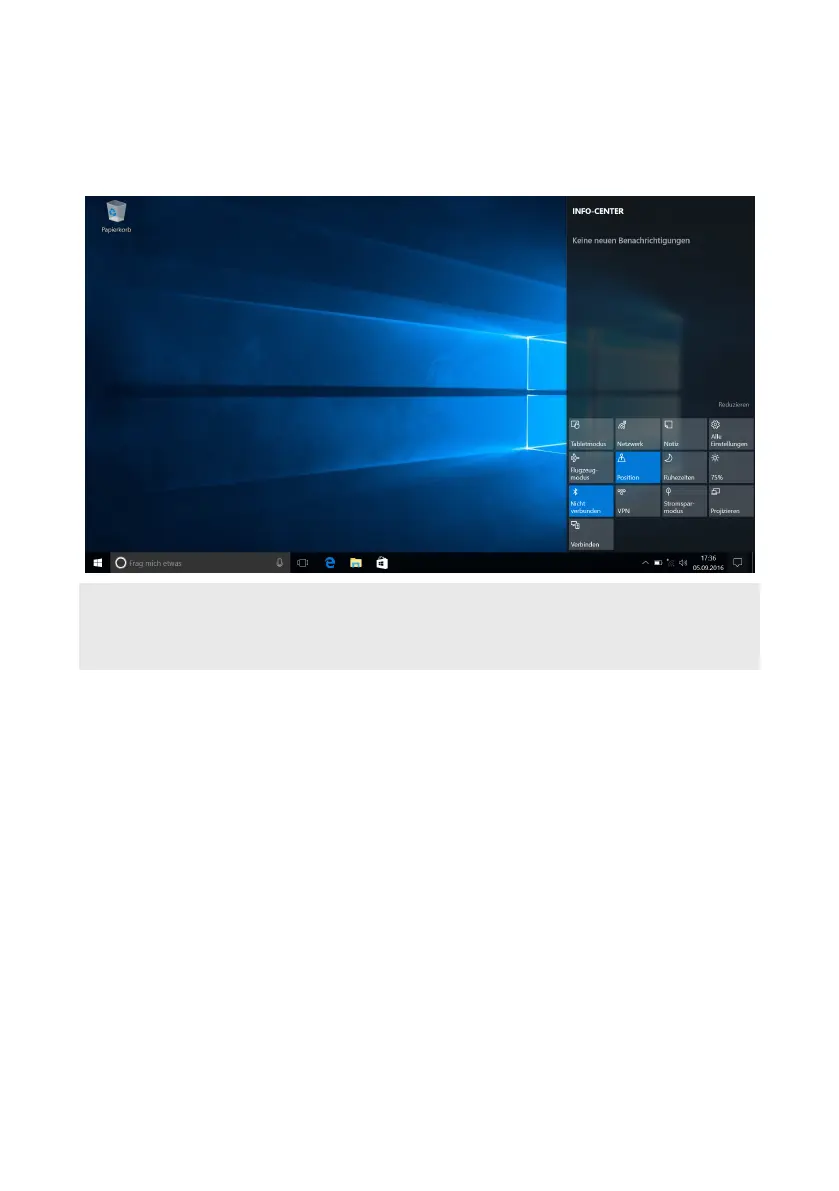
The Info Center is a bar with quick links to some important Surbook functions,
which you can either display or hide. To access the Info Center, click the memo
symbol on the bottom right of the display.
i
ADVICE
Among other things, the Info Center includes a quick link to what is known as
T ". If you tap this function, the Start menu is enlarged in the display.
15. Accessing and using the Start menu
The Start menu acts as the starting point for all of the important content of
your Surbook. Below you can read some useful information about the Start
menu’s basic functions.
Accessing the Start menu
There are two ways to display the Start menu:
■
Click the Windows symbol on the bottom left in the task bar.
■
Press the Windows button on the keyboard.
Tapping/Pressing a second time will hide the Start menu.
Layout of the Start menu
In addition to the straightforward navigation list (A) found in the "classic" Start
menu of older Windows versions, the Start menu of your Surbook has a useful
app area (B) to the right of the navigation list.


 To Next Page