S108 User Guide
37
5.2 Components
Upon successful completion of the installation process, the following files will be located in
the specified directories folders:
C:\Program Files\VIA Telecom\VIA CBP USB Driver\*.inf:
ViaUsbEts.inf
ViaUsbHub.inf
ViaUsbModem.inf
C:\Program Files\VIA Telecom\VIA CBP USB Driver\*.sys:
ViaUsbEts.sys
ViaUsbModem.sys
C:\Program Files\VIA Telecom\VIA CBP USB Driver\*.PDF:
ctm_via_usb_drv_installation_user_guide_8_A.PDF
5.3 Installation
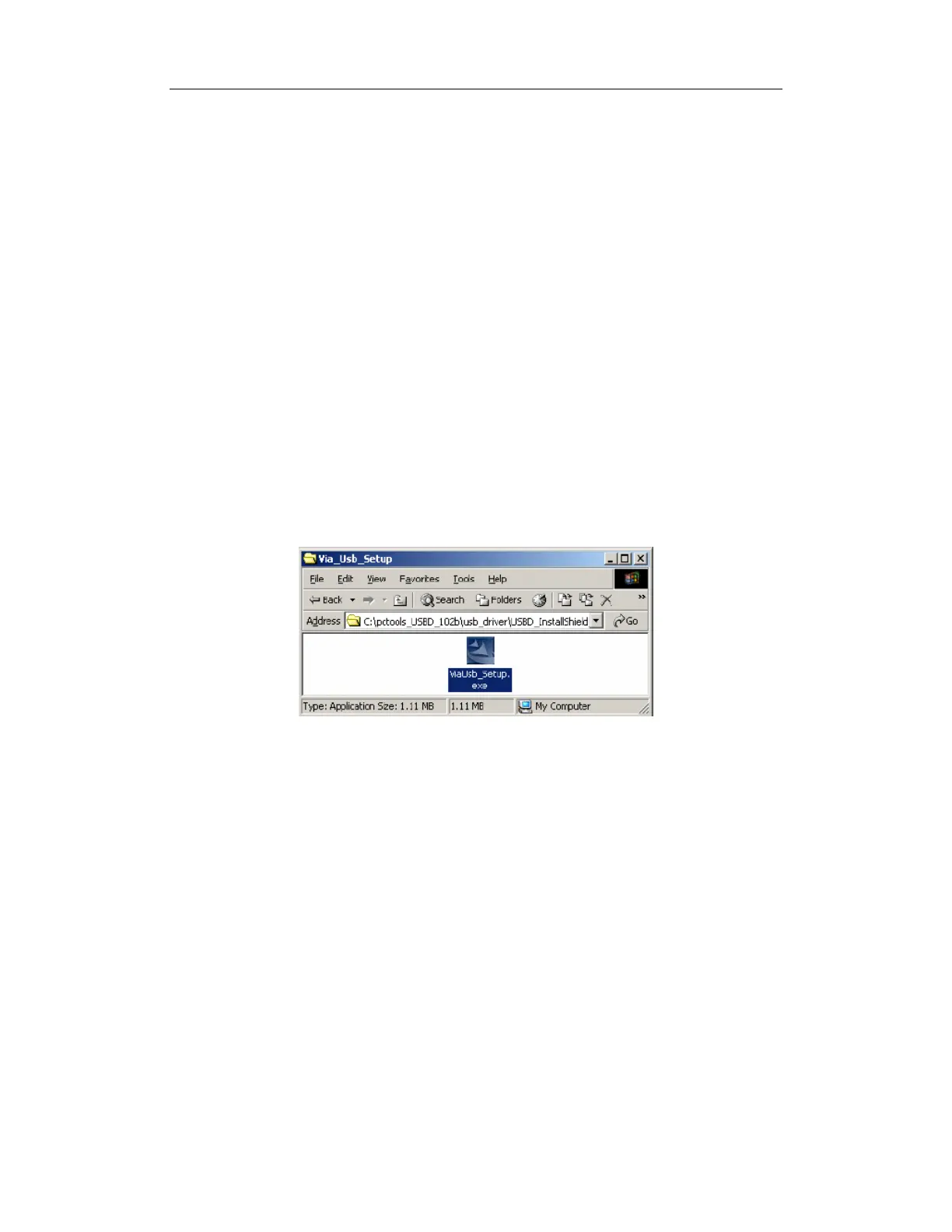
1. To install the USB Windows device driver, you must first start the Setup application,
ViaUsb_Setup.exe, by double-clicking the associated icon.
Figure 1 - USB Windows Device Driver Setup Icon
2. The USB Windows Device Driver Setup Welcome Dialog Box will appear.


 To Next Page