© Copyright 2013 TRENDnet. All Rights Reserved.
TRENDnet User’s Guide
TEW-812DRU
33
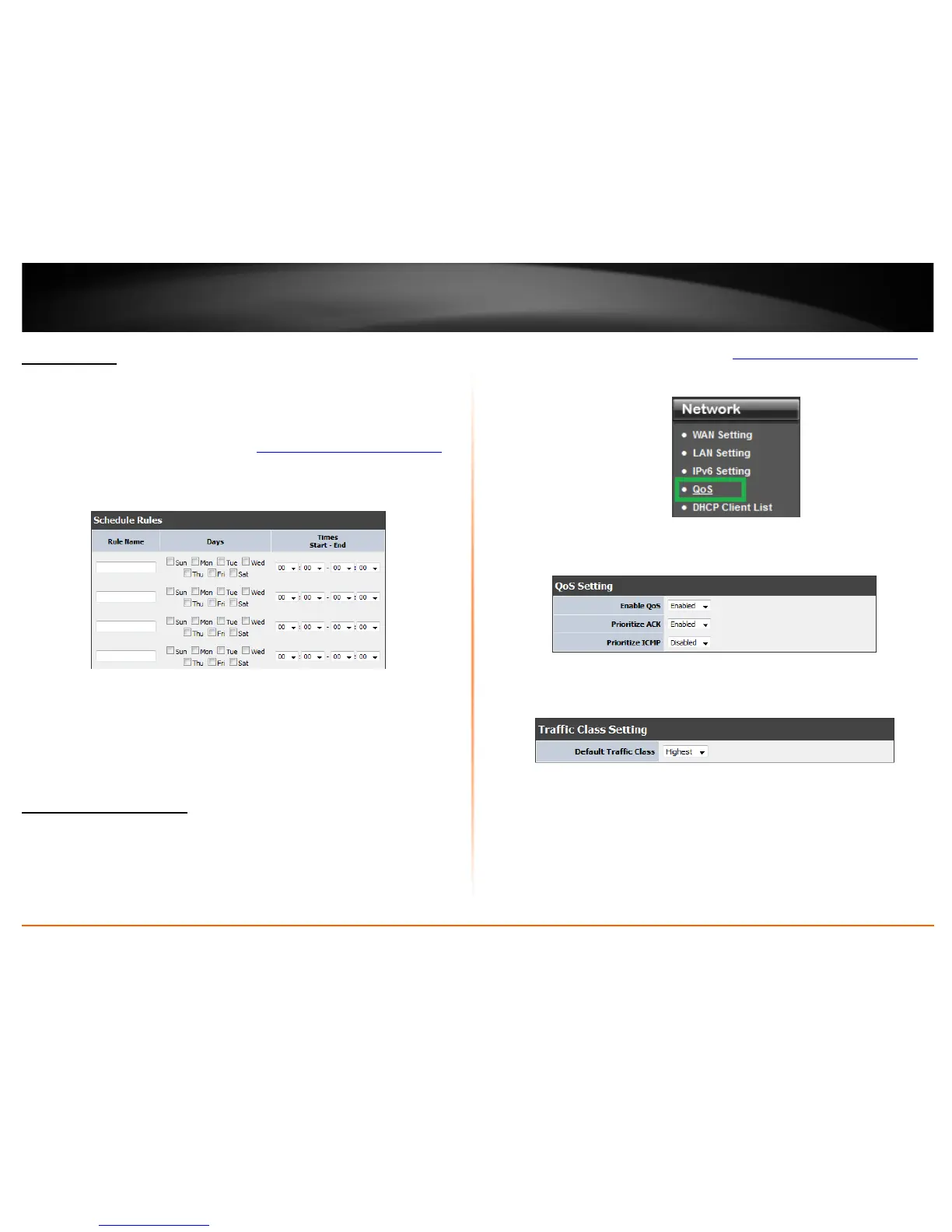
Set schedules
Advanced > Schedule
Your router has features Virtual Server rules and Access Controls that can turn on or off
through schedules.
1. Log into your router management page (see “
Access your router management page”
on page 26).
2. Click on Administrator, and click on Time.
3. Review the Schedule settings. Click Apply to save settings.
• Rule Name: Enter a name for the schedule you would like to apply.
• Days: Select the days you would like the rule to be applied or select All Week to
enable the rule all week.
• Start/End Time: Select the start and end time you would like the schedule to
follow.
QoS (Quality of Service)
Network > QoS
QoS involves prioritization of network traffic. QoS can be targeted at a network
interface, toward a given server or router's performance, or in terms of specific
applications.
1. Log into your router management page (see “
Access your router management page”
on page 26).
2. Click on Network, and click on QoS.
3. Review the QoS settings.
• Enable QoS: Enable or Disable the Quality of service through the router.
• Prioritize ACK: Enable or disable ACK prioritization.
• Prioritize ICMP: Enable or disable ICMP prioritization.
3. Select the traffic class you would like to configure for your QoS rule.














 To Next Page