© Copyright 2013 TRENDnet. All Rights Reserved.
TRENDnet User’s Guide
TEW-812DRU
42
• User Name: Enter the user name to be used to access your files.
• Password: Enter the password for the user name.
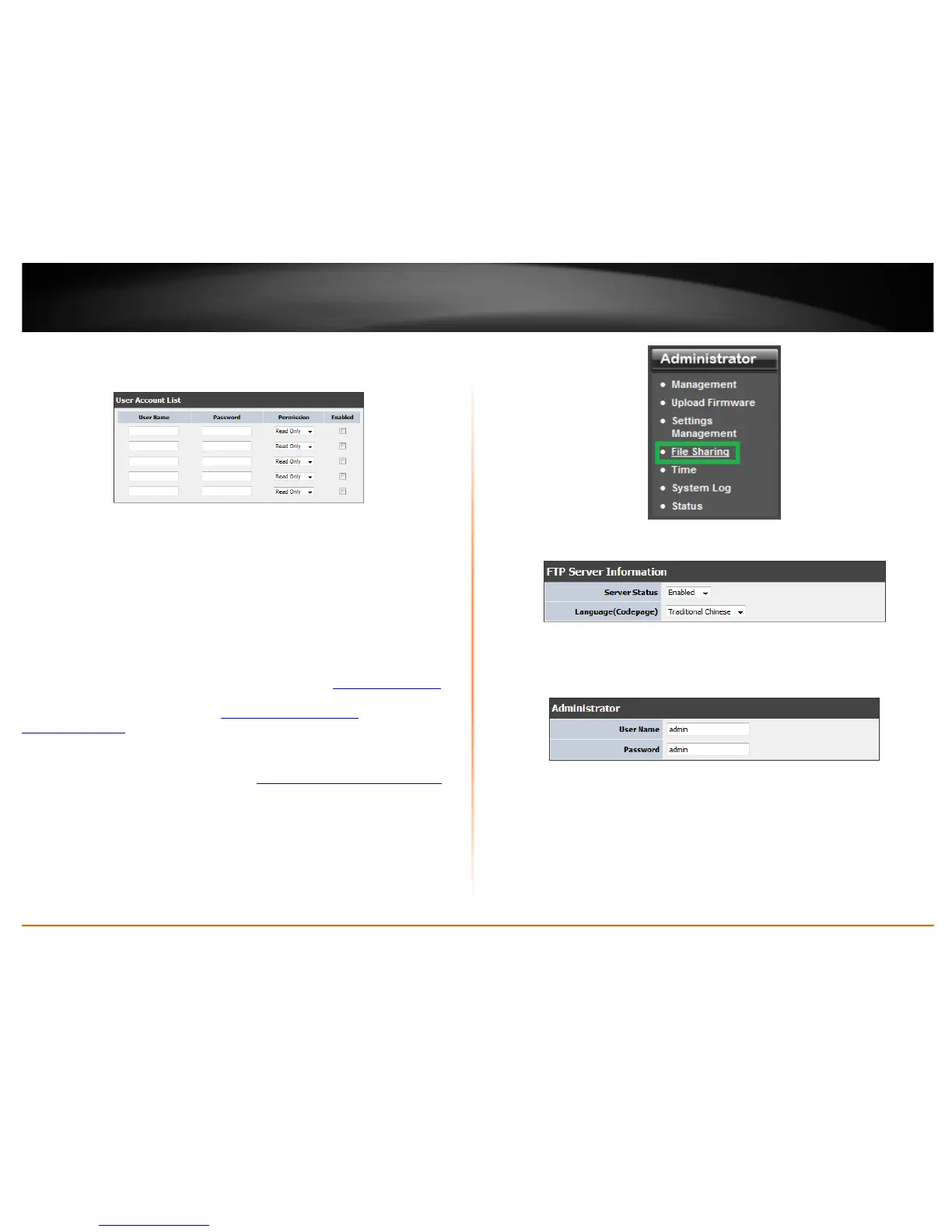
5. Review the User Account List section. Click Apply to save settings
• User Name: Enter the user name to be used to access your files.
• Password: Enter the password for the user name.
• Permission: Select the permission you will grant to the user
• Enabled: Click to activate user account.
FTP
Administrator > File Sharing
FTP (File Transfer Protocol) is used to access shared files through the Internet. In order
to share files, you will need to plug in a USB storage device on the USB port on the back
of the router. Signing up for a Dynamic DNS service (outlined in
Identify Your Network
section pg.39) will provide identification of the router’s network from the Internet. You
can access your shared files by typing ex.
ftp://router’sWANIPaddress or
ftp://myDDNSservice. Please follow the steps below to configure the router’s FTP
settings
1. Log into your router management page (see “
Access your router management page”
on page 26).
2. Click on Administrator, and click on File Sharing.
3. Review the setting on Samba Server Information section. Click Apply to save settings
• Server Status: Select enable or disable for the feature.
• Language: Select your language.
4. Review the administrator settings required for your FTP server. Click Apply to save
settings
• User Name: Enter the user name to be used to access your files.
• Password: Enter the password for the user name.




 To Next Page