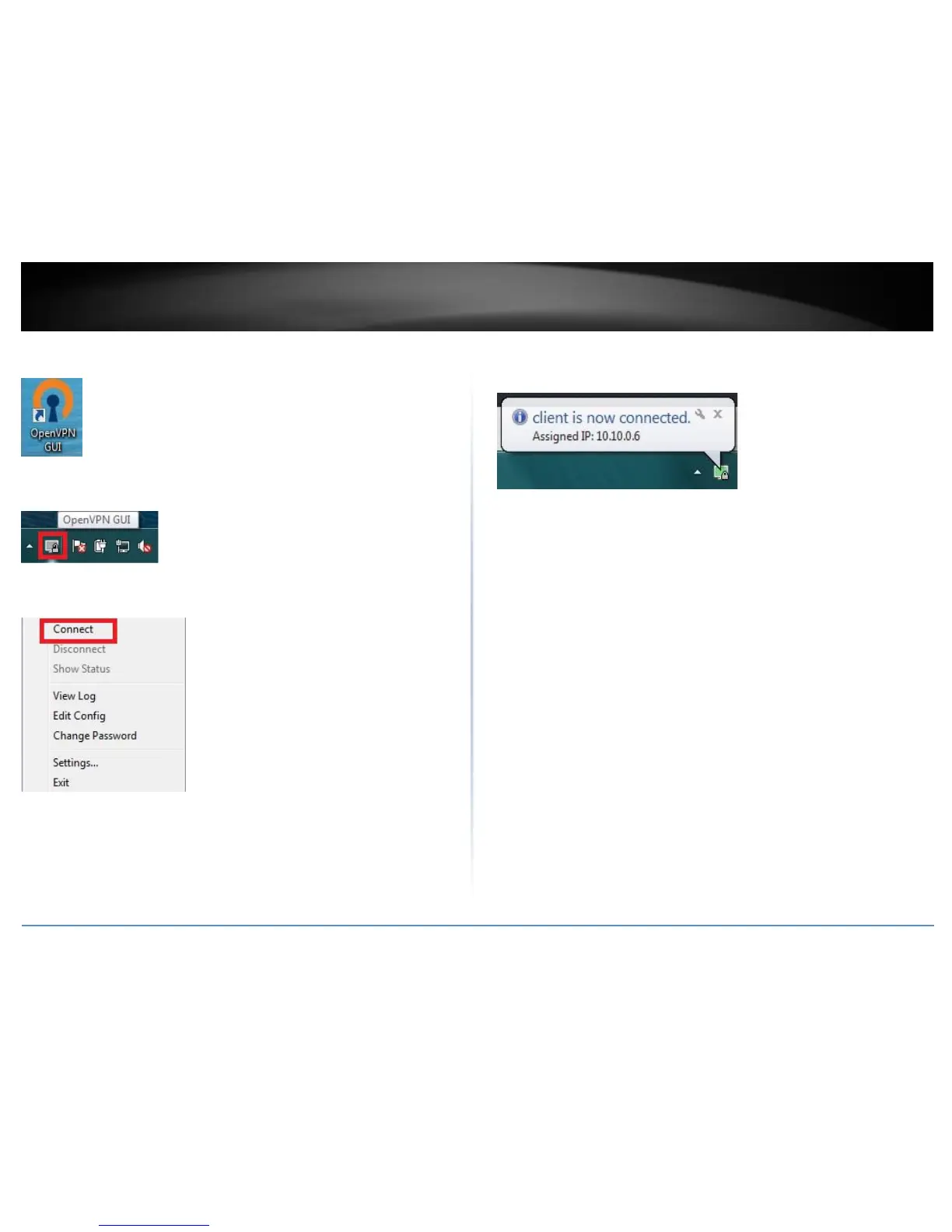
13. Double-click on the OpenVPN GUI shortcut on your desktop to start the OpenVPN
Client software.
14. The OpenVPN system tray icon will appear in the bottom right corner. Right-click the
icon to display the configuration menu.
15. After right-clicking the icon, the menu will appear. Click Connect to establish your
VPN connection to your router.
16. If the VPN connection is successful, you will receive the notification below in the
bottom right corner. You will be able to access resources securely from your router LAN
network over the Internet such as shared folders, media, files, etc.
Note: To disconnect your VPN client connection, right click OpenVPN system tray icon
and select Disconnect.







 To Next Page