Advanced Administration
PC Database (Admin)
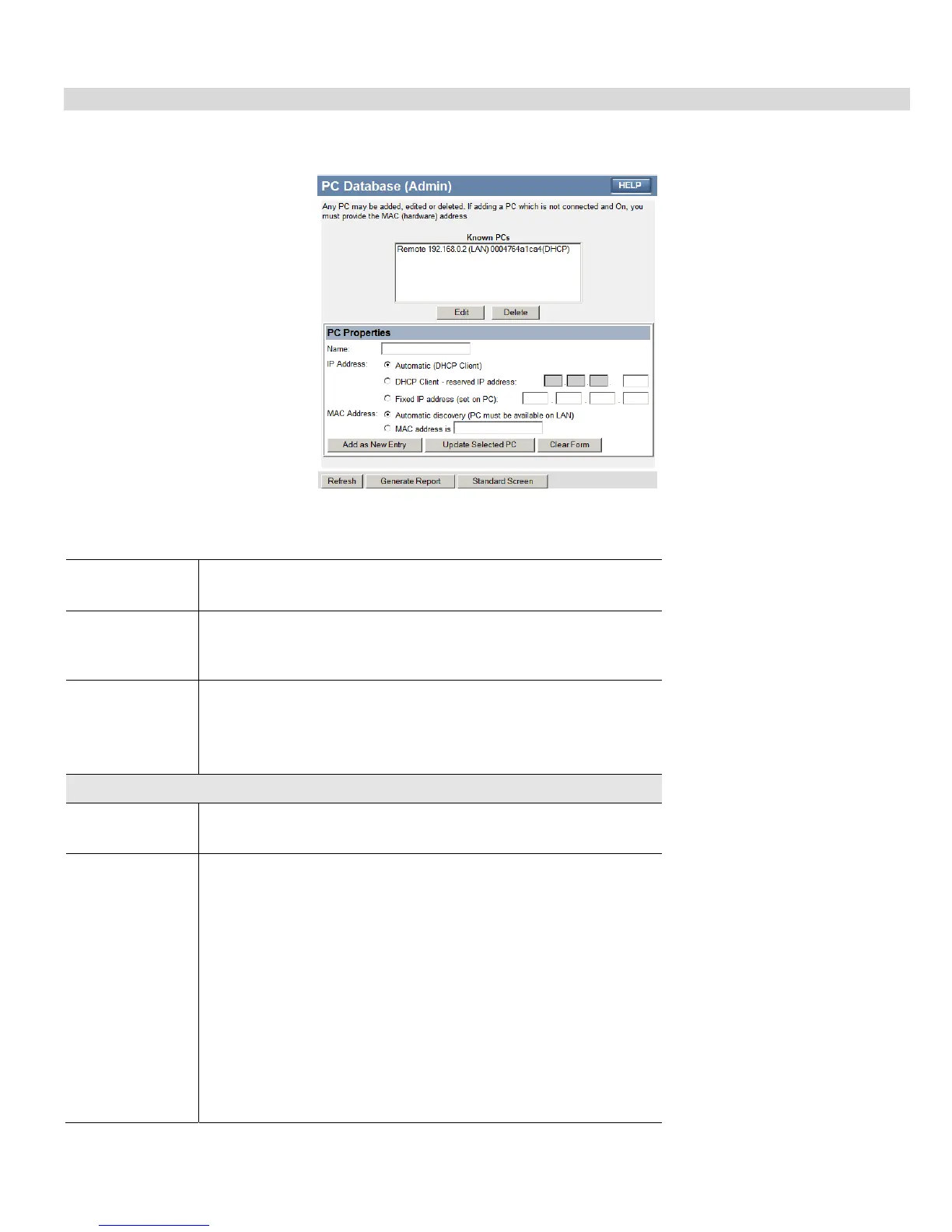
This screen is displayed if the "Advanced Administration" button on the PC Database is clicked. It provides more control than the
standard PC Database screen.
Figure 44: PC Database (Admin)
Data - PC Database ( Admin) Screen
Known PCs
This lists all current entries. Data displayed is name (IP Address) type.
The "type" indicates whether the PC is connected to the LAN.
Edit
Use this to change the data for the selected PC in the list. The data for
the selected PC will then be shown in the "Properties" area, where it
may be edited. (Click "Update" to save any changes.)
Delete
Use this to Delete the selected PC from the list. This should be done in
2 situations:
• The PC has been removed from your LAN.
• The entry is incorrect.
PC Properties
Name
If adding a new PC to the list, enter its name here. It is best if this
matches the PC's "hostname".
IP Address
Select the appropriate option:
• Automatic - The PC is set to be a DHCP client (Windows: "Ob-
tain an IP address automatically"). The Broadband Router will
allocate an IP address to this PC when requested to do so. The IP
address could change, but normally won't.
• DCHP Client - Reserved IP Address - Select this if the PC is set
to be a DCHP client, and you wish to guarantee that the Broad-
band Router will always allocate the same IP Address to this PC.
Enter the required IP address. Only the last field is required; the
other fields must match the Broadband Router's IP address.
• Fixed IP Address - Select this if the PC is using a Fixed (Static)
IP address. Enter the IP address allocated to the PC. (The PC must
be configured to use this IP address.)
73






 To Next Page