Broadband Router User Guide
82
Upgrade Firmware
The firmware (software) in the Broadband Router can be upgraded using your Web Browser.
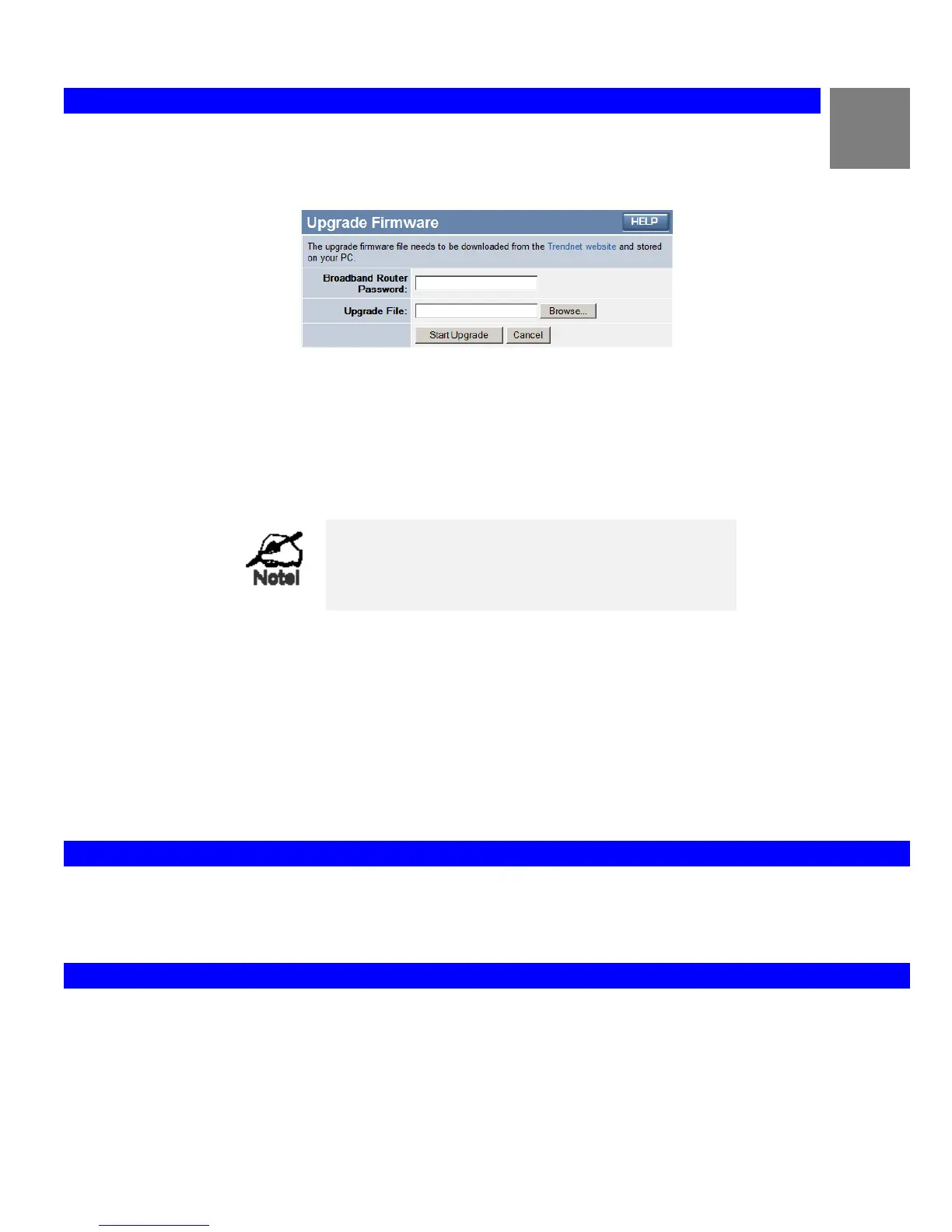
You must first download the upgrade file, then select Upgrade on the Administration menu. You will see a screen like
the following.
Figure 49: Upgrade Firmware Screen
To perform the Firmware Upgrade:
1. Click the "Browse" button and navigate to the location of the upgrade file.
2. Select the upgrade file. Its name will appear in the Upgrade File field.
3. Click the "Start Upgrade" button to commence the firmware upgrade.
The Broadband Router is unavailable during the
upgrade process, and must restart when the up-
grade is completed. Any connections to or through
the Broadband Router will be lost.
Appendix A
Troubleshooting
This Appendix covers the most likely problems and their solutions.
Overview
This chapter covers some common problems that may be encountered while using the Broadband Router and some possible solutions
to them. If you follow the suggested steps and the Broadband Router still does not function properly, contact your dealer for further
advice.
General Problems
Problem 1:
Can't connect to the Broadband Router to configure it.
Solution 1:
Check the following:
• The Broadband Router is properly installed, LAN connections are OK,
and it is powered ON.
• Ensure that your PC and the Broadband Router are on the same network






 To Next Page