Broadband Router User Guide
6
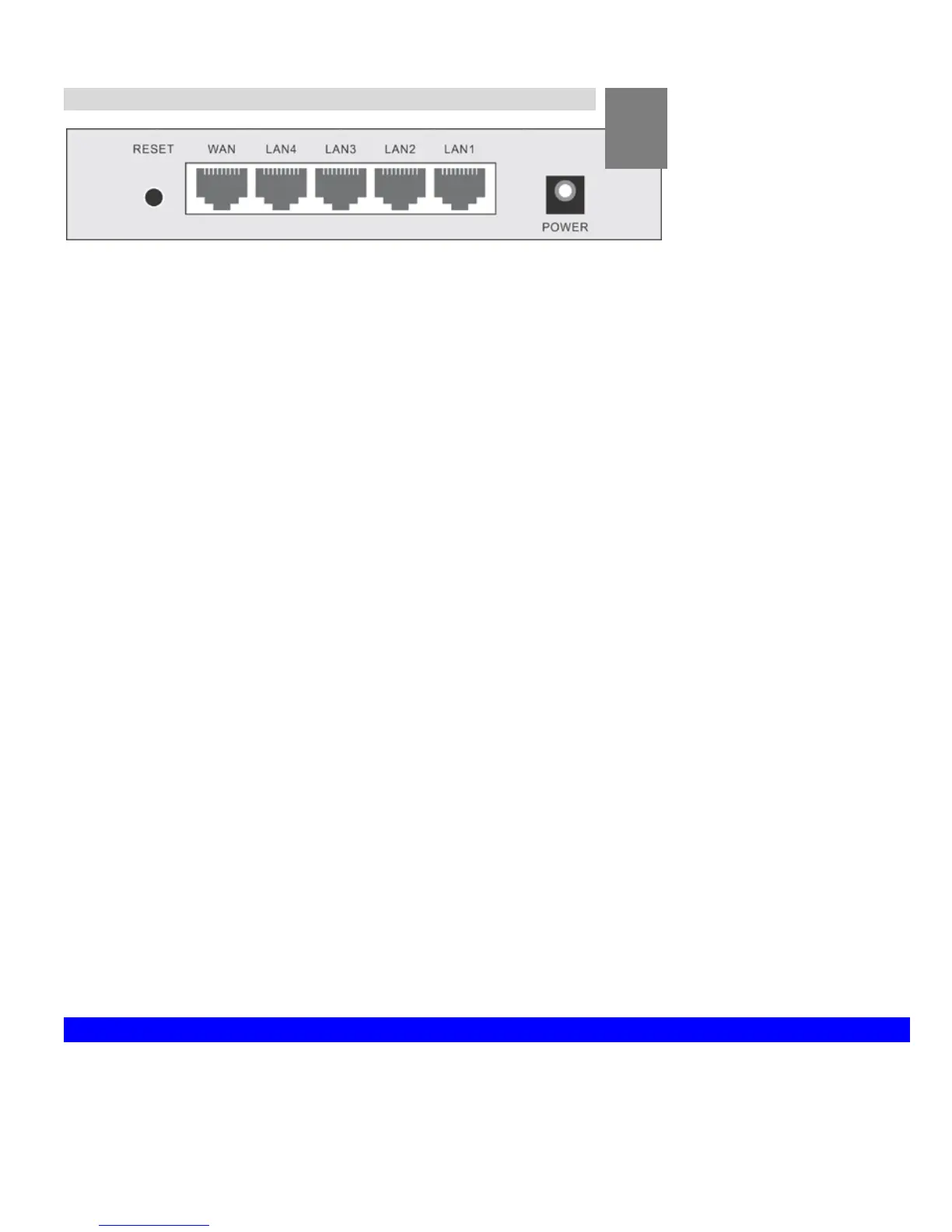
Rear Panel
2
Figure 3: Rear Panel
Reset Button
This button has two (2) functions:
• Reboot. When pressed and released, the Broadband Router
will reboot (restart).
• Clear All Data. This button can also be used to clear ALL
data and restore ALL settings to the factory default values.
To Clear All Data and restore the factory default values:
1. Power Off.
2. Hold the Reset Button down while you Power On.
3. Keep holding the Reset Button for a few seconds, until the
RED LED has flashed TWICE.
4. Release the Reset Button. The Broadband Router is now using
the factory default values.
WAN port
(10/100/1000BaseT)
Connect the DSL or Cable Modem here. If your modem came with
a cable, use the supplied cable. Otherwise, use a standard LAN
cable.
10/100/1000BaseT
LAN connections
Use standard LAN cables (RJ45 connectors) to connect your PCs to
these ports.
Note:
Any LAN port on the Broadband Router will automatically func-
tion as an "Uplink" port when required. Just connect any port to a
normal port on the other hub, using a standard LAN cable.
Power port
Connect the supplied power adapter here.
Chapter 2
Installation
This Chapter covers the physical installation of the Broadband Router.
Requirements
• Network cables. Use standard 10/100/1000BaseT network (UTP) cables with RJ45 connectors.
• TCP/IP protocol must be installed on all PCs.
• For Internet Access, an Internet Access account with an ISP, and either of a DSL or Cable modem (for WAN port usage)






 To Next Page