Page 15 of 16
3. Assign new access codes:
With a valid authority code (see page 3 or 14), an access code can be programmed
with the following instructions.
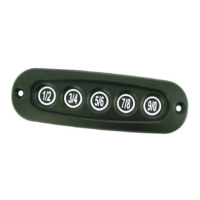
a. Press the (5 / 6) button for 5 seconds, the keypad will beep. The backlighting LED
of the keypad will flash indicating the learn mode.
b. Enter in the 5-digit authority code (see page 3 or 14). Keypad will provide two
confirmation beeps.
c. Press and release the button that corresponds to the access number. For
example, press (1 / 2) button for access #1 and press (3 / 4) button for access #2.
During this activity you are defining 1 of 5 access numbers. A subsequent code
will be assigned to this access #. The keypad will provide a confirmation beep
after this single button press.
d. Enter in your new 5-digit access code. The keypad will provide confirmation
beeps.
e. Re-enter new access code. The keypad will provide confirmation beeps.
Repeat process to assign additional access codes.
Up to 5 different access codes can be assigned at one time. As additional access codes are
defined, pre-existing access codes are over-written. For example, if a new access code is
assigned for access #3, the previous access #3 code is no longer valid. The following table
can be used to document the access code assignment.
Access # User Name
Digit
1
Digit
2
Digit
3
Digit
4
Digit
5
1
2
3
4
5



 To Next Page