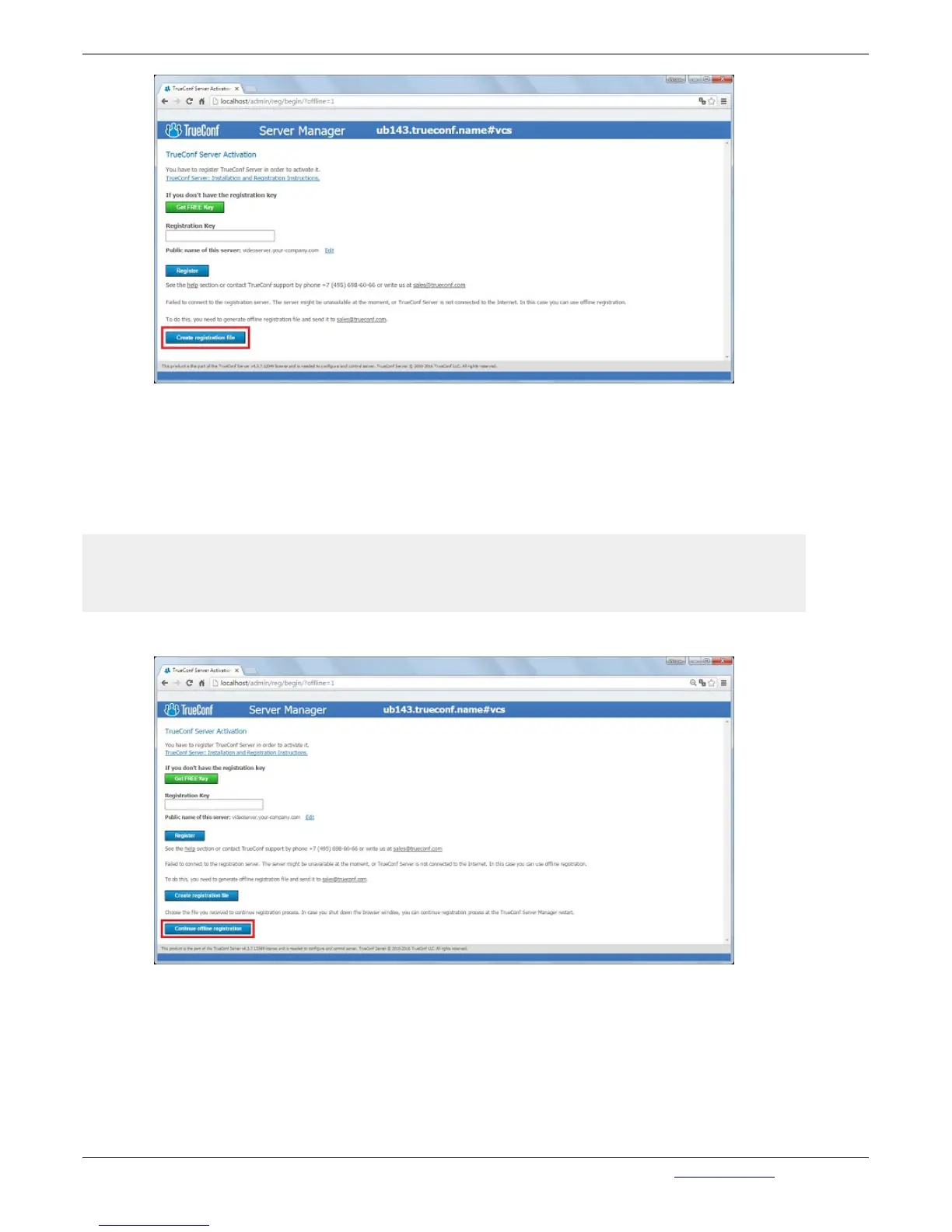
Offlinereg.vrg file will be automatically saved in the default "Downloads" folder of the browser.
Transfer this file using a flashdrive to a PC connected to the Internet and send at
support@trueconf.com. In return, you will get the file you will need to transfer to your PC with the server
you are registering offline.
* If downloading files option is disabled in your browser, you will not be able to download the offline
registration file. Enable downloading option in your browser, then press again "Create registration file".
Note: always wait for a response to a request you have sent and do not restart the offline registration.
If you restart the offline registration, the file sent for the previous request would not work aand you will
have to do the process again to register.
Click on "Continue offline registration" on your computer and select the file offline.reg:
When offline registration is successfully finished, the Web manager will notify that the server is
registered.
1.5. Administering the Server
Server can be administered from any computer in the same local network where it is installed. The
access is limited to the following ranges of IP addresses: 10.*, 192.168.*, 172.16-172.31, 127.
At this point the installer does not open a port in the firewall for TrueConf Web Manager. If the


 To Next Page