The Create new SSL certificate button allows to reissue a server certificate signed by the same root
certificate if expiration date is still valid. Otherwise, the certificate will be signed by a new root
certificate. This option is necessary to extend the validity period for another 365 days or to update your
company information in the certificate.
Downloaded Certificate
If the certificate has already been downloaded, this section will contain basic parameters of the
certificate.
Certificate format, key format and key correspondence to certificate are being checked during
download. Should at least one check fail, certificate and key files would not be not saved.
3.4. "Users" Group of Settings
3.4.1. "User accounts" Section
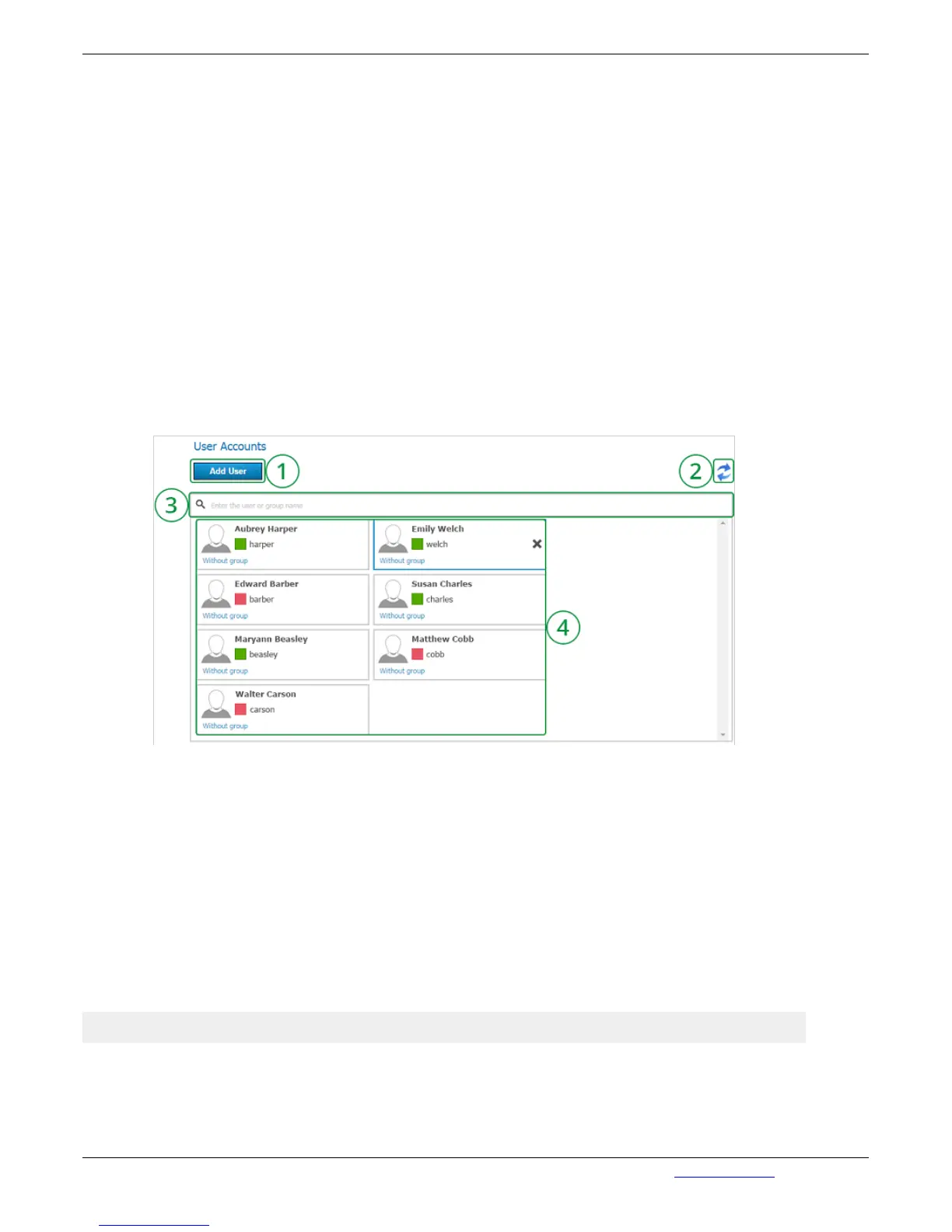
In User Accounts section you can add and manage users.
* The maximum number of accounts in the free version of TrueConf Server Free is 6.
1. Adding new user. Clicking on this button will open a form for filling in the information about the
user.
2. Refreshing information about the user.
3. Search to users in Address book. To do this, enter subscriber's data in the filed Search: enter
name or TrueConf ID. When "Online" checkbox is selected, the search will be conducted among
the users who are currently online.
4. List of users, registered on the server. User status is indicated in colored, square shaped icons
displayed to left of TrueConf ID. Green color – the user is online, red – the user is offline, yellow –
the user is in the conference, yellow star - the user is owner in the conference. In order to change
user information, click on the box with user’s information. To delete a user click the x icon; this
appears after pointing to a username with a cursor.
Note: In LDAP mode user edit is not possible, edit users using your LDAP directory tools.
By clicking on any account name or TrueConf ID you will open an editing window:



 To Next Page