Introduction
Welcome to the Turtle Beach Grip 500 Gaming Mouse User’s Guide.
This user’s guide is
intended to introduce you to the features and operation of your Grip 500 Gaming Mouse
and the configuration software that can be used to enable and configure all its powerful
features.
For more help, visit www.turtlebeach.com/grip500.
Installation
Visit www.turtlebeach.com/grip500 to download the Grip 500 Configuration Software.
Once the download completes, open the installer and follow the installation instructions.
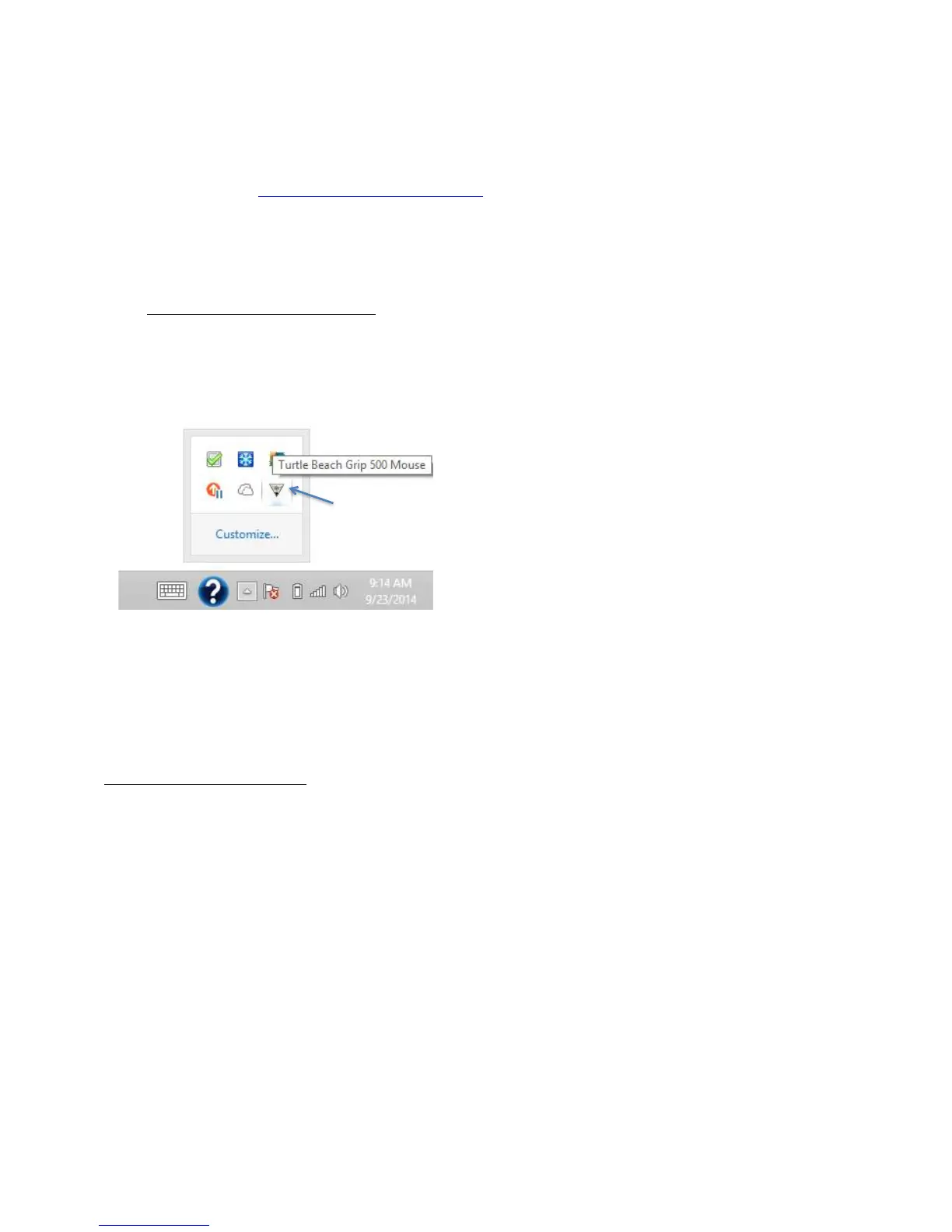
After installation, the Grip 500 Configuration Software and run in the background. You can
launch the program by double clicking it in the system tray per the picture below.
Plug your Grip 500 Mouse into an available USB port. Occasionally, Turtle Beach will upgrade
the firmware in the mouse. If the program says that it wants to upgrade the firmware in your
mouse, please click OK and the mouse firmware will be updated.
By default, the Grip 500 Configuration Software will be located in your Program Files folder
on Windows.
Installation Requirements
Grip 500 Configuration Software requires approximately 50 MB of free hard drive space and
one of the currently supported platforms:
Windows XP (32 and 64 bit)
Windows Vista (32 and 64 bit)
Windows 7 (32 and 64 bit)
Windows 8 (32 and 64 bit)
Windows 8.1 (32 and 64 bit)



 To Next Page